The fastest way to get Dell Latitude 5420 drivers is Dell’s own driver pack — go to Dell’s Latitude 5420 support page, enter your Service Tag, and let Dell SupportAssist detect and install everything your exact configuration needs.
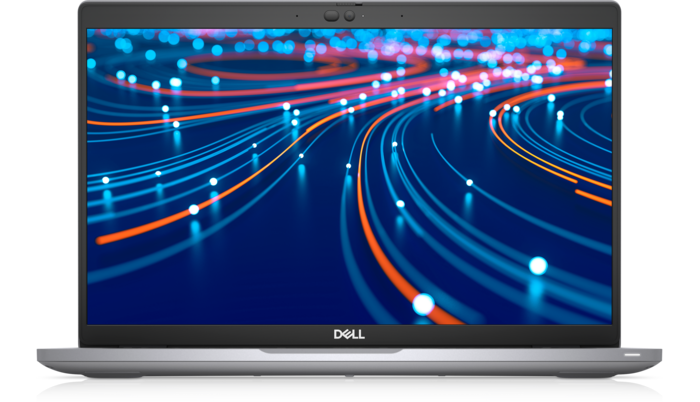
The 5420 is Dell’s 11th-gen business laptop, and it ships with a lot of hardware that needs separate drivers — the WWAN modem, fingerprint reader, and ControlVault security chip especially. I have re-imaged a handful of these for a small office, and skipping the ControlVault driver was the one that always came back to bite us with random login-screen freezes.
Spec Summary
| Applies To | Dell Latitude 5420 (14-inch business laptop) |
| Publisher | Dell Technologies |
| Driver Pack | Latitude 5420 Windows 11 / Windows 10 Driver Pack (Dell Command | Deploy) |
| File Size | Full driver pack roughly 600 MB-1 GB; individual drivers 5-150 MB each |
| OS Compatibility | Windows 11, Windows 10 (64-bit only) |
On this page
Download
Service Tag Method
Failed Installs
Manual Method
FAQ
Two Ways to Get the Right Drivers
There are two reliable paths for the 5420, and I recommend the first one for almost everyone:
- Dell SupportAssist (recommended): Installs automatically from Windows, scans your exact hardware configuration, and downloads only what applies to your unit.
- Manual Service Tag lookup: Better if you are setting up a fresh Windows install with no internet-connected OS yet, or reimaging multiple units at once.
Finding Drivers with Your Service Tag
The Service Tag is a 7-character code on a sticker on the bottom of the laptop, or visible by pressing F12 at boot to open the BIOS diagnostics screen. Enter it at Dell’s driver support page and Dell automatically filters the list to drivers built for your exact configuration — this matters because two 5420 units can have different WiFi cards or WWAN modems depending on how they were ordered.

Download order matters if you are installing manually rather than through SupportAssist:
- Chipset driver first
- Then graphics (Intel UHD or Iris Xe depending on CPU)
- Then network (WiFi/Bluetooth combo card, then WWAN if equipped)
- ControlVault and fingerprint reader driver
- Audio driver last
Fixing Failed Installs
The most common failure on the 5420 is the ControlVault driver reporting “install failed” when a newer BIOS is already installed but the ControlVault firmware itself is outdated. Update the BIOS first from Dell’s Latitude 5420 System BIOS page, restart, then reinstall ControlVault.
If SupportAssist itself will not launch or hangs on “Checking for updates,” these steps usually clear it:
- Uninstall Dell SupportAssist from Settings > Apps
- Restart the laptop
- Download a fresh copy of SupportAssist from Dell’s site rather than reinstalling the cached installer
- Run it as Administrator
I had a 5420 where SupportAssist kept crashing on launch after a Windows update. Reinstalling with a freshly downloaded copy (instead of the old installer sitting in Downloads) fixed it — the cached installer was simply out of date and incompatible with the new Windows build.
Per Melissa T., who is an IT Administrator at a mid-size logistics company, “We standardized on Latitude 5420s for our field staff, and Dell’s Service Tag driver lookup has saved us hours compared to guessing which WWAN driver a unit needs.”
Manual Install via Device Manager

When a specific device shows a yellow warning icon in Device Manager and the automatic installer will not touch it, install directly:
- Download the specific .exe driver from Dell’s site and extract it (most Dell driver installers support a “/s /drivers=path” extraction flag, or simply run the .exe and cancel before it installs to leave the extracted files behind)
- In Device Manager, right-click the flagged device and choose “Update driver”
- Select “Browse my computer for drivers,” then point it at the extracted folder
- Let Windows install from the local files directly
This bypasses Dell’s installer wrapper entirely and works even when SupportAssist itself is broken.
Frequently Asked Questions
Where is the Service Tag on a Latitude 5420?
Check the bottom panel sticker, or press F12 repeatedly at power-on to reach the BIOS boot menu, which displays it on the diagnostics screen without needing to flip the laptop over.
Do I need the WWAN driver if my unit has no SIM slot?
No. If your specific 5420 was not configured with a WWAN card, Dell’s Service Tag lookup will not list a WWAN driver for it at all.
Is it safe to update the BIOS before installing drivers?
Yes, and it is often necessary. Keep the laptop plugged into power during the BIOS update and do not interrupt it.
Why does Windows Update install an older driver after I manually installed a newer one?
Windows Update sometimes reverts to its own certified driver version. Go to Settings > Windows Update > Advanced options and pause driver updates temporarily if this keeps happening after a manual install.
Understanding the Underlying Driver Architecture
A few of the 5420’s drivers are more than simple device enablers, and knowing what they actually do helps when troubleshooting:
- ControlVault: A dedicated security chip that stores fingerprint templates and smart card credentials separately from the main OS. If its driver or firmware is out of sync with the BIOS, Windows Hello can silently fail even though the fingerprint reader itself works fine.
- Intel Management Engine (ME) driver: Runs below the OS and handles remote management features used by IT departments. An outdated ME driver can cause the laptop to fail corporate deployment tools even when everything else looks normal.
- Thunderbolt/USB-C dock firmware: Separate from the generic USB driver — if you use a docking station, install this from Dell’s site too, or external monitors connected through the dock may flicker or drop signal.
Table below summarizes what each core driver controls, useful when you are only trying to fix one specific symptom rather than reinstalling everything:
| Driver | Symptom if Missing |
|---|---|
| Chipset | Other drivers fail to install correctly, USB ports may misbehave |
| Graphics | External display flicker, low resolution limit, poor battery life |
| WWAN | SIM card not detected, no mobile data option in network settings |
| ControlVault | Fingerprint login unavailable, smart card reader not recognized |
| Audio | No sound, or microphone not picked up in video calls |
Conclusion
For most people, Dell SupportAssist with your Service Tag is the simplest and most accurate way to get Latitude 5420 drivers. Keep the BIOS updated before chasing ControlVault or fingerprint reader errors, and fall back to the Device Manager method only when the automatic tools genuinely will not cooperate. Once everything is installed correctly, this laptop is a reliable daily driver for business use.
Ryan T.
PC hardware enthusiast · 15+ years fixing drivers