Keeping your DDPAI Z40’s firmware up to date fixes bugs, improves stability, and occasionally adds new features to the camera. Here’s a complete walkthrough of how to check for and install firmware updates on the Z40.
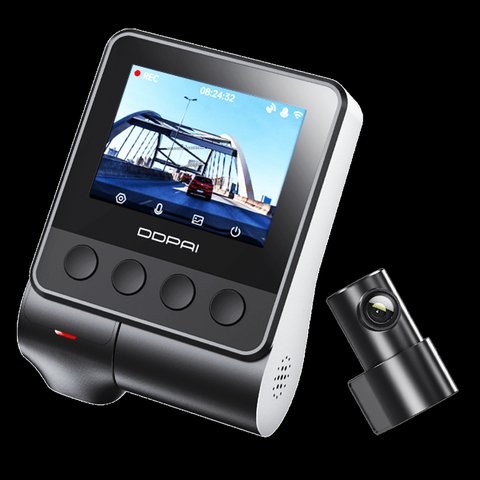
Quick Facts
| Category | Detail |
|---|---|
| Brand | DDPAI |
| Model | Z40 |
| Front camera | 1944P, Sony IMX335 sensor, 140° view, F1.8 lens |
| Rear camera | 1080P, rotatable 360° |
| Processor | SigmaStar 8629Q SoC |
| Display | 2″ IPS on-device preview |
| Power backup | Supercapacitor (no lithium battery) |
| Storage protection | D²save technology |
| Update methods | DDPAI app or manual microSD card |
About the Z40
- 1944P front camera using a Sony IMX335 sensor, 140° view, F1.8 lens
- 1080P rear camera, rotatable 360°, can be repositioned for interior use
- SigmaStar 8629Q SoC processor
- 2″ IPS display for on-device preview
- Supercapacitor power backup instead of a lithium battery
- D²save storage technology to protect emergency footage even during card failure
Method 1: Updating Firmware Through the DDPAI App
- Power on the Z40 and connect your phone to its WiFi network
- Open the DDPAI app and navigate to Device Settings
- Select “Firmware Update” or “Check for Updates,” depending on your app version
- If an update is available, follow the on-screen prompts to download and install it
- Do not power off the camera or disconnect WiFi during the update process
- The camera will typically restart automatically once the update completes
Method 2: Updating Firmware via microSD Card
If the app-based update fails or isn’t available for your region, you can update manually. Download the latest firmware file from DDPAI’s official manual page, unzip the downloaded file, and copy the contents directly onto the root of your Z40’s microSD card — not inside a subfolder. Reinsert the card into the powered-off camera, then turn it on. The Z40 should detect the firmware file automatically and begin the update process, usually indicated by an on-screen progress message.
Always verify you’ve downloaded the firmware specifically for the Z40 rather than a similarly named model like the Z40 Pro or Z50 — installing firmware built for a different hardware revision can cause the camera to malfunction, and DDPAI’s manual pages list firmware separately per exact model for this reason.
What to Do If the Update Fails or the Camera Won’t Boot
- Reformat the microSD card through the camera itself and retry the manual update process
- Try a different, known-good microSD card in case the current one is failing
- Ensure the camera has stable power throughout the update — a mid-update power loss can cause boot issues
- If the camera becomes unresponsive after a failed update, contact DDPAI support for recovery guidance specific to your firmware version
For the official manual and current firmware downloads, see DDPAI’s official Z40 manual page.
Why Keeping Firmware Current Actually Matters
Dash cam firmware updates aren’t just cosmetic — they often fix real bugs affecting recording reliability, like dropped frames during high-bitrate recording or connectivity issues with the companion app. An outdated Z40 running old firmware may also lose compatibility with newer versions of the DDPAI app over time, since app updates sometimes assume a minimum firmware baseline on the camera side. Treating firmware updates as routine maintenance, similar to checking your car’s oil, avoids a slow accumulation of small reliability issues.
Troubleshooting Common Issues
- Problem: The app can’t find the Z40 during setup or an update attempt. Make sure your phone is connected to the Z40’s own WiFi network (not your home network) before opening the app, since the initial connection happens directly between phone and camera.
- Problem: The update download stalls partway through. Move your phone closer to the camera, since a weak direct WiFi signal between phone and dash cam is the most common cause of a stalled transfer, then retry the update from the beginning rather than assuming it will resume.
- Problem: The rear camera image looks rotated or upside down after an update. Use the rear camera’s rotation setting in the app to correct orientation, since firmware updates occasionally reset custom rotation settings to default.
- Problem: The microSD card isn’t recognized after a manual firmware update. Reformat the card through the camera’s own menu rather than a PC, and confirm the card meets DDPAI’s minimum speed class requirement for dash cam recording.
- Problem: The camera keeps restarting in a loop after installing new firmware. Remove the SD card, power cycle the camera without it inserted, then reinsert a freshly reformatted card containing only the correct firmware file for the Z40 specifically.
Frequently Asked Questions
How often does DDPAI release firmware updates for the Z40?
Update frequency varies; check the app periodically or subscribe to DDPAI’s notifications if available for your region.
Will updating firmware erase my existing footage?
Typically no, firmware updates don’t erase your recorded footage, but backing up important clips beforehand is good practice regardless.
Can I roll back to an older firmware version?
This isn’t officially supported in most cases; check with DDPAI support if you experience issues after updating and need to revert.
Does the update process work over cellular data instead of WiFi?
The camera connects to your phone directly over its own local WiFi network; your phone’s cellular data isn’t used for the direct camera connection.
How long does a typical firmware update take?
Most updates complete within a few minutes, though this can vary depending on file size and card write speed.
Is it safe to update while the camera is mounted in the car?
Yes, as long as the vehicle is parked and the camera has stable power throughout the process.
Does updating firmware reset my custom settings?
Typically no, but it’s good practice to note your preferred settings beforehand in case a reset does occur.
Where can I check my current firmware version?
This is usually visible in the DDPAI app’s device information or About section for the connected camera.
Can I downgrade to an older firmware version if needed?
This isn’t officially supported in most cases; contact DDPAI support if you experience issues after updating and need help reverting.
Do I need to re-pair the app after a firmware update?
Usually not, though occasionally a major update may require reconnecting the camera’s WiFi network from scratch.
Does firmware update also affect the rotatable rear lens?
Firmware updates cover the whole unit, including rear lens image processing behavior, not just the front camera.
Setting a Regular Update Reminder
Since dash cams tend to be a “set it and forget it” device once installed, it’s easy to go months or years without checking for firmware updates. Setting a recurring phone reminder every few months to open the DDPAI app and check the Z40’s update status is a simple habit that prevents falling significantly behind on bug fixes and stability improvements without requiring you to actively think about it otherwise.
If the Camera Becomes Completely Unresponsive
In rare cases, an interrupted update can leave the Z40 unresponsive to normal power-on attempts. Before assuming hardware failure, try a full power cycle by disconnecting power for a full minute, then reconnecting with a freshly formatted card containing only the correct firmware file. If the camera still won’t respond after this, DDPAI support can typically walk you through a more advanced recovery procedure or confirm whether a warranty replacement is needed.
Conclusion
Keeping the Z40’s firmware current is a quick maintenance task that helps avoid bugs and keeps features working as intended. Check for updates every few months through the app, and fall back to the manual SD card method if the app-based update ever fails.
Ryan T. is a PC hardware enthusiast with 15+ years of experience fixing drivers and testing consumer tech. He writes for softwaredriverdownload.com.