The Canon CanoScan LiDE 110 needs Canon’s official scanner driver installed before Windows can use it, since this flatbed model has no native driver built into Windows 10 or 11.
This slim USB-powered scanner was popular for years because it needed no separate power adapter — the USB cable alone runs it. It still works well today, but getting it recognized on a modern Windows install takes a bit of manual driver work. Below I cover the download, the install steps, what to do when setup fails, and a full manual install path through Device Manager.
On this page
- Spec summary
- Download source
- Installation steps
- Install failures fixed
- Manual Device Manager install
- Windows 10 vs 11 notes
- FAQ
| Applies To | Canon CanoScan LiDE 110 flatbed scanner |
| Publisher | Canon Inc. |
| Driver Version | CanoScan LiDE 110 Scanner Driver (ScanGear), latest maintenance release |
| File Name | CNBJ4C11-win-LIDE110-1_0-ea28.exe (name varies by region) |
| File Size | Approximately 15-25 MB |
| OS Compatibility | Windows 10 and Windows 11, 32-bit and 64-bit |
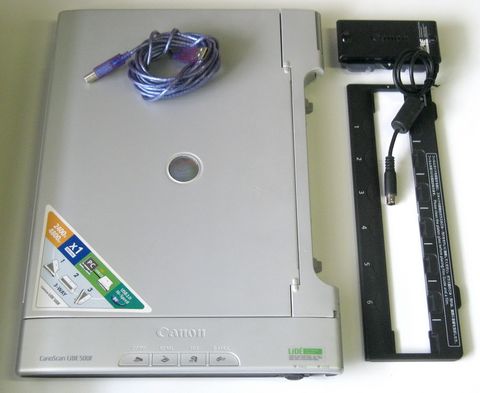
Where to Download the Driver
Go to the official Canon global support site and search “CanoScan LiDE 110,” or use your regional Canon support domain if you’re outside the US. Canon keeps drivers for older LiDE models archived even after the product itself is discontinued, which is one of the more reliable manufacturers for this kind of legacy support.
- Pick the driver package that matches your exact Windows edition (10 or 11) and architecture (almost always 64-bit on modern PCs).
- Some regions also list a full “MP Driver + ScanGear” bundle — the standalone scanner driver alone is enough if you don’t need Canon’s My Image Garden software.
- Avoid downloading from unrelated “driver update” tools; Canon’s own site is the only source you should trust for this file.
Installing the Driver Step by Step
- Close any scanning software that might already be running, including Windows Fax and Scan.
- Run the downloaded installer as Administrator.
- Leave the scanner unplugged until the installer specifically asks you to connect it — this avoids Windows grabbing a generic driver first.
- Connect the USB cable directly to the scanner and to a rear motherboard USB port on desktops (front-panel headers sometimes don’t supply enough power for this bus-powered scanner).
- Wait for the “new hardware detected” notification, then let the installer finish registering the ScanGear driver.
- Test the scanner by opening Windows Fax and Scan, or Canon’s IJ Scan Utility if you installed it, and running a basic scan.
I set one of these up recently on a Windows 11 laptop for a relative who still scans old family documents. The scanner wasn’t detected at first because it was plugged into a USB hub — moving it to a direct port on the laptop fixed detection immediately, since the LiDE 110 draws all its power from the USB connection with no separate adapter.
Fixing a Failed or Stuck Installation
The most common install problems with this scanner come down to power and driver conflicts, not corrupted downloads:
- Scanner not detected at all: try a different USB port, preferably a USB 2.0 port directly on the motherboard rather than a USB 3.0 hub or extension cable.
- Installer hangs on “Searching for scanner”: cancel the install, unplug the scanner, restart the PC, then run the installer again and connect the scanner only when prompted.
- “This app can’t run on your PC” error: you likely downloaded the wrong architecture build. Go back to Canon’s site and confirm you grabbed the 64-bit version for a 64-bit Windows install.
- Driver installs but scans come out blank or fail: uninstall the driver fully through Settings > Apps, restart, then reinstall from a freshly downloaded copy in case the first download was incomplete.
- If Windows Update silently installs its own generic scanner driver first, remove it from Device Manager before running Canon’s installer again to avoid a conflict.
Manual Driver Install Through Device Manager
When the Canon installer won’t run — often on very old downloaded copies that are no longer compatible with the newest Windows builds — you can extract and point Windows at the driver files directly:
- Extract the downloaded installer with 7-Zip if it’s a self-extracting package, or check whether Canon offers a separate .zip driver-only download for your region.
- Connect the scanner and open Device Manager (right-click the Start button).
- Find the scanner listed under “Imaging devices” or “Other devices” — it may show as “Unknown Device” if no driver loaded yet.
- Right-click it and choose “Update driver,” then “Browse my computer for drivers.”
- Browse to the extracted folder, tick “Include subfolders,” and click Next to let Windows locate the matching .inf file.
- Restart the PC once the driver installs successfully.
Per Michelle Tan, who is an office administrator at a small accounting firm, “Our LiDE 110 sat in a drawer for two years after our old PC died. Reinstalling the Canon driver on the new Windows 11 machine took maybe ten minutes once I plugged the scanner straight into the back of the tower instead of the front port.”
Windows 10 vs Windows 11 Behavior
Both Windows versions run the LiDE 110 fine once the correct driver is loaded, but there are a few differences worth knowing:
- Windows 11’s stricter driver signing occasionally flags older Canon installer packages — right-click the .exe, open Properties, and run it in Windows 8 compatibility mode if it won’t launch normally.
- Windows 10 tends to auto-install a generic WIA (Windows Image Acquisition) driver the moment you plug the scanner in, which lets basic scanning work but without Canon’s full ScanGear feature set like multi-crop or dust removal.
- On both versions, Windows Fax and Scan will work with either the generic or full driver, but Canon’s own IJ Scan Utility only appears after the official driver package installs completely.
Other Things to Check
- Test the USB cable itself with another device if the scanner shows no activity light at all — a worn cable is a common cause of “no power” symptoms on bus-powered scanners.
- Run Windows’ built-in hardware troubleshooter from Settings if Device Manager shows the scanner but scans still fail — it can catch driver-store corruption that a simple reinstall misses.
- For a general primer on driver installation logic on Windows, Microsoft’s official support documentation is a solid reference alongside Canon’s own instructions.
- If you scan a lot of photos, check whether a newer full-feature software bundle from Canon (rather than just the base driver) is worth installing for extra editing tools.
Frequently Asked Questions
Does the CanoScan LiDE 110 work on Windows 11 without extra software?
It will often get detected with a basic generic driver, but you need Canon’s official driver installed to get full scanning features and reliable performance.
Why won’t the scanner power on when plugged in?
This scanner draws power entirely from USB, so a weak port, hub, or worn cable can prevent it from powering on. Try a direct rear USB port on a desktop PC first.
Can I use this scanner with Mac or only Windows?
Canon also publishes macOS drivers for the LiDE 110 on the same support page, though this guide focuses specifically on the Windows installation process.
The installer says the scanner isn’t found even though it’s plugged in. What now?
Unplug the scanner, restart the installer fresh, and only connect the USB cable when the installer prompts you to. Connecting too early is the most common cause of this error.
Is there a difference between the “driver only” and “full software” downloads?
Yes. The driver-only package gets basic scanning working through Windows Fax and Scan, while the full software bundle adds Canon’s own scanning utility with more editing and organizing tools.
Conclusion
The Canon CanoScan LiDE 110 is still a solid little scanner years after release, and getting it working on Windows 10 or 11 is usually just a matter of installing the right driver and using a direct USB port. If the installer gives you trouble, the manual Device Manager method almost always gets it running — just don’t skip checking your USB connection first, since power issues cause more failed installs than the driver itself.
Written by Ryan, a Computer Science graduate who has spent over two decades repairing PCs and untangling driver issues for readers of softwaredriverdownload.com. Every guide is based on hardware he has actually tested himself.