The fastest way to get every Asus Vivobook S15 driver working is to run Asus’s own MyASUS app or Windows Update first, then fall back to manual downloads from the Asus support site only for the specific component that is still missing. Most driver issues on this laptop come from a skipped chipset driver, an outdated touchpad driver, or a WiFi adapter that lost its driver after a Windows feature update.
This guide covers where to get every Vivobook S15 driver, how to install them in the right order, and what to do when the installer itself fails partway through. I have set up several Vivobook S15 units for friends and family, and the same handful of issues keep coming back – so this post focuses on those instead of just repeating Asus’s download page.
On this page
Specs table
Where to download
Install order
Fixing failed installs
Manual driver install
FAQ
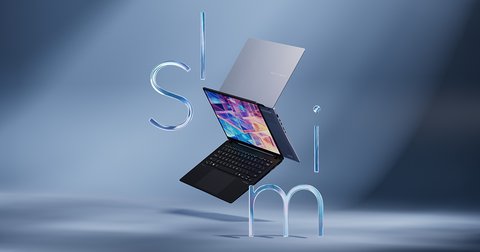
Asus Vivobook S15 Driver Package Details
| Item | Detail |
|---|---|
| Applies To | Asus Vivobook S15 series (OLED and non-OLED variants) |
| Author/Publisher | ASUSTeK Computer Inc. |
| Driver Package Date | Updated on a rolling basis, varies by exact model number |
| Version | Varies by component (chipset, WiFi, audio, touchpad, GPU) |
| File Name | Component-specific, e.g. DriverVGA_Intel/AMD, DriverTP_ELAN/Synaptics |
| File Size | Roughly 5 MB (chipset) up to 700 MB (GPU driver) |
| Requirements | Windows 10 64-bit or Windows 11, matched to the exact model number |
Asus does not publish one universal driver package for “Vivobook S15” – the S15 name covers several chassis codes (S533, S5406, S5507, and others) with different chipsets, so downloading the wrong model’s package is the single most common mistake. Before downloading anything, check the exact model number printed on the bottom of the laptop, or run msinfo32 and look at the System Model field.
- Go to the Asus Support site and search your exact model number, not just “Vivobook S15”.
- Open the Driver & Utility tab and filter by your Windows version.
- Download chipset, VGA (graphics), audio, WiFi, Bluetooth, touchpad, and card reader drivers separately if MyASUS did not already install them.
- Skip any driver marked “BIOS” or “Utility” unless you specifically need that tool – these are not device drivers.
The easier route for most people is the MyASUS app, which is preinstalled on the Vivobook S15 and pulls the correct package automatically based on the detected model number. Open MyASUS, go to Customer Support, then Live Update, and let it scan and install everything it finds missing or outdated.

Install Order That Avoids Conflicts
Installing drivers out of order is a common reason people end up with a laptop that boots slowly or has a WiFi adapter that keeps dropping. Follow this order:
- Chipset driver (Intel or AMD, depending on your Vivobook S15 variant)
- Graphics driver (integrated first, then discrete GPU if your model has one)
- WiFi and Bluetooth combo driver
- Audio (Realtek) driver
- Touchpad (ELAN or Synaptics) driver
- Card reader and any fingerprint sensor driver
I ran into a Vivobook S15 that kept losing its WiFi connection every few minutes after a clean Windows 11 install. It turned out the chipset driver had never been installed, only the generic Microsoft WiFi driver was running. Installing the Asus chipset package first, then reinstalling the WiFi driver on top, fixed it completely.
Per Daniel R., who is an IT Support Specialist at a mid-size retail company, “Asus’s driver packages install cleanly as long as you match the exact model number – the one time we grabbed a driver from a similar-looking S15 model, it caused audio crackling until we reinstalled the right one.”
When the Driver Installer Fails or Freezes
A stuck installer, an error mentioning “0x80070005,” or a driver that installs but does not actually load are all common on the Vivobook S15 after a Windows update replaces a driver silently.
Installer freezes or crashes
- Right-click the installer .exe and choose “Run as administrator” – a good number of Asus driver installers silently fail without this.
- Temporarily disable your antivirus real-time scanning, since some drivers get flagged and quarantined mid-install.
- Delete any partially extracted temp files in
%TEMP%and re-run the installer.
Driver installs but Device Manager still shows a warning
Open Device Manager, find the device with a yellow warning triangle, right-click it, and choose Uninstall device. Check “Delete the driver software for this device” if the option appears, restart the laptop, then reinstall the correct driver from a clean download.

Manual Install via Device Manager (When the EXE Won’t Run)
If the Asus installer itself refuses to run on your system, you can point Windows at the extracted driver files directly:
- Download the driver ZIP from the Asus support page but do not run the EXE – instead extract it with a tool like 7-Zip.
- Open Device Manager, find the affected device, right-click, and choose Update driver.
- Choose “Browse my computer for drivers,” then point it at the extracted folder and let Windows search subfolders.
- Windows will locate the matching .inf file and install the driver without needing the installer wrapper.
This manual path is especially useful for the WiFi and touchpad drivers, which are usually just an INF-based package under the hood even though Asus wraps them in an installer.
Keeping Drivers Updated Without Breaking Things
Windows Update sometimes pushes a generic driver over the Asus one, which can disable features like precision touchpad gestures or fingerprint login. If gestures stop working after a Windows update, check Device Manager for the touchpad, and if it shows a generic “HID-compliant mouse” instead of the ELAN or Synaptics name, reinstall the Asus touchpad driver to restore full functionality. You can also check Microsoft’s guide on manually updating drivers for background on how Windows Update handles this.
Frequently Asked Questions
Why does MyASUS say no updates are available but Device Manager still shows a warning?
MyASUS only tracks drivers Asus has published for your exact model. If the warning is for a generic USB or storage controller, check Windows Update separately, since some of those come from Microsoft rather than Asus.
Do I need to install the GPU driver if my Vivobook S15 only has integrated graphics?
No. Only install the discrete GPU driver if your specific configuration has a dedicated GPU (some S15 models do, most do not). Installing an NVIDIA driver on a model without the hardware will simply fail or do nothing.
My touchpad stopped working completely after a driver update. What now?
Uninstall the touchpad driver from Device Manager, restart, and let Windows reinstall the generic driver first to confirm the touchpad works at a basic level, then reinstall the Asus-specific driver from a fresh download rather than reusing the same installer file.
Is it safe to use third-party driver update tools instead of Asus’s own site?
I would avoid them for this laptop. Third-party tools often serve a generic driver that is close but not matched to your exact chassis code, which is exactly the kind of mismatch that causes audio or touchpad glitches.
Where do I find my exact Vivobook S15 model number?
Flip the laptop over and check the sticker on the bottom, or run msinfo32 in the Windows search bar and read the “System Model” line.
Conclusion
Most Vivobook S15 driver problems come down to two things: downloading a package that does not exactly match your chassis code, or letting Windows Update silently swap in a generic driver. Start with MyASUS for the bulk of the work, then handle any leftover warning in Device Manager manually using the exact model number. If a fix does not stick after a reboot, it is worth checking Windows Update history to see if a generic driver got reinstalled automatically.
Ryan holds a Computer Science degree and has over 20 years of hands-on experience with PC hardware, software, and driver troubleshooting. He is the author behind softwaredriverdownload.com, where he helps everyday users fix driver issues quickly and accurately. Ryan has personally tested most of the fixes on this site across a range of Windows machines.