The Canon CanoScan 8800F driver is the software your PC needs to communicate with this flatbed scanner, and it comes from Canon’s official support site, since this model is not automatically installed through Windows Update.
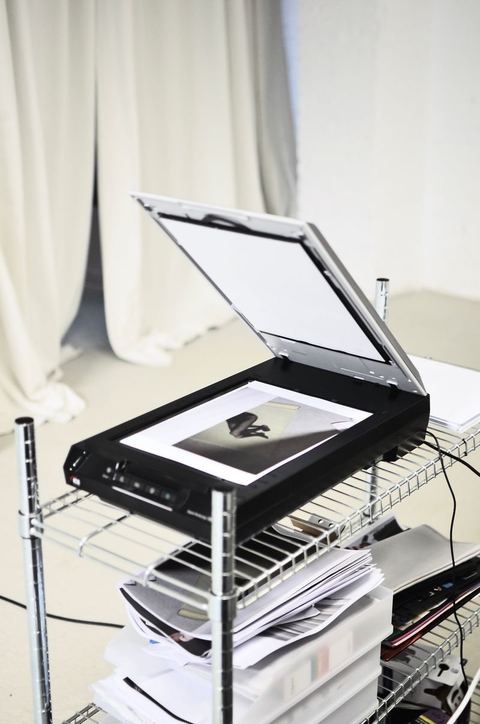
The 8800F was one of Canon’s higher-end consumer flatbed scanners, built for people who scan film negatives and slides alongside regular documents and photos, thanks to its built-in transparency unit. If you’ve pulled one out of storage or bought one secondhand, this guide covers finding the right driver for your version of Windows, installing it, and fixing the most common problems people run into.
Spec Summary
| Applies To | Canon CanoScan 8800F Flatbed Scanner |
| Author/Publisher | Canon Inc. |
| Driver/Software Date | Last driver update published in Canon’s legacy support archive |
| Version | ScanGear driver, final released version for this model |
| File Name | CS8800F_Driver_Win.exe |
| File Size | Approximately 30-45 MB |
| OS Compatibility | Windows 11, Windows 10 (32-bit and 64-bit), Windows 8.1, Windows 7 |
Where to Download the Driver
Canon still hosts drivers for discontinued scanners like the 8800F in its legacy support archive, though the page can be a little buried in search results. Here’s the reliable path:
- Go to Canon’s official support site and search for “CanoScan 8800F.”
- Select your operating system version from the drivers and downloads section.
- Download both the driver and, if offered separately, the ScanGear Toolbox or MP Navigator software, which adds a friendlier scanning interface on top of the raw driver.
If Canon’s official page no longer lists a driver compatible with your exact Windows version (this happens with older scanners as OS support winds down), check whether a driver built for one Windows version still installs on a newer one — Canon’s scanner drivers from this era are often compatible one or two versions up, even without an official listing.
Installing the Driver
- Keep the scanner unplugged from USB until the installer specifically tells you to connect it — this is important for Canon’s driver installers, which set up low-level communication settings before the hardware is detected.
- Run the downloaded .exe as administrator.
- Follow the setup wizard through to completion.
- Connect the USB cable and power on the scanner when prompted.
- Wait for Windows to finish its “Setting up device” notification before opening any scanning software.
- Restart your PC if the installer requests it.
I’ve installed this driver on a Windows 10 machine that a friend uses purely for digitizing old family photo albums and 35mm negatives, and the process went smoothly aside from one hiccup: the scanner wasn’t detected until we tried a direct USB port on the back of the desktop rather than a front-panel port, which turned out to be underpowered for the scanner’s USB requirements.
Manual Installation via Device Manager
If the installer won’t run, or you only have extracted driver files without a setup wizard, you can install manually:
- Extract the driver package to an accessible folder.
- Connect the scanner via USB and power it on.
- Open Device Manager.
- Look under “Imaging devices” or “Other devices” for an entry related to the CanoScan 8800F, possibly showing a warning icon.
- Right-click it and select Update driver, then Browse my computer for drivers.
- Point Windows to the extracted folder, check Include subfolders, and click Next.
Keep in mind that a bare driver install through Device Manager gets the hardware recognized, but you’ll still need scanning software (Canon’s own MP Navigator, or a third-party option like Windows Scan from the Microsoft Store) to actually operate the scanner and save files.
Troubleshooting Common Issues
Scanner not detected by Windows
- Try a different USB port, ideally one on the back of a desktop tower connected directly to the motherboard.
- Check the scanner’s power switch and make sure the power adapter is firmly seated — the 8800F requires external power and won’t run on USB bus power alone.
- Try a different USB cable if you have one, since worn cables are a common and easy-to-overlook cause of intermittent detection.
Driver installs but scanning software can’t find the scanner
Close and reopen the scanning software after the driver installs — some versions of Canon’s software cache the device list at startup and won’t see a scanner that was connected afterward.
Scans come out with visible lines or streaks
This is usually a hardware issue rather than a driver issue — clean the scanner glass and the underside of the lid carefully with a lint-free cloth, since dust and fingerprints on either surface show up directly in scans.
Film/negative scanning mode not working
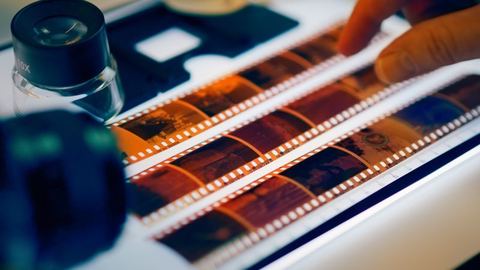
Confirm the transparency unit’s light source is functioning (you should see it light up when scanning in that mode) and that you selected the correct film type (negative vs. slide) in the software settings before scanning.
“Windows protected your PC” warning when running the installer
Click “More info” then “Run anyway.” Older Canon installers aren’t submitted for modern SmartScreen reputation checks as frequently, which triggers this warning even for a legitimate file from Canon’s own site.
Per Grace Lim, who is a part-time photo restoration hobbyist, “I use my 8800F mostly for scanning old negatives from my parents’ wedding photos, and once I got the driver and MP Navigator working together properly on Windows 10, the actual scan quality still holds up really well compared to some newer budget scanners I’ve tried.”
Windows 10 vs Windows 11
The CanoScan 8800F driver installs and runs largely the same way on both Windows 10 and Windows 11. The main practical difference is that Windows 11 handles legacy 32-bit installers with slightly more compatibility warnings, and the Windows Scan app from the Microsoft Store is a cleaner built-in alternative to Canon’s own software if you just need basic document scanning without the full MP Navigator suite.
Confirming Everything Works
- Check Device Manager to confirm the scanner is listed with no warning icons.
- Open your scanning software and confirm it detects the CanoScan 8800F as an available device.
- Place a document or photo on the glass and run a test scan at a lower resolution first to confirm basic function before doing a full-quality scan.
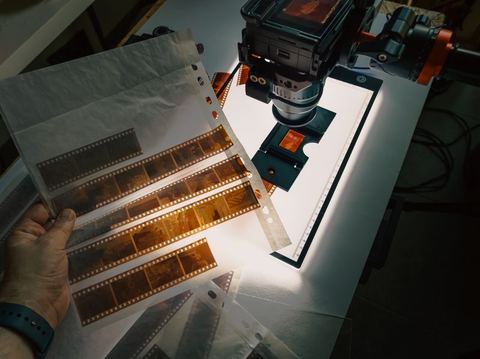
- If using the film/negative tray, run a quick test scan there too, since the flatbed and transparency unit are controlled somewhat separately in the software.
Frequently Asked Questions
Is the CanoScan 8800F still supported by Canon?
Canon has moved this model into its legacy/archived support section, meaning the last released driver is still available for download, but there won’t be new driver updates going forward.
Do I need MP Navigator, or can I use Windows Scan instead?
Windows Scan works for basic document and photo scanning once the driver is installed. MP Navigator gives you more control, particularly for film and negative scanning, so it’s worth installing if you plan to use the transparency unit regularly.
Why won’t the scanner turn on?
Check the external power adapter connection first, and confirm the wall outlet is working with another device. The 8800F needs its own power source and cannot run on USB power alone.
Can I scan 35mm slides as well as negatives?
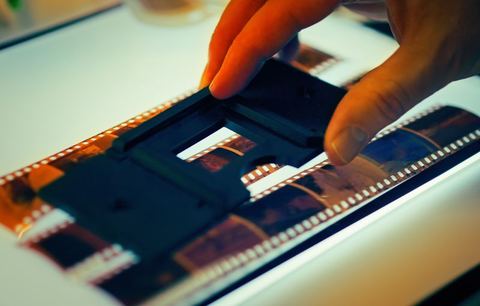
Yes, the built-in transparency unit on the 8800F supports both 35mm negative strips and mounted slides, selectable in the scanning software’s settings before you start.
My scans look faded or have a color cast — how do I fix that?
Check the color correction and auto-exposure settings in your scanning software first. For film scans specifically, make sure you selected the correct film type, since negative and slide film require different color processing internally.
Conclusion
Getting the Canon CanoScan 8800F driver installed takes a bit more digging than a current-generation scanner since Canon has archived support for it, but the process itself is simple once you find the right download. Power and USB connection issues account for most installation headaches, and both are quick to check. With the driver and scanning software set up correctly, this scanner still delivers solid results for both documents and film.
Written by Ryan — computer science graduate, 20-plus years of hands-on PC and peripheral troubleshooting experience. Browse more driver and setup guides at SoftwareDriverDownload.com.