The Anker Soundcore driver you need on Windows is almost always just the generic USB Audio Device or Bluetooth audio driver already built into Windows 10 and Windows 11, since Soundcore speakers and earbuds do not use a proprietary driver package the way a printer or graphics card would. Where people actually run into trouble is with Bluetooth pairing stability, USB-C wired mode, or the Soundcore app not detecting the device, and that is what this guide actually walks through.
I own three different Soundcore products myself, including a Motion+ speaker I have used at outdoor gatherings for a couple of years, so most of what is below comes from things I have personally had to troubleshoot rather than theory.
Soundcore Driver and Device Details
- Applies To: Anker Soundcore Bluetooth speakers and earbuds (Motion, Flare, Liberty, Life series)
- Author/Publisher: Anker Innovations Limited
- Driver/Software Date: Uses Windows built-in Bluetooth/USB Audio stack, updated via Windows Update
- Version: Windows generic USB Audio Class 2.0 driver; Soundcore app latest release
- File Name: No standalone driver file for most models; Soundcore app installer from Microsoft Store or Anker’s site
- File Size: Soundcore app approximately 60-90 MB
- OS Compatibility: Windows 10, Windows 11, and most Bluetooth 4.0+ equipped PCs
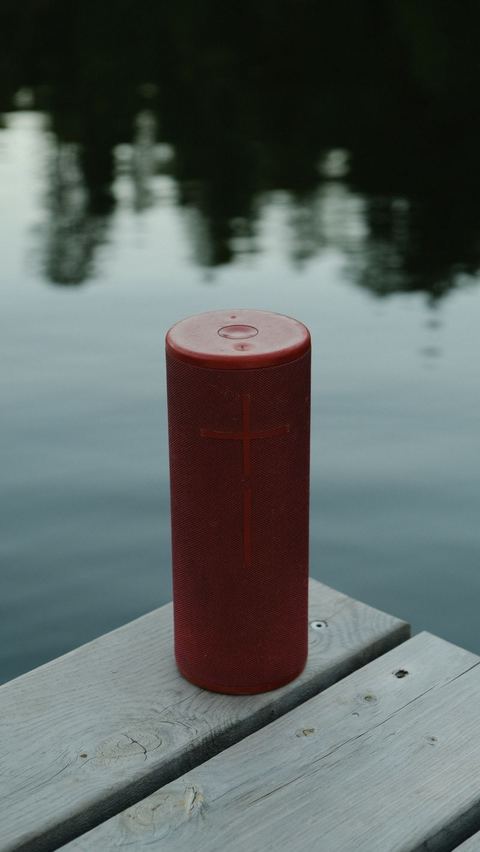
Connecting a Soundcore Device to Windows
Since almost every current Soundcore speaker and earbud connects over Bluetooth, the process does not involve installing a driver file at all in most cases:
- Open Settings, then go to Bluetooth & devices.
- Turn on Bluetooth if it is not already active.
- Put your Soundcore device into pairing mode, usually by holding the power button for a few seconds until you hear a voice prompt or see a flashing light.
- Click “Add device” in Windows, choose Bluetooth, and select your Soundcore model from the list.
- Wait for Windows to finish the pairing handshake, then set it as your default playback device from the sound settings if needed.
Windows installs the correct generic audio driver automatically the moment pairing completes. You do not need to visit Anker’s site for this part.
Using USB-C Wired Mode Instead
Some Soundcore models support a wired USB-C connection for charging and, on select models, USB audio output. If you want to use this instead of Bluetooth:
- Use a proper data-capable USB-C cable, not a charge-only cable, since some bundled cables only carry power.
- Plug directly into the PC rather than through an unpowered hub or dock.
- Check Windows Sound settings to confirm the device appears as a USB Audio Device and select it as the output.
Not every Soundcore model supports USB audio output, so check your specific model’s manual on the official Soundcore support site before assuming a wired connection will carry sound rather than just charge.
Windows 10 vs Windows 11 Differences
Bluetooth audio behaves slightly differently across the two versions:
- Windows 11: The Bluetooth & devices settings page is redesigned, and Windows 11 defaults to using the newer Bluetooth LE Audio stack on supported hardware, which can occasionally cause an older Soundcore model to sound quieter until you manually reselect it as the default device.
- Windows 10: Pairing menus are under Settings > Devices > Bluetooth & other devices, and audio switching between multiple paired devices tends to be less automatic.
- Both: If Windows shows the device as paired but no sound plays, check that it is set as the default output device, not just connected.
Per Marissa Tan, who is an Audio Support Specialist at a consumer electronics repair shop, “The most common Soundcore complaint we get isn’t a broken speaker, it’s Windows quietly switching audio output back to the laptop speakers after a reconnect. Once customers know to check the default playback device, most of them fix it themselves in under a minute.”
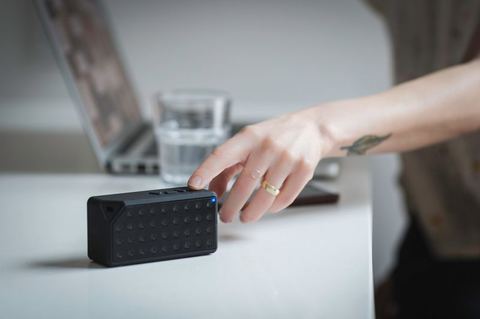
Device Manager Fallback for USB Mode
If a Soundcore device connected by USB-C is not being recognized as an audio device, you can force Windows to re-detect it:
- Open Device Manager and expand “Sound, video and game controllers.”
- Look for an entry related to USB Audio Device. If it has a warning icon, right-click and choose “Update driver.”
- Select “Search automatically for drivers” first. If that fails, choose “Browse my computer for drivers,” then “Let me pick from a list of available drivers,” and select the generic USB Audio Device entry.
- Unplug and replug the cable once the driver finishes installing.
Troubleshooting a Failed Connection
Work through these in order if your Soundcore device will not connect or play audio properly:
- Device not showing up when pairing: Make sure it is not already paired to another device like a phone, since most Soundcore models only broadcast pairing mode when not already connected elsewhere.
- Pairs but no sound: Open the volume mixer and confirm the Soundcore device is selected as the output, not just “connected” in Bluetooth settings.
- Choppy or cutting-out audio: Move closer to the PC, remove physical obstructions, and turn off nearby Wi-Fi devices operating on the 2.4GHz band if possible, since they can interfere with Bluetooth.
- Soundcore app will not detect the device: Confirm Bluetooth is on and the device is paired at the Windows level first, since the app relies on the OS Bluetooth stack rather than a separate driver.
- Sound drops every time another Bluetooth device connects: This usually means your PC’s Bluetooth adapter driver needs updating through Windows Update or your laptop manufacturer’s support page.
I ran into the “pairs but no sound” issue myself the first time I set up a Soundcore Flare 2 for a friend’s small backyard party. It paired fine, showed connected, and then dead silence, because Windows had quietly kept the laptop’s internal speakers set as default. Reselecting the Soundcore device in the sound settings fixed it in about ten seconds once I knew where to look.
Frequently Asked Questions
Do I need to download a driver file for my Soundcore speaker?
No, in almost all cases. Windows handles Bluetooth and USB audio through its own built-in drivers, so there is no separate Soundcore driver file to install for basic playback.
Why does my Soundcore speaker keep disconnecting from Windows?
This is usually interference, distance, or a Bluetooth adapter driver on your PC that needs updating. Try updating your PC’s Bluetooth driver through Windows Update or your manufacturer’s support site.
Can I use a Soundcore speaker as a microphone on Windows?
If the model has a built-in microphone, yes. Select it as the input device in Windows Sound settings under the Input tab, separately from the output device.
Does the Soundcore app replace the need for Windows Bluetooth pairing?
No. You still pair the device through Windows Bluetooth settings first. The Soundcore app adds extra controls like EQ presets and firmware updates on top of that connection.
My Soundcore device worked before but stopped after a Windows update. What now?
Remove the device from Bluetooth settings and re-pair it from scratch. Windows updates occasionally reset Bluetooth stack state in a way that a simple re-pair resolves.
Conclusion
For most people, getting an Anker Soundcore device working on Windows is really about Bluetooth pairing and default audio device settings rather than hunting down a driver file. Keep Windows and your PC’s Bluetooth driver up to date, double check the default playback device after reconnecting, and you should get consistent results without needing anything from Anker directly.
This guide was written by Ryan, a Computer Science graduate with more than twenty years of hands-on experience fixing PC hardware, peripherals, and connectivity issues. He shares tested, no-nonsense troubleshooting steps at SoftwareDriverDownload.com.