An Eyoyo Bluetooth 2D&1D barcode scanner is a handheld reader that connects three ways — Bluetooth, 2.4G wireless dongle, or plain USB cable — and reads both older 1D barcodes and newer 2D/QR codes. It works as a plug-and-play keyboard device on Windows, Android, iOS, and most POS software, so most people never need to install a driver at all.
I set one of these scanners up for a small inventory project and it kept reconnecting to the wrong saved Bluetooth device on the host laptop every time it woke from sleep. Deleting the old pairing record in Windows Bluetooth settings and re-pairing the scanner from scratch fixed it permanently, and the scanner itself was never actually faulty.
- Applies To: Eyoyo 3-in-1 Bluetooth/2.4G Wireless/USB 2D&1D barcode scanners
- Connection Modes: Bluetooth (HID/SPP), 2.4G wireless via USB dongle, wired USB cable
- Battery: built-in rechargeable pack, roughly 650mAh to 2500mAh depending on the exact model, giving several hours of continuous scanning and around thirty days of standby
- Onboard Memory: about 16MB of offline storage, enough to hold more than 100,000 scanned barcodes before a sync is required
- File Size (config app / manual PDF): under 5MB, downloadable from the manufacturer support page
- OS / Device Compatibility: Windows, macOS, Android, iOS, and iPadOS as a standard keyboard-emulation input device, no driver required for basic scanning
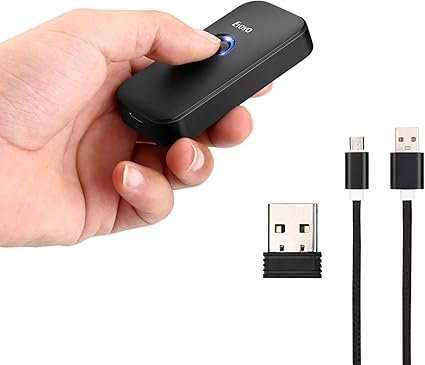
Which Connection Mode to Use
The scanner supports three modes, but only one should be active at a time during setup, otherwise it is hard to tell which connection is actually sending data.
- USB wired: plug the included cable directly into a computer or POS terminal. This is the simplest mode and needs no pairing at all — the scanner shows up immediately as a keyboard.
- 2.4G wireless: plug the small USB dongle into the host device, then hold the scanner near it and scan the pairing barcode from the manual. Good for a fixed checkout counter where the receiver stays plugged in.
- Bluetooth: pair directly with a phone, tablet, or laptop’s built-in Bluetooth radio. Best for mobile use where carrying a separate dongle is inconvenient.
Setting It Up the First Time
- Charge the scanner fully before first use, or connect it with the USB cable if it also doubles as a wired-only session.
- Pick one connection mode and scan the matching configuration barcode from the printed manual to switch the scanner into that mode.
- Pair or plug in only that one mode. Do not try Bluetooth and the 2.4G dongle at the same time during initial testing.
- Open a plain text editor or notepad app and scan a simple barcode to confirm text actually appears.
- Scan the suffix configuration barcode for a carriage return if the Enter key is not firing after each scan — this is required for most POS software to register a completed entry.
- Test again inside the actual POS or inventory application before relying on it for real transactions.
Programming Scan Behavior
Eyoyo scanners are configured entirely through configuration barcodes printed in the manual, not through a desktop app. A few settings are worth adjusting on most setups:
- Enable a suffix (usually Enter/carriage return) so each scan submits automatically into a form field.
- Turn off symbologies you do not use, since disabling unused barcode types speeds up recognition and avoids accidental misreads.
- Match the keyboard language layout to your operating system if scanned text shows the wrong characters, especially on non-US keyboard layouts.
- Set auto-scan mode only if you are mounting the scanner in a stand for hands-free continuous scanning; otherwise leave it on manual trigger to save battery.
When Setup or Pairing Fails
Most Eyoyo scanner problems trace back to a stale pairing record or the wrong connection mode being active, not a defective unit. Work through these steps before assuming the scanner is broken:
Bluetooth Will Not Pair or Keeps Reconnecting to the Wrong Device
- Open Bluetooth settings on the host device and remove any old Eyoyo pairing entry completely, then restart Bluetooth on the host before pairing again.
- Scan the “restore Bluetooth default settings” configuration barcode from the manual to clear the scanner’s own paired-device memory, then re-pair as if it were new.
- Keep only one Eyoyo scanner powered on nearby while pairing. Two similar scanners in range at once can cause the host to connect to the wrong one.
Scanner Reads the Code But Nothing Appears On Screen
- Click into the text field first. Keyboard-emulation scanners only send characters to whatever window currently has focus.
- Test in a completely plain text editor to rule out an app-specific input restriction or barcode filter.
- Check that the scan mode barcode was not accidentally set to a data-storage mode instead of live keyboard output.
Alternate Manual Pathway: Wired Fallback
If Bluetooth or the 2.4G dongle will not connect reliably even after clearing pairing records, fall back to the plain USB cable. Wired mode bypasses radio pairing entirely, requires no configuration barcodes, and works the moment it is plugged in, which makes it a reliable way to confirm the scanner hardware itself is fine while a wireless connection issue is sorted out separately.
Cleaning and Battery Care
- Wipe the scan window and housing with a dry, soft cloth. Avoid spraying liquid cleaner directly onto the device.
- Do not let the battery sit fully discharged for long periods. If the scanner will be stored for more than a few weeks, charge it to roughly half capacity first.
- Replace a battery that swells, gets unusually hot while charging, or no longer holds a reasonable charge.
Frequently Asked Questions
Do I need to install a driver for this scanner on Windows?
No. It works as a standard keyboard-input device once connected, whether by USB cable, 2.4G dongle, or Bluetooth.
Can I use Bluetooth and the 2.4G dongle at the same time?
The scanner is designed to use one active connection mode at a time. Running both at once usually causes duplicate or missing scans.
Why does the scanner beep but nothing gets typed anywhere?
Click into a text field first, since the scanner only sends characters to whichever window currently has keyboard focus.
How do I reset the scanner to factory settings?
Scan the factory-reset configuration barcode printed in the included manual, or download a replacement copy from the Eyoyo support page if the original manual was lost.
What should I check first if scans stop registering an Enter key?
Scan the carriage-return suffix configuration barcode again. This setting sometimes reverts after a factory-reset barcode is scanned by accident.
Ryan has spent more than twenty years working with PC hardware and small-business gear, including setting up barcode scanners and POS peripherals for retail and inventory projects. He writes about drivers, gadgets, and setup guides at softwaredriverdownload.com.