The Falcon Eyes RX-18TDX is a flexible bi-color LED light mat built for video and product photography, and setting it up correctly means checking the mount, power source, and control mode before the panel is ever powered on. It rolls up for storage and unrolls flat for shooting, which makes it a popular choice for run-and-gun video work where a rigid panel would not fit in a bag.
I set up an RX-18TDX for a small product shoot and noticed the color temperature drifting a few hundred kelvin after the panel had been running about ten minutes. Letting the light warm up before taking a final white balance reading solved the shift completely, and I now build that warm-up time into every setup with this panel.
- Applies To: Falcon Eyes RX-18TDX flexible bi-color LED light mat
- Panel Size: approximately 45 x 60cm (mat only, excluding frame)
- Power Consumption: around 100W at full output
- Color Temperature / CRI: 3000K to 5600K stepless bi-color adjustment, CRI 95 or higher
- Control: onboard buttons, DMX-512 input, and 2.4G wireless remote on TDX versions
- OS / Device Compatibility: works standalone with no computer connection required; DMX control needs a standard DMX-512 lighting console or controller
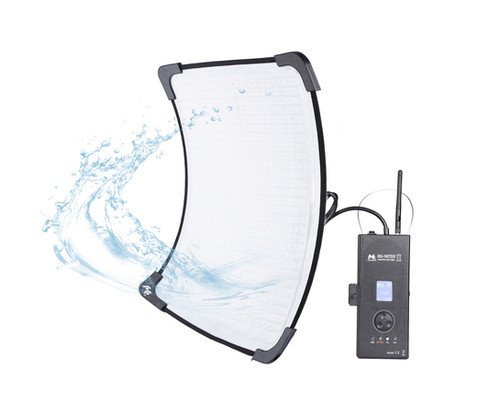
Identifying the Exact Version
Falcon Eyes has released more than one revision of this panel, and the differences matter for accessories and firmware. Before ordering a mount, softbox, or replacement part, check the full code printed on the control box and the power label:
- Confirm whether the unit is the base RX-18TDX, the RX-18TDX II, or a newer revision, since power draw and physical dimensions differ between them.
- Note the mount type on the control box, most commonly an X-bracket, since third-party mounts are not always a direct fit.
- Check whether the unit ships with a wireless remote already paired, or whether pairing needs to be done manually on first use.
Setting Up the Panel Safely
- Unroll the LED mat on a flat surface and inspect it for creases, punctures, or exposed wiring before powering it on.
- Attach the X-bracket or mounting frame before raising the light on a stand, not after.
- Secure every latch on the mount and add a safety cable if the panel will be positioned above people or equipment.
- Connect the approved AC power supply, or a compatible V-mount battery plate if running the panel off-grid.
- Power on at low output first and check that both warm and cool LEDs respond before raising brightness.
- Let the panel run for several minutes before taking a final white balance or color-accuracy reading.
Controlling the Light
The RX-18TDX can be adjusted three ways, and it helps to know which one is active before assuming a setting has not taken effect:
- Onboard buttons: direct control on the control box itself, the simplest option for a single-light setup.
- 2.4G wireless remote: useful once the panel is mounted out of reach, but it needs to be paired with the panel first and can lose sync if another Falcon Eyes light is powered on nearby.
- DMX-512: lets a lighting console control brightness and color temperature alongside other DMX fixtures, useful on larger sets with multiple lights.
When the Panel Won’t Turn On or Respond
Most issues with this panel come down to the power connection or the wireless remote losing pairing, not a failed LED mat. Work through these checks in order:
Panel Does Not Power On At All
- Check the AC adapter and every locking connector between the wall outlet, the control box, and the mat cable. A connector that looks seated can still be loose.
- If running from a V-mount battery, confirm the battery itself is charged and rated for the panel’s power draw, since an undersized battery can fail to start the light even when it shows charge remaining.
- Try a known-good outlet or a different AC adapter if one is available, to rule out a dead power source rather than the light itself.
Remote Will Not Control the Panel
- Re-pair the remote using the pairing sequence in the manual, since interference from another nearby light or a low remote battery can silently break the link.
- Move closer to the panel and remove obstructions between the remote and the control box before assuming the remote itself has failed.
Alternate Manual Pathway: Onboard Control
If the wireless remote will not pair or DMX is not responding, switch to the onboard buttons on the control box. This bypasses both wireless pairing and DMX addressing entirely, gives full manual access to brightness and color temperature, and is the fastest way to confirm whether the panel itself is working correctly before troubleshooting the remote or DMX line separately.
Maintenance and Storage
- Disconnect power before cleaning. Wipe the mat and control box with a soft, dry cloth only.
- Roll the mat loosely rather than folding it sharply, since tight creases can eventually damage the internal LED strips.
- Store in a dry area away from direct sunlight, and keep the control box and mat connector protected from dust when not in use.
- Inspect the mat cable and connector periodically for cracked insulation or looseness, especially if the panel travels often.
Frequently Asked Questions
Can the RX-18TDX run on battery power?
Yes, most versions support a V-mount battery plate in addition to AC power, which is useful for on-location shoots without mains power nearby.
Why does the color temperature look off right after startup?
LED panels can drift slightly in color temperature while warming up. Letting the panel run for several minutes before taking a final white balance reading avoids this issue.
Do I need a computer or app to control this light?
No. The panel is controlled with onboard buttons, the included wireless remote, or an external DMX-512 controller, none of which require a computer connection.
Can I mix this panel with lights from another brand on the same DMX line?
Yes, as long as the other fixtures are also DMX-512 compatible and addressed correctly on the same controller.
What is the safest first step if the panel stops responding?
Switch to the onboard control buttons to rule out a wireless or DMX issue, then check the power connection if the panel still does not respond.
Ryan covers computer peripherals and photo and video gear at softwaredriverdownload.com, testing lighting, audio, and driver setups on his own gear before writing about them.