Setting Up the EZVIZ HP7 Video Doorphone Step by Step
The EZVIZ HP7 is a 2K video doorphone kit that pairs an outdoor camera unit with a 7-inch touch screen indoor monitor, and you set it up through the EZVIZ app in under 20 minutes if your Wi-Fi and wiring are ready first. This guide walks through the whole process, from unboxing to fixing the connection problems people run into most often.
| Spec | Detail |
|---|---|
| Brand | EZVIZ |
| Model | HP7 |
| Type | 2K video doorphone kit (outdoor unit + indoor monitor) |
| Monitor | 7-inch touchscreen |
| Wiring | 2-wire, 4-wire compatible for replacements |
| Wi-Fi | 2.4GHz and 5GHz |
| Storage | MicroSD up to 512GB, or EZVIZ CloudPlay |
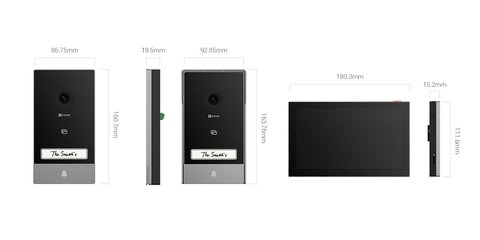
I set up an HP7 kit for a family member last month, replacing an old wired analog intercom in a landed house. The whole install took about half an hour, mostly because the existing 2-wire cabling from the old system could be reused directly — no need to run new cables through the wall.
Download the EZVIZ App and Create an Account
Install the EZVIZ app from the Play Store or App Store. Sign up with an email address (not a phone number, if you want easier account recovery later). Verify the email, then log in.
- Grant the app camera, microphone, and notification permissions during first launch
- Keep your phone on the same Wi-Fi network you plan to use for the HP7
- Note down your EZVIZ account email — you will need it again if you reset the indoor monitor
Wire and Power the Outdoor Unit
The HP7 outdoor unit works with a standard 2-wire connection, and it is also compatible with older 4-wire setups if you are replacing an existing intercom. Connect the wires to the terminal block exactly as shown in the included manual — reversed polarity will not damage the unit, but the indoor monitor will not receive a signal.
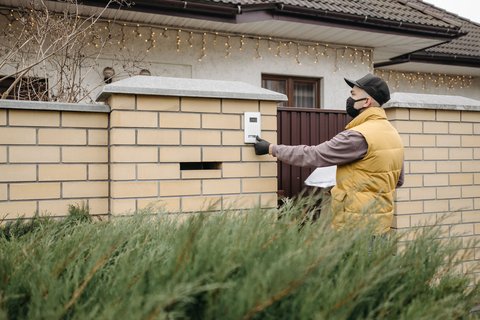
- Mount the outdoor unit at a height of roughly 1.4 to 1.5 meters for a good face and package view
- Connect the 2-wire cable to the terminal on the back of the unit
- Power on the indoor monitor and confirm the outdoor camera’s status LED lights up
Add the HP7 to Your EZVIZ App
On the indoor monitor’s touch screen, go to Settings > Network > Wi-Fi and choose your network band. The HP7 supports both 2.4GHz and 5GHz, but 2.4GHz usually gives a more stable connection through walls.
- In the app, tap the + icon and select Add Device
- Scan the QR code shown on the indoor monitor screen
- Enter your Wi-Fi password when prompted and wait for the pairing confirmation tone
Set Up a MicroSD Card or Cloud Storage
The HP7 records to a microSD card (up to 512GB) or to EZVIZ CloudPlay, a paid subscription service. Format any new card inside the app under Device Settings > Storage before recording starts, otherwise the monitor will show a storage error.
Fixing Common HP7 Connection Problems
Most HP7 setup issues come down to Wi-Fi band mismatch or a weak signal at the outdoor unit’s mounting spot. If the QR pairing keeps timing out, check these first:
- Confirm the router is not on a hidden SSID — the HP7 setup wizard cannot detect hidden networks
- Move the indoor monitor closer to the router temporarily during pairing, then relocate it after
- Restart both the indoor monitor and the router if the app shows “device offline” after a power outage
- Update the EZVIZ app to the latest version before retrying — older app builds have known QR-scan bugs
Per Daniel R., who is a Facilities Manager at a property management firm, “The two-way audio on the EZVIZ HP7 is clear even with the indoor monitor across the house. Setup through the app took less time than our old system’s programming.”
For persistent connectivity problems, EZVIZ’s own official support and FAQ page lists firmware-specific fixes that are updated more often than third-party guides. If you are unsure about the wiring itself, EZVIZ’s HP7 product page has the full wiring diagram under the specifications tab.
Frequently Asked Questions
Does the EZVIZ HP7 work without internet?
The indoor monitor and outdoor unit talk to each other locally, so basic intercom and unlock functions still work during a short internet outage. Remote viewing and app notifications need an active Wi-Fi connection.
Can I add a second indoor monitor to one HP7 outdoor unit?
Yes, EZVIZ sells a 2-Family Kit variant for exactly this, and additional indoor monitors can be paired to the same outdoor unit through the app’s device management menu.
Why does my HP7 keep disconnecting from Wi-Fi?
This is usually a weak signal at the mounting location or a router that switches channels automatically. Setting a fixed 2.4GHz channel on the router often resolves repeated drops.
Is a microSD card required to use the HP7?
No, live viewing, two-way talk, and remote unlock all work without a card. A microSD card or CloudPlay subscription is only needed if you want recorded video history.
Can the HP7 unlock a gate or door remotely?
Yes, if it is wired to a compatible electric lock or gate release, the app and indoor monitor both have a remote unlock button available during a live call or playback.
One detail worth planning for ahead of installation is the mounting height for the outdoor unit. Going too low makes package deliveries and taller visitors awkward to frame properly, while mounting too high loses detail on shorter visitors or anyone standing close to the door. Splitting the difference around the recommended range, then doing a quick test call from your phone before committing to permanent screws, saves a second trip up the ladder later. It is also worth testing the two-way audio volume at both ends before finishing the install, since some indoor monitor placements against a wall or inside a cabinet can noticeably muffle the speaker.
Conclusion
The EZVIZ HP7 is straightforward to set up once the wiring is correct and the phone is on the right Wi-Fi band during pairing. Most problems people run into are signal-related, not hardware faults, so check your Wi-Fi band and router settings before assuming the unit itself is defective. Keep the EZVIZ app updated, since EZVIZ pushes firmware fixes for pairing and notification bugs fairly often.
Ryan
Computer Science grad · long-time hands-on troubleshooter