The Brother QL-820NWB needs the Printer Driver plus P-touch Editor installed from Brother’s support site before Windows can print labels correctly, since the built-in Windows driver only handles basic text and skips the label-size profiles this printer relies on. This label printer supports Wi-Fi, Bluetooth, and USB, which makes setup flexible but also means picking the right connection method matters for a smooth install.
I set this printer up for a friend running an online shop who needed shipping labels printed fast, and the part that caused the most confusion was label size mismatches — P-touch Editor needs to know the exact label roll installed, or it prints text cut off at the edges.
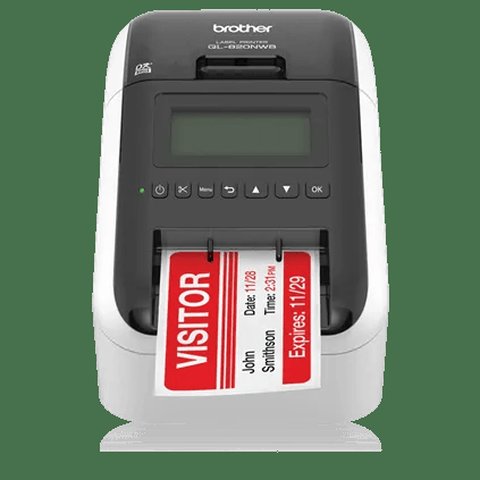
Download the right driver package
Go to the Brother QL-820NWB support page and select your Windows version. Download both the Printer Driver and P-touch Editor separately — they are listed as two downloads on the same page.
Choose your connection method first
Decide between Wi-Fi, Bluetooth, or USB before installing. The printer’s Wi-Fi setup wizard (hold the Wi-Fi button) needs to complete before the Windows installer can find it over the network.
Set the correct label size in P-touch Editor
Open P-touch Editor, go to Paper settings, and match the exact DK label roll size loaded in the printer. Using the wrong preset is the number one reason labels print cropped or shifted.
Set as default printer for shipping apps
If you print labels from a browser-based shipping tool, set the QL-820NWB as your default printer in Windows so the browser does not default to a regular document printer instead.
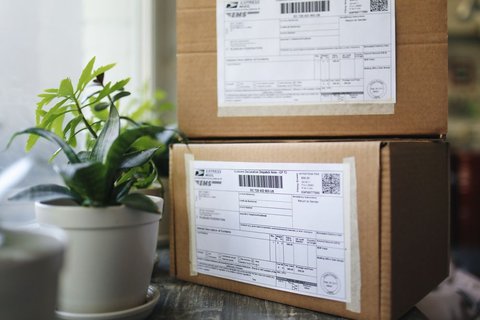
Fixing Common QL-820NWB Problems
A few issues come up repeatedly with this model:
- Labels print blank or faded: the printer uses direct thermal printing, so check that the label roll is not loaded upside down — the thermal-sensitive side needs to face up toward the print head.
- Printer not found over Bluetooth: re-pair the device in Windows Bluetooth settings after confirming the printer’s Bluetooth LED is solid blue, not blinking (blinking means it is not yet paired).
- Wi-Fi keeps disconnecting: print a Wi-Fi status report from the printer menu to check signal strength, and move the printer closer to the router if it shows Weak.
Per Jordan P., who is an Ecommerce Operations Lead, “Switching to the QL-820NWB cut our label printing time in half once the Wi-Fi connection was stable — batch printing shipping labels no longer means standing next to the printer.”
Manual Driver Install If Setup Fails
When the automatic installer cannot detect the printer, connect it via USB temporarily and install manually:
- Extract the downloaded driver package with 7-Zip or the installer’s built-in extract option.
- Open Device Manager, find the QL-820NWB under “Other devices” or “Printers.”
- Right-click, choose “Update driver,” then “Browse my computer for drivers,” and select the extracted folder.
- Once basic USB printing works, switch to Wi-Fi or Bluetooth through the printer’s network settings if preferred.
Author/Publisher: Brother Industries
Driver/Software Date: Latest available on Brother’s support site
Version: Printer Driver + P-touch Editor (current release)
File Name: lpql820nwb_series.exe (varies by build)
File Size: Approximately 60-100 MB
OS Compatibility: Windows 11, Windows 10 (32-bit and 64-bit), macOS
Frequently Asked Questions
Do I need P-touch Editor, or does the driver alone work?
The driver alone lets you print from most apps, but P-touch Editor is needed for precise label templates, barcodes, and matching the exact DK roll size loaded.
Can the QL-820NWB print from a phone?
Yes, using the Brother iPrint&Label app over Wi-Fi or Bluetooth, though template design is more limited than on the desktop P-touch Editor.
Why do labels come out with the wrong margins?
This almost always means the label size selected in P-touch Editor or the driver’s print settings does not match the physical roll loaded in the printer.
Does this printer need special label rolls?
Yes, it uses Brother DK-series die-cut or continuous label rolls, which the printer automatically detects by the size chip embedded in the roll.
Conclusion
Once the driver, P-touch Editor, and correct label size are all matched up, the QL-820NWB is a reliable workhorse for shipping and retail labels. If problems come back after a Windows update, reinstalling the driver package is usually faster than troubleshooting individual settings. Keep a spare label roll of the correct size on hand so you are not guessing at dimensions mid-print run.
Ryan
Self-taught driver/hardware specialist · 15 years experience