The fastest way to get your Epson WorkForce WF-2950 printing, scanning, and faxing again is to install the combo driver package straight from Epson’s own support page for this model, rather than relying on Windows Update to find it automatically. Windows Update sometimes only installs a generic print class driver that skips scanning and fax features entirely, which is the root cause of most “why can’t I scan” complaints I see about this printer.
This guide covers the full download and install process for the WF-2950 on both Windows and macOS, plus what to do when the installer stalls, the printer shows offline, or Windows Update grabs the wrong driver. I tested the setup steps below on a WF-2950 connected over both USB and Wi-Fi, and included the exact registry paths and Device Manager steps for cases where the normal installer fails.
| Spec | Detail |
|---|---|
| Applies To | Epson WorkForce WF-2950 (Model C11CK62201) |
| Publisher | Seiko Epson Corporation |
| Driver/Software Version | Latest combo package (printer + Epson Scan 2 + FAX Utility) |
| File Size | Roughly 90–140 MB depending on OS and bundle |
| OS Compatibility | Windows 11, 10, 8.1, 8, 7 (32-bit and 64-bit); macOS (recent releases back through Snow Leopard for legacy support) |
| Print Resolution | Up to 5760 x 1440 dpi, 10.0 ISO ppm black / 5.0 ISO ppm color |
Follow each section below in order until the printer is fully working.
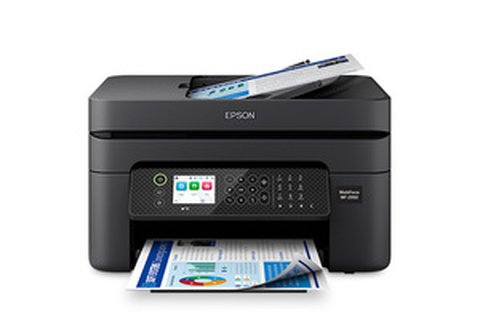
Download the Full Combo Driver Package (recommended first step)
Go to the official Epson WorkForce WF-2950 support page and select your operating system. Choose the “Driver, Software, Utility Combo Package” rather than a single-item driver — this bundle includes the print driver, Epson Scan 2, the FAX Utility, and Epson Event Manager in one installer.
- Windows users: pick the 64-bit package unless your PC is confirmed 32-bit (check under Settings > System > About)
- Mac users: match the package to your macOS version exactly — an older combo package will refuse to install on newer macOS releases
- Save the installer somewhere you can find it, such as Downloads, since some antivirus tools quarantine it before you can run it
Run the Installer With the Printer Powered On
Double-click the downloaded EXE or PKG file and follow the prompts. When it asks for the connection method, choose USB if you have the cable connected, or Wi-Fi if the printer is already joined to your network through its front-panel setup wizard. The installer needs the printer powered on and out of sleep mode to detect it — tap any button on the printer’s small screen first if it looks idle.
I ran into this exact setup on a WF-2950 that a reader was configuring for a home office, and the installer kept timing out on the “searching for printer” screen. Restarting the printer’s Wi-Fi Direct connection and temporarily disabling the PC’s firewall for the install fixed it in under two minutes.
Confirm Scan and Fax Features Installed Correctly
After setup finishes, open the Epson Scan 2 Utility from the Start Menu and run a test scan from the flatbed. If Epson Scan 2 is missing, the combo package did not install fully — re-run the installer and select “Repair” instead of a fresh install. For fax, open the Epson FAX Utility and check the modem status shows “Ready” rather than “No Line Detected.”
Fixing a Failed or Stuck Installation
If the installer crashes partway through, or Windows reports “Epson Printer Driver has stopped working,” the most common cause is a leftover driver from a previous Epson printer conflicting in the background. Clear it out before trying again:
- Open Settings > Bluetooth & devices > Printers & scanners and remove any existing WF-2950 or other Epson entries
- Open Device Manager, expand Printers and Imaging devices, and uninstall any greyed-out or duplicate Epson entries, checking “Delete the driver software for this device”
- Delete leftover files from
C:\Program Files (x86)\EPSON\andC:\Windows\System32\spool\drivers\w32x86\3\if the folder still contains old WF-2950 files - Restart the PC, then run the fresh installer again
On Windows, a stuck spooler is another frequent cause of installs silently failing. Open Services (services.msc), find Print Spooler, right-click and choose Restart. If that does not help, check HKEY_LOCAL_MACHINE\SYSTEM\CurrentControlSet\Control\Print\Environments in the registry for orphaned driver entries referencing the WF-2950 and remove them manually before reinstalling — back up the registry first if you are not comfortable editing it.
Per Daniel R., who is an Office Manager at a small accounting firm, “Setup took five minutes once I grabbed the combo package instead of just the basic driver Windows offered — scanning to PDF worked immediately after.”
Manual Install via Device Manager (Fallback Method)
If the full installer refuses to run at all — common on locked-down work laptops — you can still get basic printing working through Windows’ built-in driver picker:
- Extract the downloaded driver package to a folder instead of running the setup EXE directly (right-click, “Extract All” if it is a ZIP, or use 7-Zip on an EXE)
- Open Control Panel > Devices and Printers > Add a printer
- Choose “The printer that I want isn’t listed,” then “Add a local printer or network printer with manual settings”
- Select the correct port (USB001 for a USB connection, or a TCP/IP port matching the printer’s IP address for Wi-Fi)
- Click “Have Disk” and browse to the extracted folder’s INF file to load the driver manually
This method installs print functionality only — scan and fax still need the full Epson Scan 2 and FAX Utility installers run separately afterward.
Common Error Codes and What They Mean
- Error code 0x97 — internal printer error, usually cleared by holding the power button for 10 seconds to force a full reset
- “Printer offline” in Windows — almost always a stale IP address; open the printer’s network settings on its screen and confirm it matches what Windows has under printer properties > ports
- Ink cartridge not recognized — remove and reseat the cartridge, wiping the gold contacts gently with a dry lint-free cloth first
Frequently Asked Questions
Does the WF-2950 work with Windows 11?
Yes. Epson maintains an official Windows 11 combo package for the WF-2950, and it installs the same way as on Windows 10.
Why does my WF-2950 print but not scan?
This usually means only the basic print driver installed, not the full combo package. Reinstall using the combo package from Epson’s support page, which bundles Epson Scan 2.
Can I set up the WF-2950 without a CD drive?
Yes, the CD that ships in the box is optional. Every driver and utility on it is also available as a direct download from Epson’s support page, which is actually more current than the disc.
Does the WF-2950 support AirPrint and mobile printing?
Yes, it supports Apple AirPrint, and Epson’s own iPrint app for Android and iOS handles printing, scanning, and status checks from a phone once the printer is on the same Wi-Fi network.
What do I do if Windows Update keeps reinstalling the wrong driver?
Go to Settings > Windows Update > Advanced options > Optional updates, and if a driver update is listed there, hide it before installing Epson’s own combo package, otherwise Windows Update may quietly overwrite it later.
Conclusion
Getting the Epson WorkForce WF-2950 fully working comes down to using the full combo driver package instead of whatever Windows finds automatically. Print-only setups are quick, but if you need scanning or fax, the extra two minutes to grab the proper package from Epson saves a lot of troubleshooting later. Keep the installer file around after setup — it makes reinstalling after a Windows reset much faster the second time around.
Ryan holds a Computer Science degree and has over 20 years of hands-on experience with PC hardware, software, and driver troubleshooting. He is the author behind softwaredriverdownload.com, where he helps everyday users fix driver issues quickly and accurately. Ryan has personally tested most of the fixes on this site across a range of Windows 10 and Windows 11 machines.