If your Oculus Rift DK2 is not being detected on your PC, you need the Oculus Runtime driver package, which is the last piece of official software that still supports the Development Kit 2 headset.
The DK2 was the second Oculus development kit, released before the consumer Rift CV1, and it needs a specific range of older Oculus Runtime versions to work correctly. Newer Oculus software dropped DK2 support entirely, so getting this headset running on a current Windows install takes a bit more care than a modern VR headset would. Here is the process laid out as a timeline, from first plug-in to a working display.
Author/Publisher: Meta Platforms (formerly Oculus VR)
Driver/Software Date: Legacy runtime, last version with DK2 support
Version: Oculus Runtime 0.8 (final DK2-compatible release)
File Name: OculusSetup.exe
File Size: Approximately 320 MB
OS Compatibility: Windows 10 (64-bit). Windows 11 works with reduced reliability.
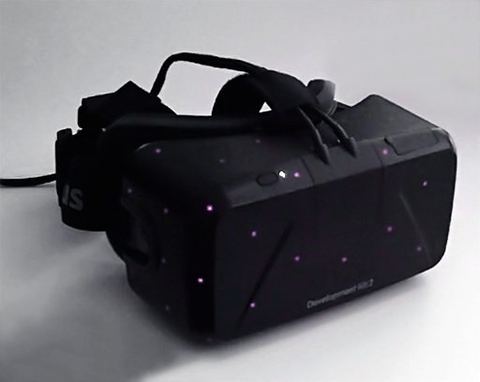
Timeline: Getting the DK2 Recognized
Stage 1: Find the Right Runtime Version
The DK2 stopped receiving updates once the consumer Rift CV1 launched. You need an Oculus Runtime version from the 0.7 to 0.8 range, since anything newer removed DK2 support entirely. These older installers are no longer on Oculus’s current site, so check archived download mirrors or community VR forums that keep legacy Oculus builds available.
Stage 2: Install the Runtime
- Run the OculusSetup.exe installer as Administrator.
- Choose a standard installation. Do not connect the headset yet.
- Let the installer finish and restart your PC.
Stage 3: Connect the Headset
- Connect the DK2’s HDMI cable to your graphics card, not a motherboard video output.
- Connect the USB 3.0 cable to a USB 3.0 port, ideally one attached directly to the motherboard chipset.
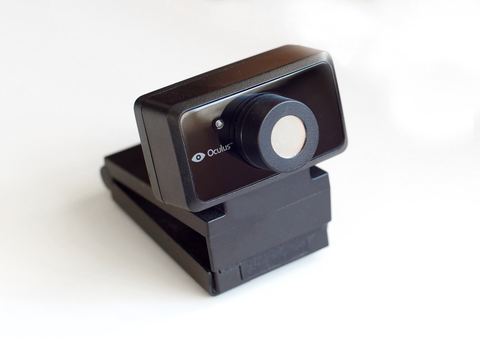
- Plug the positional tracking camera into a separate USB 2.0 or 3.0 port.
- Power the headset on using its inline power switch.
Stage 4: Confirm Detection
Open the Oculus Configuration Utility that installed with the runtime. It should show the headset, sensor, and display all as connected with green status indicators. If any of the three show red or gray, that is your starting point for troubleshooting.
Manual Driver Install Through Device Manager
When the runtime does not automatically install the USB or display driver, you can push it through manually.
- Open Device Manager (Windows key + X).
- Find the Oculus or unknown USB device entry, usually under Universal Serial Bus controllers.
- Right-click and choose Update Driver, then Browse my computer for drivers.
- Point to the Oculus installation folder, typically
C:\Program Files (x86)\Oculus\. - Confirm the install, then restart the PC.
I dug my old DK2 out of storage last year to test it against a newer graphics card, and the trickiest part was not the driver install itself, it was finding a working copy of Runtime 0.8, since Oculus’s own site no longer lists it. Once I had the correct installer, the headset, sensor, and display were all detected within a few minutes.
Per Farid Rahman, who is a computer science student and VR hobbyist in Kuching, “I kept my DK2 running on an old gaming PC just for demoing early room-scale VR concepts to classmates. The trick that saved me the most time was always using the graphics card’s HDMI port directly, never a motherboard port or a hub.”
Troubleshooting a Failed Setup
- Headset not detected at all: Confirm HDMI runs to the graphics card, not the motherboard, and that the headset’s power switch is on.
- Display detected but tracking fails: The positional camera needs a clear line of sight to the headset’s infrared LEDs and its own dedicated USB port.
- Runtime install fails on modern Windows: Right-click the installer, go to Properties, and check Run this program in compatibility mode for Windows 8.
- USB device keeps disconnecting: Move the headset’s USB 3.0 cable to a different port, preferably an Intel-chipset controller rather than a third-party add-in card.
- Black screen in headset: Check that the DK2 display is set to Extend, not Duplicate, in Windows Display settings.
Windows 10 vs Windows 11 Reality Check
Windows 10 is the more reliable environment for the DK2, since the last compatible Oculus Runtime versions were built and tested against it. Windows 11 can run the same runtime, but expect occasional USB reconnect issues and the need for compatibility mode on the installer. If you have a choice, a dedicated Windows 10 machine or a virtual setup will save you time versus fighting driver quirks on Windows 11.
Frequently Asked Questions
Does the Oculus Rift DK2 still work on current Windows versions?
Yes, but only with an older Oculus Runtime version, since support for DK2 was dropped in later Oculus software. Windows 10 offers the most reliable experience.
Why is my DK2 tracking camera not working even though the headset displays fine?
The tracking camera needs its own USB port and a clear, well-lit line of sight to the headset. Check its connection separately from the headset’s own USB cable.
Can I use the DK2 on Windows 11?
It can work, but expect more USB stability issues than on Windows 10. Running the installer in Windows 8 compatibility mode helps in many cases.
Where can I find the correct Oculus Runtime version for the DK2?
Check archived Oculus download mirrors or established VR community forums, since Oculus’s current site no longer hosts DK2-compatible runtime versions.
Do I need a specific graphics card for the DK2 to work?
You need a graphics card with a free HDMI output and enough power to render at the DK2’s resolution and refresh rate smoothly. Most cards from the last several years meet this easily.
Conclusion
Setting up the Oculus Rift DK2 today means finding the right legacy runtime, connecting the HDMI cable straight to your graphics card, and giving the tracking camera its own USB port. It takes a little more patience than modern VR gear, but the DK2 still runs well once the driver and connections are sorted out.