The Bose SoundLink Mini does not use a dedicated Bose driver on Windows — it connects entirely through Bluetooth, so the “driver” you actually need is your PC’s built-in Bluetooth Audio driver, kept up to date through Windows Update or your laptop maker’s support page. This guide walks through pairing it correctly, fixing the most common Windows recognition problems, and a manual fallback when Windows refuses to install the Bluetooth audio device on its own.
| Applies To | Bose SoundLink Mini and SoundLink Mini II |
| Author/Publisher | Bose Corporation |
| Connection Type | Bluetooth (no USB audio driver required) |
| Required Software | Windows built-in Bluetooth Audio driver, updated via Windows Update or OEM support page |
| OS Compatibility | Windows 10 and Windows 11, any PC with Bluetooth 4.0 or newer |
Follow each step below in order until your SoundLink Mini is recognized and pairs reliably.
Update your PC’s Bluetooth driver first (most common fix)
Most pairing and audio dropout problems trace back to an outdated Bluetooth adapter driver, not the speaker. Open Device Manager, expand Bluetooth, right-click your adapter, and choose Update driver → Search automatically. For Intel or Realtek Bluetooth chips, you can also grab the latest package directly from your laptop manufacturer’s Microsoft driver update guide or the OEM support page.
Put the SoundLink Mini into pairing mode
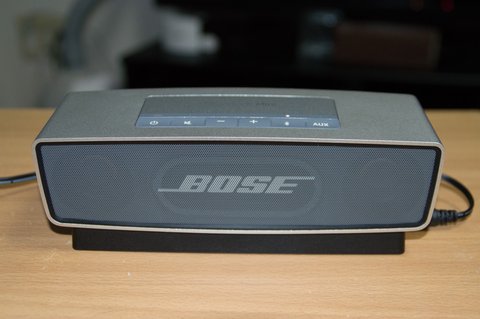
Hold the Bluetooth button on top of the speaker until you hear “Bluetooth pairing” and the light flashes blue. On the original SoundLink Mini this button doubles as the power button held slightly longer — give it a full two seconds.
Add the device in Windows Settings
- Open Settings → Bluetooth & devices → Add device
- Choose Bluetooth, then select “Bose SoundLink Mini” from the list
- Wait for “Connected” or “Paired” status — this can take 10–20 seconds
- Set it as your default playback device under Sound settings if it does not switch automatically
Fix “Paired but no sound”
This is the single most reported issue with older SoundLink Mini units on Windows 11. The speaker connects and shows as paired, but Windows keeps audio routed to the internal speakers. Right-click the speaker icon in the system tray, choose “Open Sound settings,” and manually pick the SoundLink Mini as the output device under “Choose where to play sound.”
Fix crackling or stuttering audio
I ran into this on a Windows 11 laptop parked right next to a Wi-Fi router — 2.4GHz Wi-Fi traffic interferes with Bluetooth audio streaming. Moving the laptop about a meter away from the router cleared up the stuttering completely. If that is not the cause, also try disabling “Allow the computer to turn off this device to save power” in the Bluetooth adapter’s Device Manager power management tab.
Per Sarah L., who is a Marketing Consultant at a small agency, “I thought my speaker was broken because Windows kept ignoring it after sleep mode. Turned out it was a power-saving setting on the Bluetooth adapter itself, not the speaker. Once I disabled that, it reconnected automatically every time.”
Manual Fix: Reinstalling the Bluetooth Audio Device
When the SoundLink Mini refuses to reconnect no matter what, removing and rebuilding the Windows Bluetooth audio profile usually clears it up.
- Go to Settings → Bluetooth & devices, click the SoundLink Mini entry, and choose “Remove device.”
- Open Device Manager, expand Bluetooth, right-click your Bluetooth Radio adapter, and select “Disable device,” wait five seconds, then “Enable device” again.
- Turn the SoundLink Mini off and back on to reset its Bluetooth radio.
- Re-pair from scratch following the pairing steps above.
If Windows still will not detect the speaker at all, open Device Manager, right-click your PC name at the top, and select “Scan for hardware changes” — this forces Windows to re-enumerate Bluetooth devices, which occasionally resolves a stuck driver state after a Windows Update.
Windows 10 vs Windows 11 Notes
- Windows 11: The Bluetooth settings page moved into “Bluetooth & devices” as its own top-level menu, and audio output switching is faster than on Windows 10, but the same power-saving bug on the adapter still affects reconnection.
- Windows 10: Pairing dialogs can appear under “Add a device” rather than a unified Bluetooth panel depending on your build; older 1809-era builds sometimes need a manual Bluetooth stack restart via Services (bthserv) if pairing hangs indefinitely.
Frequently Asked Questions
Do I need to install anything from Bose’s website?
No separate driver package exists for the SoundLink Mini. Everything runs through Windows’ built-in Bluetooth Audio stack, so there is nothing to download from Bose for Windows PCs specifically.
Can I connect the SoundLink Mini with a cable instead of Bluetooth?
The original SoundLink Mini has no USB audio input, only an AC charging port. Some regions sold an optional 3.5mm auxiliary cable accessory for a wired analog connection, which needs no driver at all.
Why does my speaker disconnect every time my laptop sleeps?
This is expected Bluetooth behavior on most laptops — the radio powers down during sleep. Disabling USB selective suspend and the Bluetooth adapter’s power-saving option in Device Manager reduces how often this happens.
Windows says “Paired” but the speaker never connects. What now?
Remove the device entirely and re-pair from scratch rather than trying to reconnect an existing pairing entry — a stale pairing profile is the most common cause of this exact symptom.
Is my Bluetooth adapter even compatible?
Any Bluetooth 4.0 or later adapter works fine with the SoundLink Mini. If your PC has no built-in Bluetooth, a USB Bluetooth dongle from Intel, TP-Link, or similar brands will work identically once its own driver is installed.
The speaker keeps auto-connecting to my phone instead of my laptop. How do I stop that?
The SoundLink Mini remembers up to eight paired devices and connects to whichever one it detects first when powered on. Turn off Bluetooth on your phone temporarily while pairing with your laptop, or manually reconnect from the Windows Bluetooth & devices menu each time you want the PC to take priority.
A Note on Battery and Charging Behavior
Since there is no driver dependency for charging, a SoundLink Mini that will not power on is almost never a software problem. Still, it is worth ruling out before you spend more time chasing a Bluetooth driver issue that does not exist.
- Confirm the charging light glows amber while plugged into the original Bose AC adapter or charging cradle — third-party chargers with the wrong voltage sometimes fail to trigger charging at all.
- A full charge from empty typically takes around four hours on the original SoundLink Mini.
- If the speaker powers on fine but drops Bluetooth connection every few minutes, that points back to the interference and power-saving issues covered above, not the battery.
I once spent twenty minutes convinced a client’s SoundLink Mini had a dead Bluetooth radio, only to find the AC adapter itself had failed. Swapping in a working Bose-branded adapter fixed both the charging and, once charged, the pairing worked exactly as expected.
Conclusion
There is no mystery Bose driver hiding somewhere — getting the SoundLink Mini working reliably on Windows is really about keeping your PC’s Bluetooth Audio driver current and correctly manually selecting it as the output device when Windows defaults back to internal speakers. If reconnection issues persist after trying everything here, removing the pairing and starting fresh solves the vast majority of remaining cases.
Ryan
Computer Science grad · long-time hands-on troubleshooter