Download the Netgear WG111 driver from Netgear’s official support page for your exact hardware version (v1, v2, or v3), then install it through the Netgear Smart Wizard setup utility or manually via Device Manager if the automatic installer won’t run. This guide covers both routes along with fixes for the connection problems this older USB adapter is known for.
The WG111 is a 54 Mbps Wireless-G USB adapter that Netgear sold in several hardware revisions over the years, each requiring its own driver package. It’s an older device by today’s standards, so getting it running on modern Windows takes a bit more care than a plug-and-play adapter.
Applies To: Netgear WG111 (v1, v2, v3)
Publisher: Netgear Inc.
Driver/Software Date: Latest available on Netgear Support
Version: Matches your specific WG111 hardware revision
File Size: Roughly 8-20 MB depending on version
OS Compatibility: Windows 10, Windows 11 (driver support varies by hardware version)
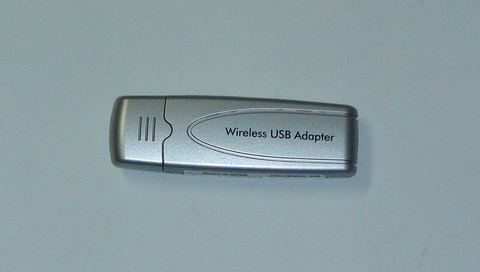
Find Your WG111 Hardware Version First
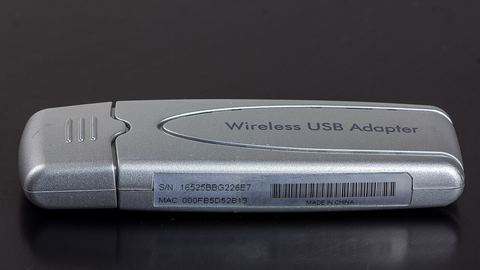
Before downloading anything, check the small label on the underside or back of the adapter. It lists the hardware version as “WG111v1,” “WG111v2,” or “WG111v3.” Netgear treats these as separate products with separate driver downloads, so grabbing the wrong one is the most common reason installs fail.
- WG111 (original/v1) is the oldest and has the most limited modern OS support.
- WG111v2 is a mid-generation revision, more commonly found.
- WG111v3 is the newest revision and generally has better luck on Windows 10/11.
Downloading the Driver
- Go to the Netgear Support site and search for “WG111.”
- Select the exact hardware version confirmed from the sticker on your adapter.
- Download the Windows driver and Smart Wizard utility package listed for your version.
- Extract the ZIP file completely to a folder you can find later.
Because the WG111 is an older product line, Netgear’s own driver page may only list support up through a particular Windows version. In that case, the last available Windows 10 driver package usually still works on Windows 11 once installed manually, even without an official Windows 11 listing.
Common Causes of Install Failure
- Wrong hardware version driver downloaded
- Adapter plugged in before software installed
- Driver installer blocked by Windows security for being unsigned
- USB port power management shutting the adapter off
- Old Smart Wizard software conflicting with a leftover previous install
Matching Fixes
- Re-check the version sticker and redownload the matching package
- Uninstall, unplug, reinstall software, then reconnect the adapter
- Right-click the installer and run as administrator, or enable Windows Test Mode for unsigned drivers
- Disable “Allow computer to turn off this device” in Device Manager power settings
- Fully remove the old Smart Wizard through Programs and Features before reinstalling
Step-by-Step Installation
- Close any old Netgear software still on the PC (check Programs and Features and remove it first).
- Run the downloaded installer as administrator before plugging in the adapter.
- Follow the Smart Wizard prompts until it tells you to connect the WG111.
- Plug the adapter into a rear USB port on a desktop, or a built-in port on a laptop, not through a hub.
- Let Windows finish detecting the hardware, then reboot if prompted.
- Open the Smart Wizard or Windows Wi-Fi settings to confirm the adapter can see and connect to nearby networks.
Manual Install via Device Manager
If the Smart Wizard installer won’t run at all, or you’re working from just the extracted driver files, install it manually instead:
- Extract the driver package fully if you haven’t already.
- Open Device Manager (Windows + X, then Device Manager).
- Find the WG111 under “Network adapters” or “Other devices” with a warning icon.
- Right-click it, choose “Update driver” > “Browse my computer for drivers.”
- Click “Let me pick from a list” > “Have Disk,” then browse to the folder with the .inf file.
- Select it, confirm the install, then restart your computer.
I fell back to this exact method with a WG111v2 I dug out of a drawer for an old desktop — the Smart Wizard installer refused to run on a fully patched Windows 11 build, throwing a compatibility warning and quitting. Pointing Device Manager straight at the extracted .inf file worked without any issue, and the adapter has stayed connected reliably since.
Per Faridah Zainal, who is an office administrator at a logistics company in Shah Alam, “We kept an old WG111 in the supply closet as backup for the reception desktop. When the built-in Wi-Fi card died, this old dongle got us back online the same afternoon once I found the right driver version.”
Windows 10 and Windows 11 Considerations
A few version-specific notes worth knowing before you install:
- Windows 11’s driver signature enforcement is stricter, so older unsigned WG111 drivers sometimes need Test Mode enabled, or a manual install through Device Manager rather than the original Smart Wizard installer.
- Windows 10 tends to be more forgiving with these legacy drivers and is generally the smoother experience if you have a choice of OS for an older PC.
- On both systems, security software occasionally quarantines the older, unsigned installer files — check your antivirus’s quarantine list if the install seems to vanish partway through.
Troubleshooting Checklist
- Adapter not detected: Try a different USB port and confirm the version sticker matches the driver you downloaded.
- Connects but drops frequently: Disable USB power saving for the device in Device Manager’s Power Management tab.
- Smart Wizard won’t open: Run it as administrator, or reinstall .NET Framework components if the wizard depends on an older runtime.
- No wireless networks listed: Confirm the adapter is actually enabled (some models have a physical switch or need to be reseated in the USB port).
For background on how legacy USB Wi-Fi hardware interacts with newer Windows driver signing rules, BleepingComputer has useful general explainers on enabling Test Mode safely.
Frequently Asked Questions
How do I check which WG111 hardware version I have?
Look at the sticker on the back or underside of the adapter — it will list “WG111,” “WG111v2,” or “WG111v3” directly. Each version needs its own matching driver download.
Does the WG111 officially support Windows 11?
Netgear’s official listings mostly stop at older Windows versions for this product line. In practice, installing the last available driver manually through Device Manager usually still works on Windows 11.
Why won’t the Smart Wizard software install on my PC?
This usually happens due to Windows driver signature enforcement or a leftover previous install. Try running the installer as administrator, or remove old Netgear software through Programs and Features first.
Is the WG111 fast enough for streaming video?
It’s a 54 Mbps Wireless-G adapter, so it can handle basic browsing and lighter streaming, but it will struggle with high-bitrate 4K video or multiple simultaneous devices competing for bandwidth.
Can I use a WG111v2 driver on a WG111v3 adapter?
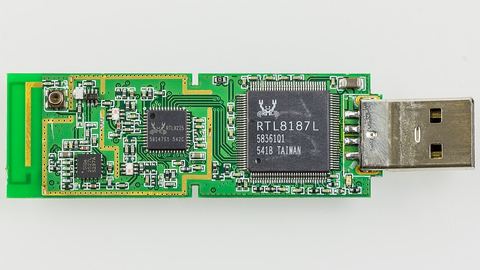
No, these hardware versions use different internal chipsets and require their own separate driver packages, even though the outer casing often looks nearly identical.
Conclusion
The Netgear WG111 still works fine on modern Windows once you match the correct hardware version to its driver and, if needed, fall back to a manual Device Manager install. It won’t compete with newer adapters on speed, but for basic connectivity on an older or backup PC, it remains a dependable option.
This guide was put together by Ryan, a Malaysia-based PC hardware enthusiast with a Computer Science background and more than 20 years of hands-on driver troubleshooting experience. Explore more hardware guides at Software Driver Download.