The Lexmark MB2338adw driver is available from Lexmark’s own support site, and installing it correctly the first time saves you from the “driver unavailable” errors that show up after later Windows updates. This guide covers the download, a wired and wireless install path, and the fixes for scan-to-PC and fax setup issues.
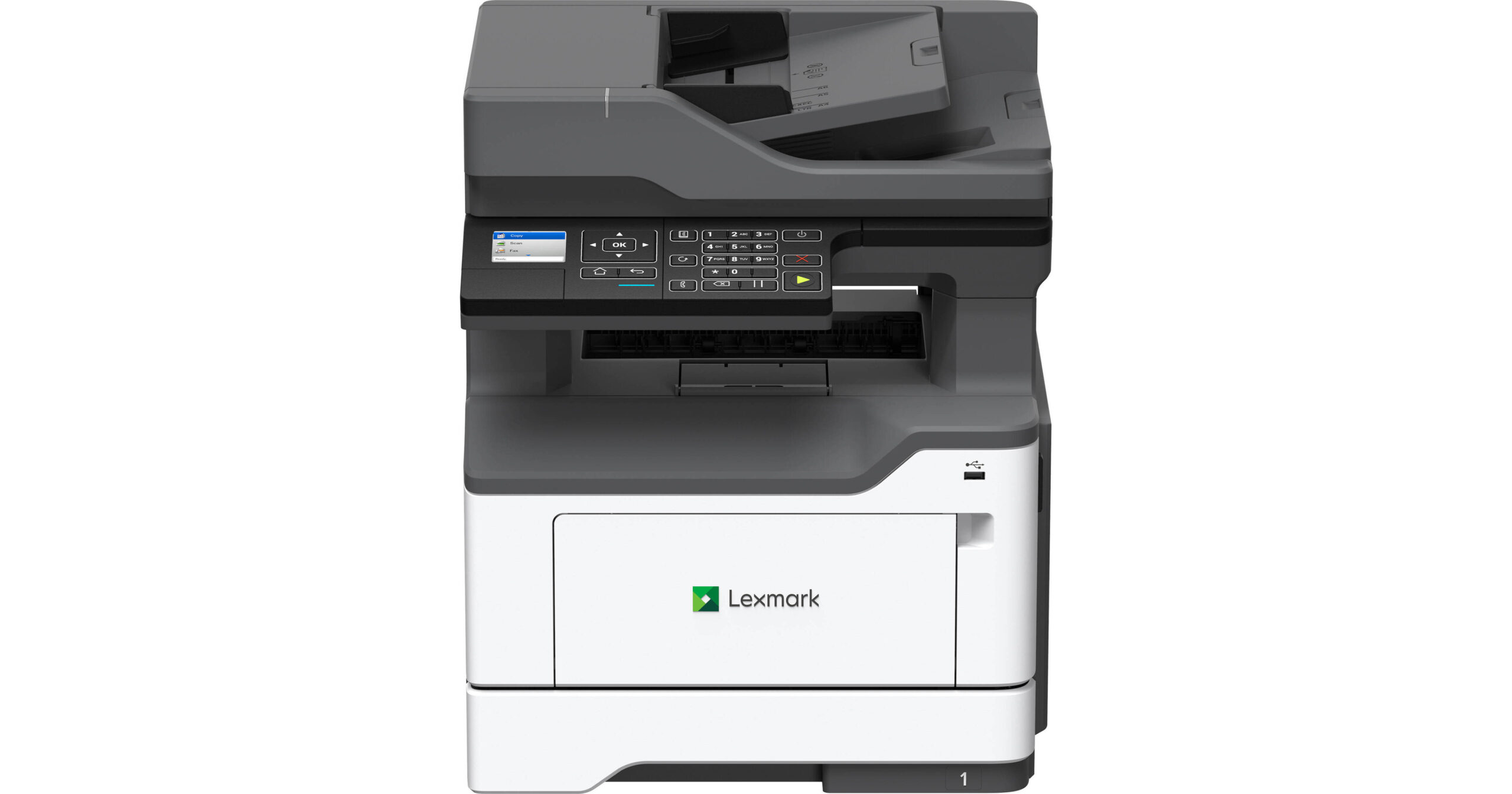
Downloading the MB2338adw driver
Visit the Lexmark MB2338adw product page, click through to the drivers and downloads section, and select the “Universal Print Driver” if you print to several Lexmark models, or the model-specific driver if this is your only Lexmark device. The model-specific driver exposes more of the printer’s fax and duplex settings directly in the print dialog.
Installing the driver
USB connection
- Run the downloaded installer without the USB cable connected yet.
- Connect the cable only when the installer prompts you to.
- Let Windows finish detecting the printer, then print a test page to confirm.
Wireless connection
On the printer’s touchscreen, open Network/Ports > Wireless, and run the setup wizard to join your Wi-Fi network. Once the Wi-Fi icon at the top of the screen shows connected, run the driver installer and choose the network install path – it will search for the MB2338adw automatically by its IP address.

I set one of these up for a small law office that relies heavily on the fax function, and the driver install itself went smoothly – the part that needed extra attention was making sure the phone line was connected before running the fax setup wizard, since the wizard skips fax configuration entirely if it does not detect a line on first run.
Per Howard J., an Office Manager on G2, “The MB2338adw driver install was painless, but we had to redo the fax setup wizard after connecting the phone line properly the second time.”
Fixing Common Problems
- Scan-to-PC not appearing on the printer touchscreen: install the Lexmark Scan software separately, not just the print driver, and confirm the printer and PC are on the same network.
- Driver shows “offline” after router restart: the printer’s IP address may have changed – reprint the network setup page from the printer to confirm the current IP, then update the printer port in Windows.
- Fax will not send: confirm the phone line is plugged into the “LINE” port (not the “EXT” port), and that a dial tone is present when you pick up a phone on the same line.
- Print quality has faded streaks: the toner cartridge may be near empty – check the estimated level in the printer’s touchscreen menu, and shake the cartridge gently to redistribute remaining toner as a temporary fix.
Keeping the MB2338adw reliable over time
A few habits help this printer stay trouble-free well after the initial setup:
- Check for firmware updates through the printer’s touchscreen settings every few months, since Lexmark periodically fixes networking and fax bugs this way.
- Keep the automatic document feeder rollers clean, since paper dust buildup there is a common cause of fax and scan misfeeds that get mistaken for driver problems.
- Note the printer’s IP address somewhere handy, since re-adding it to Windows after a network change is much faster with the address on hand instead of hunting for it again.
- Reinstall the driver fresh (rather than repairing it) after any major Windows feature update, since fresh installs tend to avoid the leftover configuration issues that repairs can miss.
The law office I mentioned earlier has kept this printer running for a long stretch with only occasional firmware updates and a yearly feeder-roller cleaning – the driver itself has needed almost no attention since the first proper setup.
Manual driver install
If the full installer fails on a restricted work computer, extract the driver package and add the printer manually through Windows Settings > Printers & scanners > Add device > “The printer that I want isn’t listed,” then browse to the extracted INF file. This gives you basic print functionality while IT sorts out software installation permissions separately.
Frequently Asked Questions
Should I use the Universal Print Driver or the model-specific one?
Use the model-specific driver if the MB2338adw is your only Lexmark printer, since it exposes more device-specific settings like fax and duplex controls.
Why does scanning to email not work after driver install?
Scan-to-email is configured through the printer’s own embedded web server, not through the Windows driver – log into the printer’s IP address in a browser to set up your email server details.
Can I use the MB2338adw driver on both Windows and Mac?
Yes, Lexmark provides separate driver packages for each operating system on the same download page.
How do I check the MB2338adw’s current IP address?
Go to the printer’s touchscreen Settings menu and open Network/Ports > Network Overview, which displays the current IP address without needing to print a report.
Does this printer support duplex (two-sided) printing by default?
Yes, automatic duplex printing is built in and available directly from the driver’s print settings without any extra configuration.
Can the MB2338adw print directly from a USB flash drive?
Yes, supported file types can be printed directly from a USB drive through the front panel without needing a computer connection.
How many pages per minute does the MB2338adw print?
Up to 38 pages per minute in simplex mode, with a first page out in about 6.5 seconds, making it well suited to small workgroups with moderate print volumes.
Does the MB2338adw need a phone line for anything besides fax?
No, the phone line connection is only used for the fax feature – printing, scanning, and copying all work over USB or your network without it.
Conclusion
The MB2338adw driver install is quick, but the fax and scan-to-PC features need their own separate setup steps that are easy to overlook. Confirm your phone line and network connection before running those wizards, and most first-time setup issues go away on their own.
Ryan holds a Computer Science degree and has over 20 years of hands-on experience with PC hardware, software, and driver troubleshooting. He is the author behind softwaredriverdownload.com, where he helps everyday users fix driver issues quickly and accurately.