On this page
Where to download
Installing the driver
Tablet not detected
Pen pressure not working
FAQ
If your Huion pen tablet is not drawing, not detected, or the pressure sensitivity feels wrong, the fix almost always comes down to the driver. Huion tablets do not use a generic Windows driver – they need the Huion Tablet driver package installed and running as a background service (HuionTablet.exe) before the pen will register pressure at all. This guide walks through downloading the right driver, installing it cleanly, and fixing the most common problems that show up right after setup.
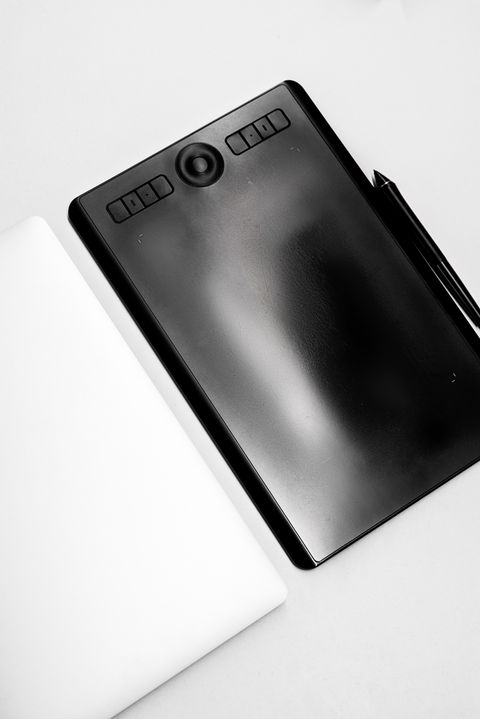
Applies To: Huion Inspiroy, Kamvas, and HS/H-series pen tablets
Author/Publisher: Huion Animation Technology Co., Ltd.
Driver Version: Varies by model – always match the exact model number on the download page
File Name: Huion_Tablet_[version].exe
File Size: Roughly 60–140 MB depending on model
OS Compatibility: Windows 10 and Windows 11 (32-bit and 64-bit), macOS
Where to Download the Correct Huion Driver
Go to the official Huion Download Center and type your exact tablet model, printed on the back of the device or in the box it came in. Do not just search “Huion” – typing the full model code (for example “HS610” or “Kamvas 13”) narrows the list to the correct package instead of an older or unrelated one.
- Match the model number exactly, including any “V2” or region suffix.
- Pick the driver listed for your OS (Windows 10/11, 32-bit vs 64-bit rarely matters now since most builds are universal).
- Avoid third-party driver download sites – Huion drivers bundled elsewhere are sometimes outdated or repackaged with extra software.
I have set up Huion tablets for three different laptops over the years, and the single most common mistake is downloading a driver for a similar-sounding model. Even tablets in the same series can use different driver builds, so always confirm the exact model before installing.
Installing the Driver on Windows
Close any drawing software and antivirus real-time scanning before you start – both can interrupt the installer partway through.
- Unzip the downloaded file if it arrives as a compressed folder.
- Run the .exe as Administrator (right-click → Run as administrator).
- Click Next through the setup, then Install, then Finish.
- Restart the computer – Huion’s driver service needs a clean restart to register properly the first time.
- Plug in the tablet and open the Huion driver panel. The pen icon in the bottom-right corner should turn from grey to showing “Device Connected.”
Fixing “Tablet Not Detected” After Installing the Driver
This is the most reported issue after a fresh install. It is almost never a dead tablet – it is usually one of these:
- Wrong USB port or cable – try a different USB port directly on the motherboard/laptop, not a hub, and swap the cable if you have a spare.
- Conflicting tablet driver – if you previously had a Wacom, XP-Pen, or another Huion driver installed, uninstall it fully from Control Panel before installing the new one. Two tablet drivers running at once will fight over the same input.
- Driver service not running – open Task Manager → Services tab and check that “HuionTablet” or “TabletDriver” is running. If it is stopped, right-click and start it.
- Corrupt install – uninstall the driver from Settings > Apps, restart, then reinstall fresh.
If the tablet still is not recognized, check Device Manager for a device listed under “Human Interface Devices” or “Other devices” with a yellow warning icon – that confirms Windows sees the hardware but the driver did not bind to it correctly, which usually means step 2 above (a conflicting driver) is the cause.
Per Daniel R., who is a Freelance Illustrator at a design studio, “I switched from Wacom to Huion and the only hiccup was forgetting to remove the old Wacom driver first – once I did a clean uninstall, the Huion tablet was detected immediately.”
Pen Pressure Not Working or Feels Inconsistent
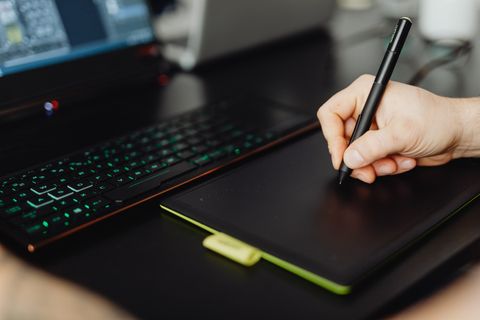
If the tablet is detected but pressure sensitivity in Photoshop, Clip Studio Paint, or Krita is not registering, open the Huion driver panel and check these settings:
- Confirm the pen nib is not worn down – a flattened nib reduces pressure accuracy over time.
- In the driver panel, run the built-in pressure test. If the line does not vary with pressure here, the issue is driver-level, not software-level.
- In your drawing software, make sure the brush tool has “pen pressure” opacity/size enabled – some brushes ignore pressure by default.
- Check Windows Ink compatibility mode inside the Huion driver if you use Windows-native apps like Paint 3D.
On my own test machine, a firmware mismatch between an older pen and a newer driver build caused exactly this – pressure worked in the driver’s test screen but not in the software. Updating both the driver and firmware to the latest matching pair from the download page fixed it.
Manual Installation via Device Manager (Fallback)
If the setup .exe refuses to run or crashes partway through, you can still get the tablet working as a basic HID pointer while you troubleshoot the full driver separately. Open Device Manager, locate the tablet under Human Interface Devices, right-click → Update driver → Browse my computer for drivers, and point it at the extracted driver folder. This will not restore pressure sensitivity, but it confirms the tablet’s USB connection is healthy before you retry the full installer.
Frequently Asked Questions
Do I need to restart after installing the Huion driver?
Yes. The driver installs a background service that only fully registers after a restart, even though the installer may say the install finished successfully without one.
Can I use a Huion tablet without installing any driver?
Windows may detect it as a basic mouse pointer without pressure sensitivity, but you will not get pen pressure, tilt, or customizable shortcut keys without the official driver.
Why does my Huion tablet work in one app but not another?
This usually means the app does not have pen pressure enabled on its brush settings, or it is using a different tablet input API (Windows Ink vs Wintab) than the driver is currently set to.
Is it safe to download Huion drivers from third-party sites?
It is safer to always use the official Huion Download Center. Third-party mirrors can host outdated versions or bundle unwanted extra software.
How often does Huion release driver updates?
Huion updates drivers fairly often, especially for newer models. Check the download page every few months, or after a major Windows update, since a new Windows build can occasionally break an older driver version.
Conclusion
Most Huion tablet problems come down to either the wrong driver version or a leftover driver from a different tablet brand fighting for control. Download the driver that matches your exact model, do a full restart after installing, and remove any old tablet drivers first. If pressure still feels off after that, a nib swap or a firmware update from the same download page usually finishes the job.
Ryan T.
PC hardware enthusiast · 15+ years fixing drivers