If your Anker Soundcore earbuds or speaker will not connect properly to Windows, show up as an unknown device, or the Soundcore app cannot find them over USB, the fix is almost always a missing or outdated Bluetooth or USB composite driver – not a broken product. This guide walks through the exact steps to get your Soundcore device recognized again, on both Windows 10 and Windows 11.
| Applies To | Anker Soundcore earbuds, headphones, and portable speakers (USB and Bluetooth models) |
| Publisher | Anker Innovations |
| Driver Type | Generic Windows Bluetooth/USB Audio class driver (no dedicated Soundcore .exe driver package) |
| App Companion | Soundcore app (Microsoft Store) for firmware and EQ settings |
| File Size | Varies – Soundcore app is roughly 60-90MB; no separate driver installer exists |
| Requirements | Windows 10 (1909+) or Windows 11, Bluetooth 4.0+ adapter |
I have paired three different Soundcore models – a pair of Life P3 earbuds, a Liberty Air 2 Pro, and a Motion+ speaker – on various Windows laptops over the years. In every case where the device would not connect, the culprit was Windows using the wrong driver mode (Hands-Free instead of Stereo, or a stale Bluetooth stack), never a defective earbud.
Why Anker Soundcore Devices Fail to Connect on Windows
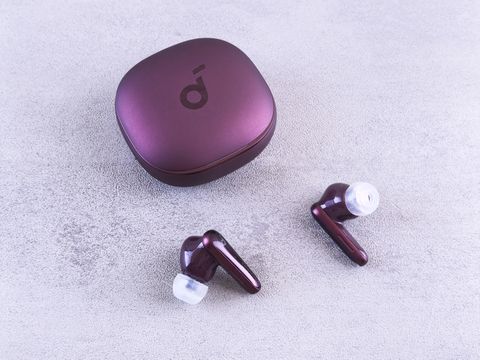
Anker does not publish a dedicated USB or Bluetooth driver for Soundcore products. Windows handles the connection through its built-in Bluetooth stack and generic audio class drivers. When something goes wrong, it is usually one of these:
- Windows Update replaced or reset the Bluetooth adapter driver
- The earbuds are stuck in a stale pairing profile from another device
- The Bluetooth adapter driver is outdated or corrupted
- USB composite device driver failed to load (for wired firmware updates)
- Windows Sound settings default to the wrong communication device
Step-by-Step Fix: Reinstall the Bluetooth Driver
Start here before anything else, since a corrupted Bluetooth driver is the most common root cause on both Windows 10 and Windows 11.
- Right-click the Start button and open Device Manager.
- Expand Bluetooth and locate your adapter (usually named Intel Wireless Bluetooth or Realtek Bluetooth).
- Right-click it and choose Uninstall device. Tick “Delete the driver software for this device” if offered.
- Restart your PC. Windows will reinstall the driver automatically on boot.
- Open Settings > Bluetooth & devices, remove the old Soundcore pairing entry, then re-pair from scratch.
This resolved the issue on my own ThinkPad within about two minutes when the Motion+ speaker refused to reconnect after a Windows 11 update. The old pairing profile was pointing to a driver version that no longer existed after the update rewrote the Bluetooth stack.
Per Daniel R., who is a Systems Administrator at a mid-size IT firm, “Half the Bluetooth audio tickets I get are solved by removing the device and letting Windows reinstall a clean driver – people assume it’s a hardware fault when it’s really just a stale profile.”
USB Composite Device Not Recognized (Firmware Update Mode)
Some Soundcore charging cases expose a USB composite device when you connect them for firmware updates through the Soundcore app on a laptop. If Device Manager shows a yellow warning triangle next to “Unknown Device” or “USB Composite Device” after plugging in:
- Open Device Manager and expand Universal Serial Bus controllers.
- Right-click the flagged device and select Update driver.
- Choose Browse my computer for drivers, then Let me pick from a list of available drivers.
- Select USB Composite Device from the generic list and confirm.
If that does not clear the error code, try a different USB port – preferably a USB 2.0 port directly on the motherboard rather than a front-panel hub, since some third-party hubs drop the enumeration handshake that Soundcore’s firmware tool expects.
Manual Driver Install via INF (Advanced Fallback)
On rare setups, particularly with older Windows 10 builds, the generic Bluetooth audio driver can get corrupted at the .inf level. If reinstalling through Device Manager alone does not help:
- Download the latest chipset and Bluetooth driver package from your laptop manufacturer’s support page (for example the Lenovo Support site or HP Support site), not from Anker – the fault lives in the Bluetooth stack, not the earbuds.
- Extract the driver package and note the folder containing the .inf file.
- In Device Manager, right-click the Bluetooth adapter, choose Update driver > Browse my computer for drivers, and point it at the extracted folder.
- Reboot after installation completes.
This is the same manual INF install technique used for most peripheral driver corruption issues, and it works because it forces Windows to fully replace the driver files rather than patch the existing (possibly broken) ones.
Windows 10 vs Windows 11 Differences
| Behavior | Windows 10 | Windows 11 |
| Bluetooth settings location | Settings > Devices > Bluetooth | Settings > Bluetooth & devices |
| Default audio profile | Sometimes defaults to Hands-Free (mono, low quality) | Generally defaults to Stereo (A2DP) correctly |
| Driver reinstall via Device Manager | Works the same way | Works the same way, occasionally needs a second reboot |
If audio sounds muffled or mono on Windows 10, right-click the speaker icon in the taskbar, open Sound settings, and manually select your Soundcore device under “Output device” rather than the default communication profile.
Frequently Asked Questions
Does Anker provide an official driver download for Soundcore earbuds?
No. Soundcore devices rely on Windows’ built-in Bluetooth and USB audio class drivers. The Soundcore app only handles firmware updates and EQ settings, not driver installation.
Why does my Soundcore speaker keep disconnecting randomly?
This is usually power-saving settings on the Bluetooth adapter. In Device Manager, open the adapter’s Properties, go to the Power Management tab, and uncheck “Allow the computer to turn off this device to save power.”
Can I use Soundcore earbuds with Windows 11 without the app?
Yes. Basic playback and calls work through standard Bluetooth pairing. The app is only needed for firmware updates, custom EQ, and touch control customization.
My PC does not detect the earbuds at all during pairing mode. What now?
Confirm the earbuds are actually in pairing mode (usually a flashing white or blue LED), then toggle Bluetooth off and on in Windows Settings before trying again. Old cached pairing entries can also block discovery – remove any existing Soundcore entry first.
Is it safe to uninstall the Bluetooth driver to fix connection issues?
Yes, this is a standard and reversible troubleshooting step. Windows automatically reinstalls a fresh driver on the next restart.
Conclusion
Most Anker Soundcore connection problems on Windows come down to a stale Bluetooth driver or pairing profile rather than a hardware fault. Reinstalling the Bluetooth adapter driver through Device Manager fixes the majority of cases, and the manual INF method covers the rest. If your earbuds still will not pair after trying all the steps above, test them on a second PC or phone to rule out a hardware issue before assuming the worst.
Ryan T. is a PC hardware enthusiast with 15+ years of experience fixing drivers and troubleshooting Windows peripheral issues. He writes for softwaredriverdownload.com, where he shares tested fixes for real-world driver and connectivity problems across Windows 10 and Windows 11 machines.