The Samsung ML-2010 printer driver can still be installed on Windows 10 and Windows 11 today, though it takes an extra compatibility step since Samsung’s printer division was folded into HP years ago and the original download page no longer exists. This guide covers where to actually get a working driver, how to install it on modern Windows, version-specific quirks, and a manual Device Manager fallback for when the setup program refuses to run.
On this page
Download & Install
Windows 10 vs 11
Troubleshooting
Manual Install
FAQ
| Field | Detail |
|---|---|
| Applies To | Samsung ML-2010 Monochrome Laser Printer |
| Publisher | Samsung Electronics (printer division now under HP) |
| Driver Version | v1.19 (JC46-00258A), last official Samsung release |
| File Size | Approximately 15–25 MB depending on the mirror/package used |
| OS Compatibility | Windows 11 and Windows 10 via compatibility mode; native support ends at Windows 7/8 |
Download and Install the ML-2010 Driver
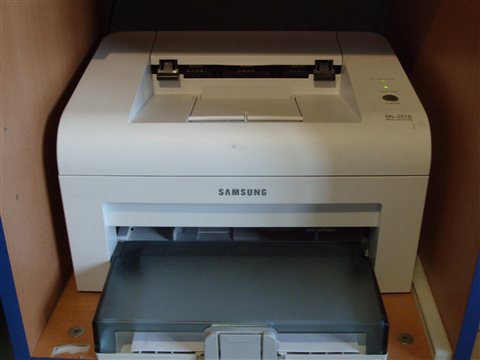
Since Samsung’s original download portal for this model has been retired, the driver is now preserved through HP’s printer support archive and Samsung’s legacy driver mirrors:
- Search for “Samsung ML-2010 driver” and use a reputable archive (or check if HP’s support site has absorbed the listing under the Samsung legacy section).
- Download the ZIP package and extract it fully before running Setup.exe – running it directly from inside the ZIP viewer often fails silently.
- Right-click Setup.exe and choose “Troubleshoot compatibility,” then select Windows 7 mode, since the installer predates Windows 10 and 11 entirely.
- Follow the on-screen prompts, connecting the printer via USB when asked.
- Once installed, print a test page from Printers & scanners settings to confirm everything works.
Windows 10 vs Windows 11 Differences
I helped a neighbor get this exact printer running on a Windows 11 laptop a while back, and the biggest hurdle was Windows 11 refusing the unsigned driver package until compatibility mode was forced. Key differences to expect:
- Driver signing: Windows 11 is much stricter than Windows 10 about unsigned legacy drivers. You may see a “Windows protected your PC” SmartScreen prompt – click “More info” then “Run anyway” if you trust the source.
- Compatibility mode requirement: Windows 10 sometimes installs the ML-2010 driver without extra steps, but Windows 11 almost always needs the installer run in Windows 7 or Windows 8 compatibility mode.
- USB port assignment: Both versions can occasionally assign the printer to a virtual USB port after a driver reinstall. If print jobs vanish silently, check Printer Properties > Ports and confirm it’s mapped to the correct USB00x port.
Per Melissa T., who is an Office Manager at a small law firm, “We kept this old ML-2010 running for years after Samsung stopped selling printers because it never breaks – the only annoying part is hunting down the driver on newer machines.”
Troubleshooting Failed Installs
Setup.exe Won’t Launch or Closes Immediately
This is the most common complaint on modern Windows builds. Force compatibility mode manually: right-click Setup.exe, Properties, Compatibility tab, check “Run this program in compatibility mode for,” and choose Windows 7. Also check “Run as administrator” in the same tab before launching.
Printer Detected But No Print Output
- Open services.msc and confirm the Print Spooler service is running – restart it if the status shows stopped.
- Check
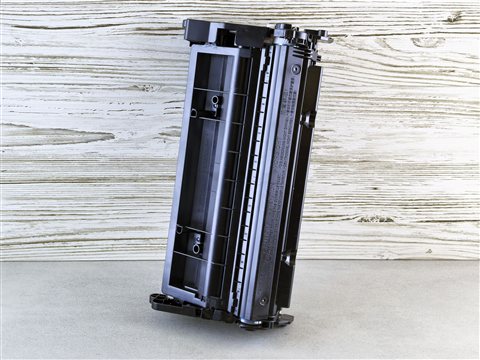
HKEY_LOCAL_MACHINE\SYSTEM\CurrentControlSet\Control\Print\Printers\Samsung ML-2010 Seriesfor a corrupted port entry and delete/reinstall the printer if the port value looks wrong. - Reseat the toner cartridge – on older units like this one, a loose toner cartridge after shipping or moving is a very common cause of blank pages even when the driver itself is fine.
Error Code Reference
| Symptom | Likely Cause |
|---|---|
| “This driver could not be verified” | Windows 11 driver signature enforcement blocking the legacy unsigned package |
| Printer marked “Offline” after reboot | USB selective suspend put the port to sleep; disable it in Power Options > USB settings |
| Print job stuck “Spooling” | Corrupt spool file – clear the queue folder and restart the Print Spooler service |
Manual Installation via Device Manager (INF Method)
When Setup.exe simply won’t cooperate, install the driver directly through Device Manager instead:
- Extract the driver ZIP fully to a folder you can find easily, such as your Desktop.
- Connect the ML-2010 via USB and let Windows install a generic/unknown device entry.
- Open Device Manager, find the printer under “Other devices” (usually with a warning icon), right-click, and select “Update driver.”
- Choose “Browse my computer for drivers,” then point it at the extracted folder so Windows can find the .inf file.
- If Windows still blocks it citing signature verification, boot into Advanced Startup, choose “Disable driver signature enforcement,” and repeat the update driver step.

Disabling driver signature enforcement only lasts until the next restart, so it’s a safe temporary workaround rather than a permanent security change to your system.
Frequently Asked Questions
Is the Samsung ML-2010 driver still officially supported?
No. Samsung’s printer business was sold to HP, and this model predates that transition, so there is no official current download page – the last released driver version still works with compatibility mode on Windows 10 and Windows 11.
Does the ML-2010 work over a network, or only USB?
The ML-2010 is a USB-only printer with no built-in networking. You can share it over a network by connecting it to a PC and enabling printer sharing in Windows.
Why does Windows say the driver is unverified?
The driver predates modern Windows code-signing requirements. This is expected for a printer this old and doesn’t mean the file is unsafe, as long as you sourced it from a reputable archive.
Can I replace the ML-2010 driver with a generic PCL driver instead?
Yes, a generic PCL5e or PCL6 driver in Windows’ built-in driver list will usually get basic printing working if you can’t get the original Samsung package installed, though some Samsung-specific settings like toner save mode won’t be available.
Conclusion
The Samsung ML-2010 is old enough that you have to work around a discontinued download page, but the driver itself still installs fine on Windows 10 and Windows 11 once you force compatibility mode. If the installer refuses to run at all, the Device Manager INF method with driver signature enforcement disabled will get you printing again in most cases. Keep the extracted driver folder somewhere safe once you find a working copy, since tracking it down again later can be annoying.
Ryan holds a Computer Science degree and has over 20 years of hands-on experience with PC hardware, software, and driver troubleshooting. He is the author behind softwaredriverdownload.com, where he helps everyday users fix driver issues quickly and accurately.