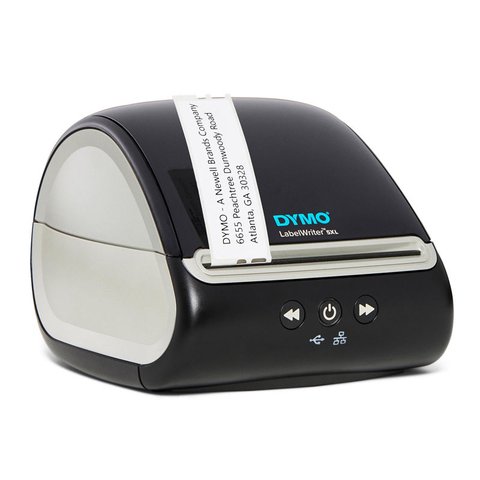
The Dymo LabelWriter 5XL runs on DYMO Connect software, which installs both the printer driver and the label design app in one package from Dymo’s official site. This wide-format thermal printer is built for 4×6 shipping labels, and unlike older Dymo models, it does not need a separate driver download — DYMO Connect handles everything.
I set one of these up for a reseller shipping several packages a day, and the biggest time-saver turned out to be enabling Automatic Label Recognition in DYMO Connect, which reads the label size from the roll instead of making you select it manually every time.
Why setup fails
Downloading an old standalone LabelWriter driver instead of DYMO Connect, which does not fully support the 5XL model.
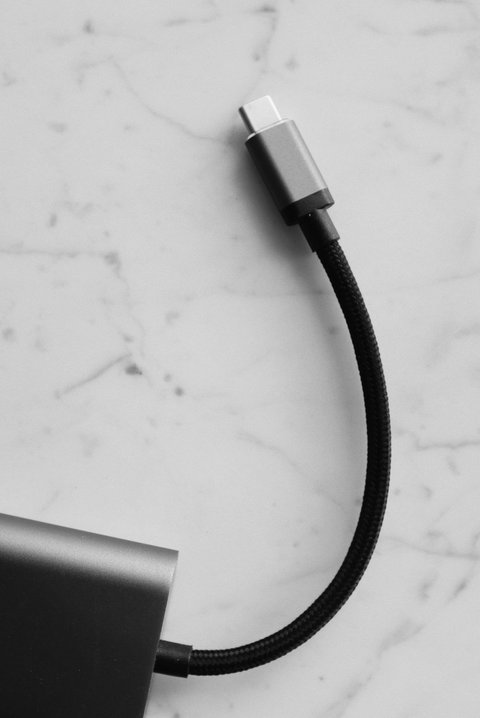
USB cable plugged into a front-panel hub instead of directly into the computer, causing intermittent disconnects.
Label roll loaded backward, so the thermal-sensitive side faces down instead of up toward the print head.
How to fix it
Download DYMO Connect for Desktop from Dymo’s official support page, not a third-party driver mirror.
Plug the USB cable directly into a rear motherboard port, or a powered USB hub if using a laptop.
Open the top cover and reload the roll with the printable side facing up and toward the front of the printer.
Step-by-Step Setup
- Download and install DYMO Connect for Desktop from the official Dymo support page.
- Connect the LabelWriter 5XL to your computer via USB, or set it up on your network if using the LAN-connected variant.
- Open DYMO Connect and confirm the printer appears in the printer list on the left side of the app.
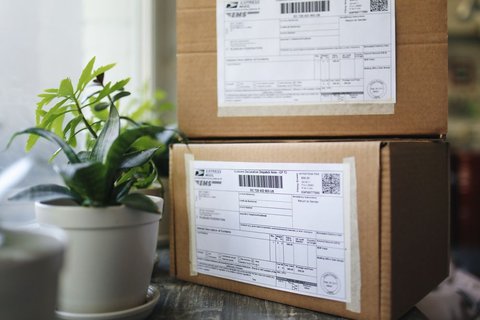
- Load a 4×6 label roll and enable Automatic Label Recognition in the printer settings so DYMO Connect detects the size automatically.
- Print a test label from the built-in template gallery to confirm alignment before switching to your shipping platform.
Per Renee A., who is an Etsy Shop Owner, “The Automatic Label Recognition feature alone saved me from constantly reselecting the label size every time I switched between order batches.”
Fixing Print Quality and Jam Issues
If labels print with faded or streaky text, the thermal print head may have dust or adhesive residue buildup. Gently wipe the print head with a cotton swab dampened in isopropyl alcohol after powering off the printer. For frequent jams, check that the label guide is snug against the roll — too much slack lets the roll shift and feed at an angle.
Manual Driver Install When DYMO Connect Fails
If the installer will not complete, extract the downloaded package and install through Device Manager instead: find the unrecognized printer entry, right-click it, choose “Update driver,” then “Browse my computer for drivers,” and point it at the extracted folder. This gets basic print functionality working, though you will still want DYMO Connect installed afterward for the full template and label recognition features.
Author/Publisher: DYMO, a Newell Brands company
Driver/Software Date: Latest available on DYMO’s support site
Version: DYMO Connect for Desktop (current release)
File Name: DCDInstaller.exe
File Size: Approximately 150-250 MB
OS Compatibility: Windows 11, Windows 10 (32-bit and 64-bit), macOS
Frequently Asked Questions
Does the LabelWriter 5XL need ink or toner?
No, it uses direct thermal printing, so there is no ink or toner cartridge to buy — only the thermal label rolls themselves.
Can I use the 5XL with regular Dymo label sizes, not just 4×6?
Yes, DYMO Connect supports a range of label sizes for this printer, though its wider print head is specifically optimized for the larger 4×6 shipping label format.
Why does DYMO Connect not detect my printer?
Check the USB connection first, then confirm the DYMO Connect service is running in Windows Task Manager under the Services tab — restarting it often resolves detection issues.
Is DYMO Connect required, or can I print from any app?
Once the driver is installed, the printer shows up as a standard Windows printer usable from any app, though DYMO Connect gives access to label templates and Automatic Label Recognition.
Conclusion
The LabelWriter 5XL is straightforward once DYMO Connect is installed correctly and Automatic Label Recognition is turned on. Most print quality issues trace back to a dirty print head or a mismatched label size, both quick fixes once you know where to look. Keep DYMO Connect updated through the same support page, since Dymo occasionally patches label recognition accuracy in newer releases.
Ryan T.
PC hardware enthusiast · 15+ years fixing drivers