To get your Fujitsu ScanSnap S1300 working on a modern PC, you need the correct ScanSnap Manager software package installed, since the scanner itself will not function through Windows’ generic scanner support alone. Below is exactly which files to grab, how to install them, and what to do when the S1300 stops being recognized after a Windows update.
The S1300 was a compact, portable duplex scanner popular for home offices and small businesses. Fujitsu (now operating this product line under Ricoh/PFU) discontinued official support for it some time ago, but the driver and management software are still available through the legacy downloads section if you know where to look.
Author/Publisher: PFU Limited (a Fujitsu/Ricoh company)
Driver Date: Final update released during the Windows 8.1/10 transition period
Version: ScanSnap Manager V6.x
File Name: ssm_setup.exe
File Size: Approximately 250-300 MB (full suite including OCR component)
OS Compatibility: Windows 7, Windows 8/8.1, Windows 10; Windows 11 works via compatibility mode though it is not officially certified
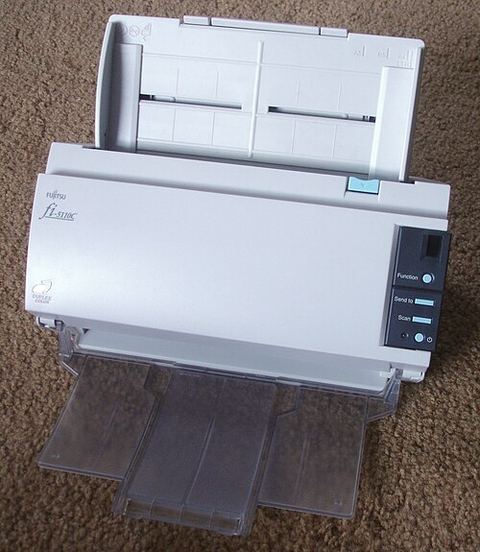
Where to Download ScanSnap Manager for the S1300
Fujitsu’s scanner support has moved under PFU’s global site over the years, which trips up a lot of people searching by the old URL. Here is the current path:
- Visit the official ScanSnap downloads page.
- Search or select “S1300” from the model list (S1300i shares most of the same package).
- Choose your operating system and download the full ScanSnap Manager installer, not just a driver-only file — the scanner needs the manager software to function at all.
Standard Installation Process
- Do not plug in the scanner yet.
- Run ssm_setup.exe as administrator and follow the prompts.
- Restart the computer once installation finishes.
- After reboot, connect the USB cable, and Windows should detect the scanner automatically and finish registering it in ScanSnap Manager.
- Run a test scan of a single page to confirm everything communicates correctly.
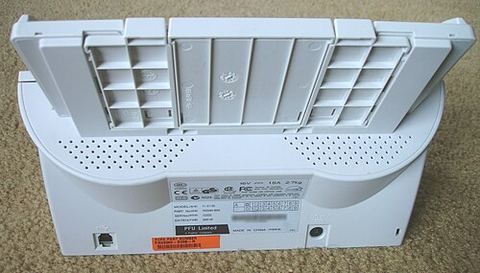
Manual Driver Install via Device Manager
If ScanSnap Manager installs but the scanner still shows an error or unknown device symbol, you can point Windows to the driver files directly:
- Open Device Manager and look under “Imaging devices” or “Other devices” for the ScanSnap entry.
- Right-click it and choose Update Driver, then “Browse my computer for drivers.”
- Navigate to the ScanSnap Manager installation folder (typically under Program Files (x86)\PFU\ScanSnap) and let Windows search that folder.
I ran into exactly this on a client’s Windows 10 laptop last year — ScanSnap Manager installed without errors, but the scanner sat as an unrecognized USB device until I manually pointed Device Manager at the driver subfolder inside the install directory.
Troubleshooting Common S1300 Issues
- Scanner not detected after a Windows update: Uninstall ScanSnap Manager completely, restart, then reinstall the latest compatible version.
- Paper jams or feed errors during scanning: Clean the pickup rollers with a lint-free cloth and isopropyl alcohol — dust buildup is the most common cause on units several years old.
- Scan quality looks faded or streaked: Clean the internal glass and sensor strips using the cleaning sheet included with the scanner, or a fresh one if the original is lost.
- ScanSnap Manager icon missing from the system tray: Relaunch the ScanSnap Manager application manually from the Start menu; it sometimes fails to auto-start after certain Windows updates.
Per Farah Ismail, who is an office administrator at a small legal practice, “Our S1300 kept losing connection after we upgraded machines to Windows 10. Reinstalling ScanSnap Manager fresh instead of just updating over the old version fixed the disconnect problem for good.”
Windows 10 and Windows 11 Compatibility Notes
On Windows 10, the last ScanSnap Manager release for the S1300 installs and runs without much drama. On Windows 11, Fujitsu/PFU never issued a certified build for this specific model, so while the Windows 10 installer generally still works, you may need to run it in Windows 8 compatibility mode if setup refuses to start. Some users also report needing to manually reassign the scan button function in ScanSnap Manager settings after a Windows 11 feature update, since the app occasionally resets its default action.
Helpful Resources
For general guidance on installing legacy hardware drivers safely, see Microsoft’s driver installation support page, and BleepingComputer has a useful walkthrough of Device Manager for anyone less familiar with manual driver installs.
Frequently Asked Questions
Do I need the full ScanSnap Manager or just a driver file?
You need the full ScanSnap Manager suite. The S1300 does not work as a plain USB scanner recognized by generic Windows drivers — it relies entirely on the manager software to control scanning and file output.
Is the S1300 compatible with Windows 11?
It generally works, though there is no official Windows 11 certification. Installing the Windows 10 package, using compatibility mode if needed, resolves most issues.
Why does my scanned PDF come out blank or corrupted?
This is usually a driver-communication glitch. Reinstalling ScanSnap Manager and making sure no other scanning software is running in the background typically resolves it.
Can I use the S1300 with a Mac?
Yes, PFU also publishes a Mac version of ScanSnap Manager on the same downloads page, listed separately from the Windows installer.
My scanner works but ScanSnap Organizer will not open scanned files.
Check that ScanSnap Organizer was included in your installation — some newer installer builds make it optional during setup, so you may need to reinstall and select it explicitly.
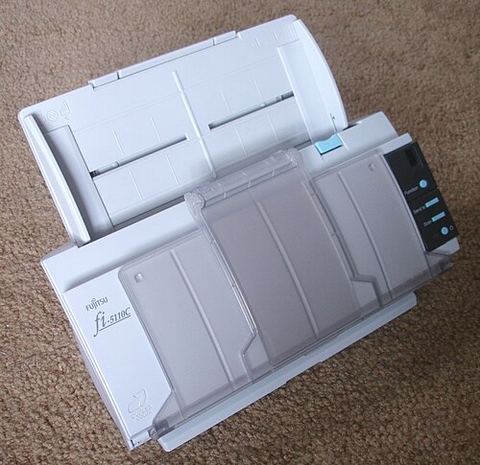
Maintaining the S1300 Long Term
Because this scanner is no longer in production, keeping the mechanical side healthy matters just as much as the driver itself. A few habits go a long way:
- Wipe down the feed rollers every few months, even if you scan infrequently, since dust settles regardless of usage.
- Keep a spare USB cable on hand — the original cables on these units are thin and prone to failing at the connector after years of coiling and uncoiling.
- Back up your ScanSnap Manager profile settings before reinstalling Windows, since reconfiguring scan destinations and file-naming rules from scratch is tedious.
- Check for a firmware update listed alongside the driver on the PFU download page, as a couple of older firmware revisions had known feed-detection bugs.
In my experience, an S1300 that has had its rollers cleaned regularly will comfortably outlast two or three laptop upgrades, which says a lot about how well these older Fujitsu units were built.
Conclusion
The Fujitsu ScanSnap S1300 remains a solid, compact scanner years after release, as long as you install the correct ScanSnap Manager package for your Windows version. When the standard installer or auto-detection fails, a manual Device Manager install pointed at the software’s driver folder almost always solves it.
This guide was written by Ryan, a CS graduate and PC hardware enthusiast with two decades of experience keeping older office equipment running on current operating systems. More guides at softwaredriverdownload.com.