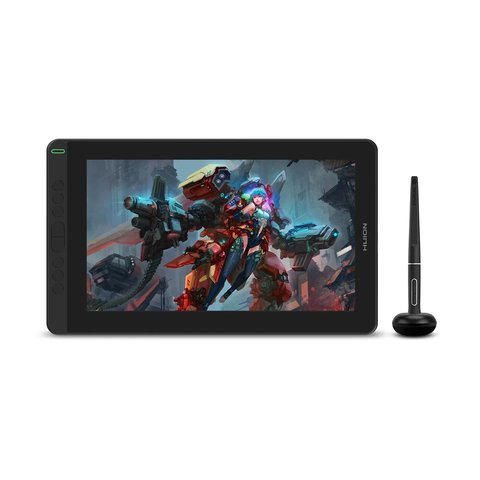
You get the Huion Kamvas 13 working by installing the Huion Tablet driver from Huion’s own download center, then plugging the pen display in with the included 3-in-1 cable before you open your art software. Skipping the driver and relying on Windows’ generic HID detection is the single biggest cause of “pen not working” complaints for this model.
The Kamvas 13 is an entry-level pen display with a 13.3-inch FHD screen, aimed at people moving up from a basic drawing tablet without a screen. I set one up for a nephew starting digital art as a hobby, and the part he got stuck on was not the driver install itself but figuring out that the display needed a separate video connection in addition to the USB data cable.
Where to download the driver
Go to the Huion official download page and search “Kamvas 13.” Make sure you pick the plain Kamvas 13 driver, not Kamvas Pro 13 or Kamvas 13 (Gen 3) — the pen pressure calibration data differs between these similarly named models.
- Close all graphics software and antivirus programs before running the installer.
- Uninstall any previously installed tablet driver through Windows’ “Add or Remove Programs.”
- Run the downloaded Huion installer as Administrator.
- Restart the computer once the installer finishes — do not skip this step.
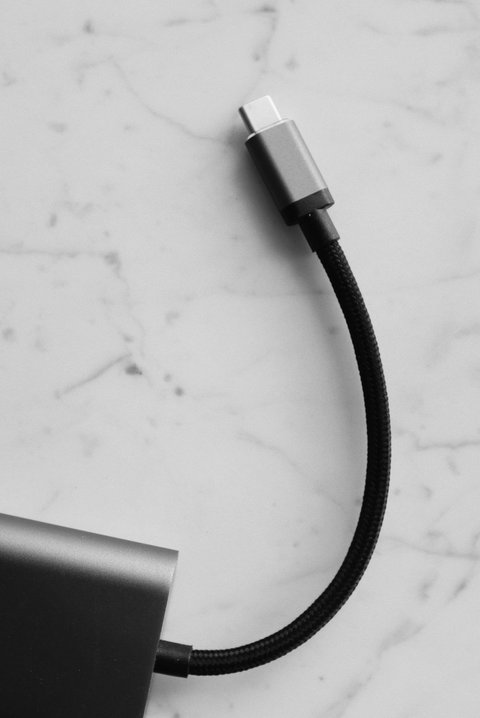
- Connect the Kamvas 13 with the supplied cable, plugging both the USB and HDMI (or USB-C full-function) ends in fully.
Cable and display detection issues
If Windows shows the Kamvas 13 as a second monitor but the pen does not draw anything, the video signal is connected but the USB data line is not. Check that both connectors on the 3-in-1 cable are seated — a common mistake is plugging in only the HDMI or USB-C video half and leaving the separate USB data plug loose.
Calibrating pen pressure and mapping
Open the Huion Tablet driver software after install and go to the Pen tab to test pressure sensitivity with the built-in slider. If lines feel unresponsive at light pressure, lower the “Tip Feel” setting toward Soft. Under Display, confirm the mapping area matches the full Kamvas 13 screen, not a stretched or offset region — this happens most often on multi-monitor setups where Windows assigns the wrong display as primary.
Per Alina R., who is a Freelance Illustrator, “Once I got the mapping calibrated to the actual screen area, the parallax between the pen tip and the cursor became barely noticeable.”
Manual driver install if the installer fails
Extract the downloaded driver package with 7-Zip if the installer crashes partway. In Device Manager, find the Kamvas 13 listed under Human Interface Devices, right-click it, choose “Update driver,” then “Browse my computer for drivers,” and point it at the extracted folder. This restores basic pen input even when the full driver suite will not install cleanly.
Author/Publisher: Huion Animation Technology
Driver/Software Date: Latest available on Huion’s download center
Version: Huion Tablet Driver (current release)
File Name: Huion_Tablet_Kamvas13.exe
File Size: Approximately 150-200 MB
OS Compatibility: Windows 10, Windows 11, macOS 10.12 and later
Frequently Asked Questions
Why does the pen work but pressure sensitivity does not?
This usually means the drawing software (Photoshop, Clip Studio, etc.) has its own tablet API setting that is not enabled. Check the pressure sensitivity settings inside the specific art program, not just the Huion driver.
Can two tablet drivers be installed at the same time?
No, running Huion’s driver alongside Wacom or another brand’s driver causes conflicts. Fully uninstall any other tablet driver before installing Huion’s.
Does the Kamvas 13 work with a laptop that only has USB-C?
Yes, as long as the laptop’s USB-C port supports DisplayPort Alt Mode. If it does not, you will need the separate USB-C to HDMI+USB adapter cable Huion sells for this model.
Why is my cursor offset from where the pen touches?
This is a display mapping issue. Open the Huion driver, go to Display settings, and re-select the Kamvas 13 as the mapped monitor rather than your primary display.
Conclusion
Most Kamvas 13 problems trace back to either an old conflicting driver or a loose connection on the 3-in-1 cable. Install the correct Huion driver fresh, double-check both the video and USB connections, and calibrate the display mapping before assuming there is a hardware fault. If the pen still misbehaves after all that, Huion’s support team can usually confirm a warranty replacement within a few days.
Ryan
Computer Science grad · long-time hands-on troubleshooter