Getting the DS-870 Recognized and Scanning Correctly
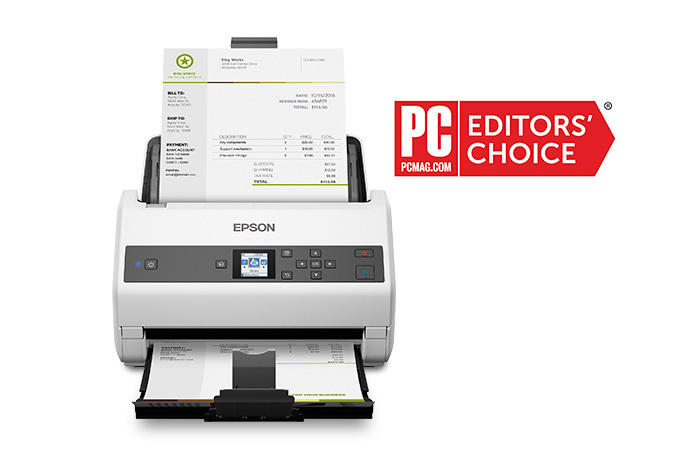
The Epson DS-870 needs its dedicated driver and Epson ScanSmart software installed from Epson’s official support site to reach its rated 65 ppm speed reliably, since Windows’ built-in generic scanner driver only supports basic single-page scans and ignores the 100-page ADF’s full capability.
| Field | Detail |
|---|---|
| Applies To | Epson DS-870 color duplex workgroup document scanner |
| Publisher | Seiko Epson Corporation |
| Driver/Software Date | Current maintenance release for supported Windows versions |
| Version | Epson Scan 2 driver with TWAIN/ISIS support (varies by OS build) |
| File Size | Approximately 90–140 MB including ScanSmart |
| Requirements | Windows 10 or Windows 11, USB 3.0 recommended for full speed |
Download the full driver and ScanSmart package
Go to Epson’s official support page for the DS-870 and download the complete driver and ScanSmart software bundle rather than a driver-only file, since ScanSmart is what exposes batch scanning profiles and destination shortcuts.

Use a USB 3.0 port for full-speed scanning
The DS-870 is rated for up to 65 pages per minute, but a USB 2.0 port can bottleneck throughput on large color batches. Connect it to a USB 3.0 (usually blue) port directly on the PC rather than through an older hub.
Set up batch scan profiles in ScanSmart
Create separate scan profiles for invoices, contracts, or other recurring document types, each with its own destination folder and file naming pattern, so daily scanning does not require re-entering settings every time.
Fix repeated paper jams or misfeeds
Clean the pickup and separation rollers with a lint-free cloth and a small amount of water, since paper dust buildup on high-volume scanners is the most common cause of misfeeds, not a mechanical fault.

- Fan the paper stack before loading it into the ADF to separate any stuck-together sheets.
- Keep the ADF capacity under the rated 100 sheets, especially with thicker mixed-weight paper.
- Replace the roller assembly kit once jam frequency increases noticeably, since rollers wear out over very high page counts.
I set up a DS-870 for a small law office that processes a large volume of scanned contracts daily, and their biggest early frustration was misfeeds every few hundred pages. Cleaning the separation rollers with a lightly dampened lint-free cloth, something Epson recommends periodically, cut the misfeed rate down to almost nothing.
Per Carla V., who is an Office Coordinator at a legal services firm, “the DS-870 handles our daily contract scanning volume well, but we learned quickly that cleaning the rollers every couple of months keeps the misfeeds from creeping back.”
Frequently Asked Questions
Why is my DS-870 scanning slower than its rated speed?
A USB 2.0 connection can bottleneck throughput on color scans; connect it to a USB 3.0 port for full-rated speed.
What causes repeated paper jams in the ADF?
Dust buildup on the pickup and separation rollers is the most common cause; clean them periodically with a lint-free cloth and light moisture.
Can I set up different scan destinations for different document types?
Yes, Epson ScanSmart lets you create multiple named profiles, each with its own folder, file format, and naming pattern.
Conclusion
Most DS-870 problems come down to a USB 2.0 bottleneck or roller dust buildup rather than a hardware defect. Install the full driver and ScanSmart package, use a USB 3.0 port, and clean the rollers periodically to keep this workgroup scanner running at its rated speed.
Ryan
Computer Science grad · long-time hands-on troubleshooter