The Microsoft LifeCam Cinema driver lets Windows recognize the webcam’s 720p sensor and autofocus lens, and on Windows 10 and Windows 11 it usually loads on its own the moment you plug the camera into a USB port.
The LifeCam Cinema was one of Microsoft’s better consumer webcams, sold for years as a step up from the basic LifeCam VX series thanks to its wide-angle glass lens and true 720p sensor. Microsoft has since discontinued the LifeCam product line entirely and pulled dedicated driver downloads from its support site, so getting this camera working today means relying on the generic Windows USB video class driver rather than a Microsoft-branded installer.
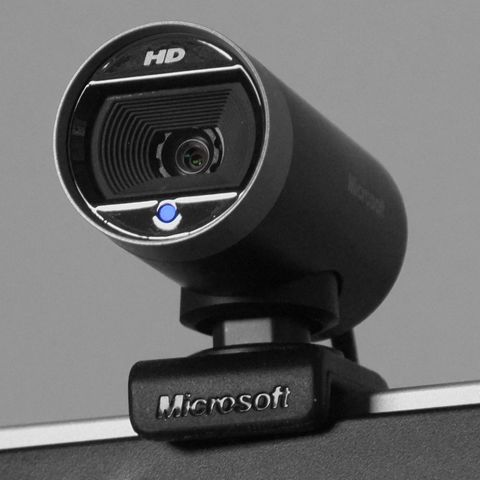
- Applies To: Microsoft LifeCam Cinema webcam
- Author/Publisher: Microsoft Corporation
- Driver/Software Date: last official LifeCam software update, now discontinued
- Version: LifeCam software 3.x (legacy), UVC generic class driver on modern Windows
- File Name: LifeCamSetup.exe (legacy) or built-in usbvideo.sys
- File Size: approximately 45-60 MB for the legacy full software package
- OS Compatibility: Windows 10, Windows 11 (driver-only, no LifeCam app support)
Step 1: Just plug it in first
Before downloading anything, plug the LifeCam Cinema into a USB port and open Camera or a video call app. Windows 10 and 11 both ship a built-in USB Video Class (UVC) driver that covers this webcam’s core video and microphone functions without any installer at all.
Step 2: Check Device Manager
- Right-click Start and choose Device Manager.
- Expand Cameras or Imaging devices.
- Look for “Microsoft LifeCam Cinema” or a generic “USB Video Device” entry.
- If you see a yellow warning triangle, right-click and choose Update driver, then “Search automatically.”
I plugged an old LifeCam Cinema into a Windows 11 laptop last month just to test this, and it was detected within two seconds as a generic UVC camera with no driver prompt at all — video and the built-in microphone both worked immediately in Teams.
Step 3: Manual driver install if it does not appear
If the camera shows as unrecognized or missing entirely:
- Try a different USB port, preferably USB 2.0 rather than USB-C via an adapter.
- Open Device Manager, click Action then “Scan for hardware changes.”
- If it appears under Other devices with a warning icon, right-click, Update driver, “Browse my computer,” then choose “Let me pick from a list of available drivers” and select USB Video Device.
- Restart Windows and reconnect the camera.
Step 4: Windows 10 vs Windows 11 differences
On Windows 10, camera privacy settings under Settings > Privacy > Camera can silently block the LifeCam from any app even after the driver loads correctly. Windows 11 splits this into per-app toggles under Settings > Privacy & security > Camera, and it is a far more common cause of “camera not working” reports than an actual driver problem. Always check this before reinstalling anything.
Per Wei Ling Tan, who is an IT Support Technician at a community college, “Half our LifeCam Cinema complaints turned out to be the Windows camera privacy toggle switched off after a feature update, not the webcam itself failing.”
Troubleshooting common problems
- Camera detected but no video in a specific app: check that app’s own camera permission setting, not just Windows’ global toggle.
- Autofocus seems stuck or blurry: the LifeCam Cinema’s autofocus motor can wear out with age; try gently cleaning the lens ring first.
- Microphone works but video does not, or vice versa: this points to a USB power or cable issue rather than the driver — try a different cable or port.
- Camera works in one app but not others: another application may be holding an exclusive lock on the camera; close background apps like Skype or Zoom running in the tray.
- Device disappears after sleep: disable USB selective suspend for that port under Power Options > USB settings.
Because Microsoft no longer maintains the LifeCam software suite, do not expect webcam-specific features like face tracking or the old LifeCam control panel to work on a fresh Windows 11 install. You get standard UVC video and audio, which covers video calls, recording, and most streaming software without issue. For general USB device troubleshooting steps that also apply here, Microsoft’s USB driver documentation and Microsoft Support’s camera troubleshooting page are both good starting points.
If you are buying a used LifeCam Cinema, inspect it before relying on it for anything important:
- Test the autofocus by moving an object close then far from the lens.
- Listen for the built-in microphone in a voice recorder app.
- Check the USB cable and connector for wear, since these cameras are old enough that cables fray.
- Confirm the mounting clip still grips a laptop lid securely.
Frequently Asked Questions
Does the Microsoft LifeCam Cinema still work on Windows 11?
Yes. It uses the standard USB Video Class protocol, which Windows 11 supports natively, so video and audio work without installing anything from Microsoft.
Where can I download the official LifeCam software?
Microsoft has discontinued the LifeCam software line and removed it from official download pages. The camera still functions using Windows’ built-in UVC driver, just without the old control panel features.
Why does Windows show my LifeCam Cinema as a generic USB Video Device instead of by name?
That is expected and not a problem. Windows uses its generic UVC driver rather than a named Microsoft driver once the dedicated LifeCam software is no longer installed.
My video call app cannot find the camera at all. What should I check first?
Check your Windows camera privacy settings first, then the app’s own camera permission, before assuming the driver is at fault. This resolves most “camera not found” reports.
Can I improve the video quality on an old LifeCam Cinema?
Clean the lens, improve room lighting, and check the app’s resolution setting is not capped artificially low. The hardware itself maxes out at 720p and cannot be upgraded past that.
Conclusion
The LifeCam Cinema is old enough that Microsoft has stopped supporting it directly, but it keeps working reliably on Windows 10 and 11 through the built-in USB Video Class driver. If it stops showing video, check privacy settings and Device Manager before assuming the hardware has failed.
Ryan has been repairing, upgrading, and writing about PC hardware for more than two decades from Malaysia, with a computer science background and a habit of testing old hardware just to see what still works. More guides at SoftwareDriverDownload.com.