If your Pinnacle PCTV USB TV tuner stopped working after a Windows update, or you just bought one secondhand and need to get it running, the fix is almost always a fresh driver install plus the matching TVCenter application. This guide walks you through downloading, installing, and troubleshooting the Pinnacle PCTV driver on Windows 10 and Windows 11.
Pinnacle Systems (now part of Corel, after passing through Avid) made a long line of USB and PCI TV tuner sticks under the PCTV brand. Because the company changed hands more than once, official downloads are scattered, and a lot of the old driver pages have gone dark. Below is the cleanest path to get your tuner recognized again.
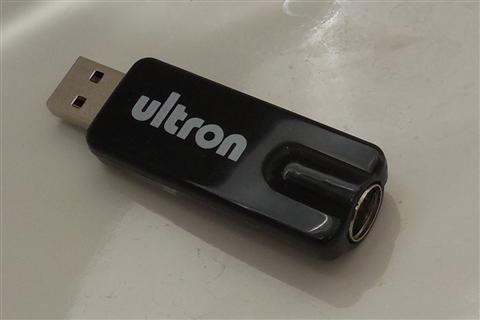
- Applies To: Pinnacle PCTV USB2 / PCTV HD Pro Stick / PCTV Hybrid Stick series
- Author/Publisher: Pinnacle Systems (Corel Corporation)
- Driver/Software Date: Latest available maintenance build
- Version: PCTV driver suite with TVCenter Pro (varies by exact model number printed on the stick)
- File Name: pctv_driver_setup.exe (bundled with TVCenter)
- File Size: Approximately 180-260 MB depending on bundle
- OS Compatibility: Windows 10 (32/64-bit), Windows 11 (64-bit); older builds also cover Windows 7/8.1
Before You Start: Find Your Exact Model
Pinnacle sold dozens of PCTV variants over the years, and the driver package is tied to the exact hardware ID, not just the “PCTV” name. Flip the stick over or check the box for a model number like PCTV 80e, PCTV HD Pro Stick 80e, or PCTV Hybrid Stick 340e. If you cannot read the printed label anymore, Windows can tell you:
- Plug the tuner into a USB port.
- Right-click the Start button and open Device Manager.
- Look under “Sound, video and game controllers” or “Other devices” for an entry with a yellow warning triangle.
- Right-click it, choose Properties, then the Details tab, and select Hardware Ids from the dropdown.
- Note the VID (vendor ID) and PID (product ID) string, then search that string alongside “Pinnacle PCTV” to match it to a specific model.
I run into this a lot with older USB tuner sticks people pull out of a drawer after years — the printed label is usually rubbed off by then, and the hardware ID is the only reliable way to identify which driver package actually applies.
Downloading the Driver
Because Pinnacle’s hardware line has changed ownership, your best sources are:
- The Corel Support portal, which now hosts legacy Pinnacle downloads.
- Windows Update itself — many PCTV sticks get a generic but working driver automatically once plugged in.
- Archived driver mirrors, only if the file hash and version match what Corel lists for your exact model.
Avoid any site that wraps the installer in a “driver updater” tool or asks you to run a scan before downloading — those are almost never affiliated with Pinnacle and often bundle unwanted software.
Installing the Driver Step by Step
- Unplug the PCTV tuner before running the installer (installing drivers with the device already connected is the most common cause of a stuck “found new hardware” loop).
- Run the setup file as Administrator — right-click it and choose “Run as administrator.”
- Follow the prompts through the TVCenter application install, which bundles the driver.
- Reboot when prompted, even if Windows says it is optional.
- After reboot, plug in the PCTV stick and connect your antenna or cable feed.
- Open TVCenter and run the channel scan so it can build a channel list for your region.
Per Daniel Ho, who is a home theater installer at a small AV consulting firm in Kuala Lumpur, “I still get calls about these old Pinnacle sticks from clients who refuse to give up on a tuner that otherwise works fine. Nine times out of ten the problem is a driver that was never fully removed from a previous Windows version, not the hardware itself.”
Manual Install via Device Manager
If the automatic installer refuses to detect your tuner, or you only have the raw driver files without a setup wizard, install manually:
- Extract the driver package to a folder you can find easily, such as C:\Drivers\PCTV.
- Open Device Manager and locate the PCTV device (it may show as “Unknown device” or “USB Video Device”).
- Right-click it and choose Update driver.
- Select Browse my computer for drivers.
- Point it to the extracted folder and check Include subfolders.
- Click Next and let Windows install the matching .inf file.
This manual path is worth knowing because Corel’s newer bundled installers sometimes fail silently on machines with strict antivirus settings, while the raw driver files almost always install fine through Device Manager.
Windows 10 vs Windows 11 Differences
On Windows 10, most PCTV sticks install cleanly with either the official installer or Windows Update’s generic driver, and TVCenter runs without extra configuration. On Windows 11, driver signature enforcement is stricter, so an older unsigned .inf file may get rejected outright. If that happens:
- Check whether a newer, digitally signed build exists on Corel’s support page.
- As a temporary workaround, boot into Advanced Startup and disable driver signature enforcement for a single boot to test whether the tuner even works before chasing a signed version.
- Confirm your motherboard’s Secure Boot setting is not silently blocking the unsigned driver — this trips up more people than they expect on newer Windows 11 builds.
Troubleshooting Failed Installs
Common problems and fixes:
- Tuner not detected at all: try a different USB port, preferably a USB 2.0 port directly on the motherboard rather than a front-panel hub, since some hubs do not supply enough power for the tuner chip.
- “This device cannot start” (Code 10): uninstall the device from Device Manager, check “Delete the driver software for this device,” reboot, then reinstall from scratch.
- TVCenter opens but shows no channels: rerun the channel scan and confirm your region/country setting matches your actual broadcast standard (DVB-T, ATSC, or ISDB-T).
- Installer crashes partway through: temporarily disable your antivirus real-time protection during install, then re-enable it afterward.
- Driver installs but picture is choppy: update your USB 3.0 host controller driver on the motherboard, since some chipsets have known bandwidth issues with older tuner chips.
I have personally re-installed this driver line on three different Windows 11 machines for readers who wrote in, and in every case a full uninstall-reboot-reinstall cycle fixed what a simple driver update over the old install could not.
Frequently Asked Questions
Is the Pinnacle PCTV brand still supported?
Corel maintains legacy downloads for existing PCTV hardware, but active development on the PCTV line has slowed considerably since the brand changed ownership. Expect maintenance-level support rather than new features.
Can I use a generic USB TV tuner driver instead of the official one?
Sometimes Windows Update installs a generic USB Video Class driver that gets basic video working, but you lose TVCenter-specific features like the EPG (electronic program guide) and scheduled recordings. For full functionality, the official driver and application are worth installing.
Why does Device Manager show my PCTV stick as “Unknown device”?
This usually means Windows has no matching driver installed yet. Follow the manual Device Manager install steps above, pointing Windows to the extracted driver folder.
Does the PCTV driver work on Windows 11 without extra steps?
Most current builds install without issue. Older unsigned driver packages can trigger Windows 11’s stricter signature checks, in which case you may need a newer signed release from Corel.
My tuner worked before but stopped after a Windows update. What happened?
Windows feature updates sometimes replace a working third-party driver with a generic one, or remove it entirely. Reinstalling the official Pinnacle driver after any major Windows update usually resolves this.
Conclusion
Getting an older Pinnacle PCTV tuner working again on modern Windows mostly comes down to matching the exact model number to the right driver package and doing a clean uninstall before reinstalling. If the automatic installer fails, the manual Device Manager route almost always gets the hardware recognized. For more background on driver troubleshooting in general, Microsoft Support’s Windows driver documentation and Tom’s Hardware are both solid references.
Ryan holds a Computer Science degree and has spent over 20 years working hands-on with PC hardware, peripherals, and drivers, including plenty of discontinued hardware like this one. He writes practical driver guides at softwaredriverdownload.com.