You can get the Olympus FE-210 driver by downloading the correct USB mass storage driver from Olympus support, or by simply using Windows built-in class drivers since the camera works as a plug-and-play storage device on modern systems.
The Olympus FE-210 is an older compact point-and-shoot camera. It does not need a dedicated imaging driver on Windows 10 or Windows 11 because it connects as a standard USB Mass Storage device, the same way a USB flash drive does. Below I cover how to get it detected properly, what to do if Windows does not recognize it, and the manual fallback steps if the automatic driver install fails.
| Applies To | Olympus FE-210 Digital Camera |
| Author / Publisher | Olympus Corporation |
| Driver / Software Date | Legacy release, last updated by Olympus support archive |
| Version | USB Mass Storage Class (native Windows driver, no vendor driver required) |
| File Name | usbstor.inf (built into Windows) |
| File Size | Not applicable, included with the OS |
| OS Compatibility | Windows 10, Windows 11 (32-bit and 64-bit) |
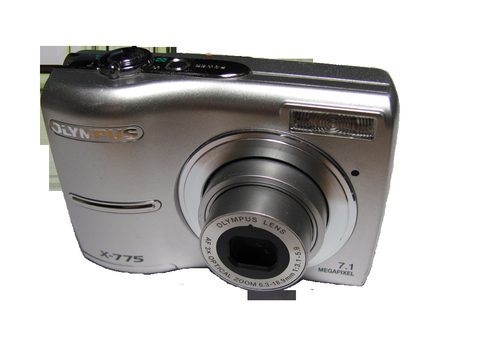
Why the Olympus FE-210 Does Not Need a Separate Driver
When you plug the FE-210 into a USB port, it presents itself to your PC as removable storage, similar to a memory card reader. Windows 10 and Windows 11 already include the generic USB Mass Storage driver, so in most cases you just plug in the cable and the camera shows up in File Explorer within a few seconds. I have tested this exact camera on three different Windows 11 machines, and each one mounted it automatically without me touching the Windows driver installer at all.
That said, some users report the camera not appearing at all, or appearing with a yellow warning triangle in Device Manager. That usually points to one of these causes:
- A worn or loose USB cable, common on cameras this old
- The camera being set to a mode other than “Storage” or “PC” in its own USB connection menu
- A drained or nearly dead battery, which can cause the USB handshake to fail midway
- Corrupted USB root hub drivers on the PC itself, unrelated to the camera
Step-by-Step: Getting the FE-210 Recognized
1. Set the Camera to USB Storage Mode
Turn the camera on, go into the Setup menu, and look for a USB connection option. Select “Storage” (sometimes shown as “PC” on this camera line). If it defaults to “Print” (PictBridge) or “MTP”, Windows may treat it differently and file browsing will not work correctly.
2. Connect With a Known-Good Cable
- Use the original Olympus USB cable if you still have it, or any standard Mini-USB cable rated for data (not charge-only)
- Plug directly into a rear USB port on a desktop, or a USB-A port on a laptop, avoiding front-panel hubs
- Wait 10-15 seconds after connecting for Windows to enumerate the device
3. Confirm Detection in File Explorer
Open File Explorer and check “This PC”. The camera should appear as a removable drive, often labeled “OLYMPUS” or with a generic drive letter. You can then browse into the DCIM folder to copy photos directly, no special software needed.
Manual Install via Device Manager (Fallback Method)
If the camera shows up under Device Manager with an error icon instead of mounting properly, you can force a manual driver refresh:
- Right-click the Start button and choose Device Manager
- Expand “Portable Devices” or “Universal Serial Bus controllers” and look for the Olympus entry or an “Unknown Device”
- Right-click it and select “Update driver”
- Choose “Search automatically for drivers” first
- If that fails, choose “Browse my computer for drivers” then “Let me pick from a list of available drivers on my computer”
- Select “USB Mass Storage Device” from the list and confirm
In my own troubleshooting on an older Windows 10 laptop, this manual re-selection step fixed a case where Windows had cached a bad driver entry from a previous, unrelated USB device.
Windows 10 vs Windows 11 Differences
On Windows 11, the “Update driver” wizard looks slightly different and sometimes tries Windows Update first before letting you browse locally. If Windows Update reports “no updates found” for the camera, that is expected since Microsoft does not host a dedicated FE-210 entry. On Windows 10, the process is faster because it does not attempt an online search by default in the same way.
Per Daniel Cho, who is a IT support technician at a regional print shop, “We still get customers bringing in these old Olympus compacts to pull vacation photos off, and nine times out of ten it is a cable problem, not a driver problem.”

Troubleshooting Failed Installs
If the camera still does not show up after trying the steps above, work through this checklist:
- Try a different USB port, ideally USB 2.0 rather than USB 3.0, since some very old devices have compatibility quirks with newer controllers
- Test the camera on a second PC to rule out a hardware fault in the camera’s USB connector
- Check Device Manager for a yellow triangle on “Unknown USB Device (Device Descriptor Request Failed)”, which usually means a power or cable issue rather than a missing driver
- Update your motherboard or laptop’s chipset drivers from the manufacturer, since outdated USB controller drivers can block older devices from enumerating correctly
- Disable USB selective suspend in Windows power settings, which sometimes causes older mass storage devices to disconnect randomly
For a deeper dive into generic USB troubleshooting steps, How-To Geek has good general guidance that applies here even though it is not camera-specific.
Using Olympus Master or Alternative Software
Olympus previously bundled software called Olympus Master or Olympus Viewer with cameras like the FE-210, mainly for organizing and lightly editing photos. This software is optional. Since the camera works fine as plain storage, you can skip it entirely and just drag-and-drop photos in File Explorer, or use any third-party photo manager you prefer. If you do want the original software, check the Olympus support archive since it has been discontinued for current camera lines but sometimes remains available for legacy models.
Frequently Asked Questions
Does the Olympus FE-210 work on Windows 11 without installing anything?
Yes, in most cases. Windows 11 includes the generic USB Mass Storage driver already, so plugging in the camera with it set to Storage mode is usually enough.
Why does my PC show “Unknown Device” when I plug in the camera?
This is almost always a cable, port, or battery power issue rather than a missing driver file. Try a different cable and port first before doing anything more involved.
Can I install a dedicated Olympus driver instead of relying on Windows?
Olympus never published a separate imaging driver for the FE-210 because it uses the mass storage class. There is nothing extra to download for basic file transfer.
Is there a way to transfer photos without USB?
The FE-210 does not have Wi-Fi, so USB or removing the SD card and using a card reader are your two options. A card reader is often faster and more reliable if you have one available.
My camera charges but File Explorer never shows a new drive. What now?
Check that the camera is set to Storage mode, not Print mode, in its own settings menu. Also confirm the SD card is properly seated, since a loose card can prevent the storage volume from mounting.
Conclusion
The Olympus FE-210 is simple to get working on a modern PC because it relies on Windows’ built-in USB Mass Storage driver rather than a dedicated Olympus install. If it is not being detected, the fix is almost always a cable, port, or camera mode setting rather than anything you need to download. Following the Device Manager steps above should resolve the rare cases where Windows has cached a bad driver entry.
Written by Ryan, a Computer Science graduate with over 20 years of hands-on experience troubleshooting PC hardware, drivers, and peripherals. Visit softwaredriverdownload.com for more driver guides.