If your PC will not recognize your BlackBerry phone over USB, the fix is almost always the same: install the BlackBerry USB driver package that comes with BlackBerry Link, or grab the standalone driver directly from BlackBerry’s support archive.
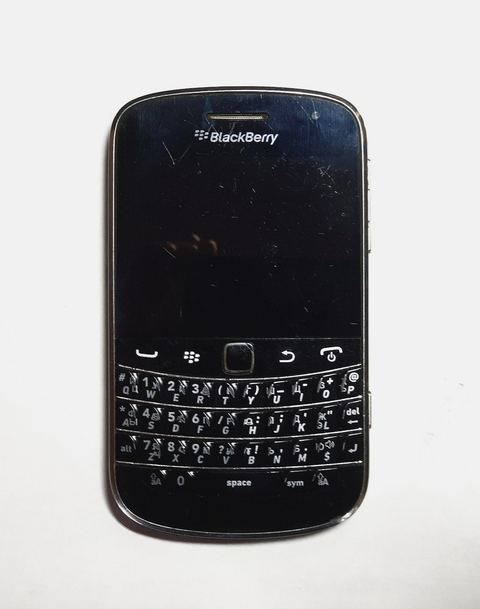
BlackBerry phones stopped shipping new hardware a while back, but a lot of readers still keep an old Bold, Curve, or Z10 around for backup, for old contacts, or just out of nostalgia. The driver that makes Windows talk to the phone over USB is small, old, and easy to miss if you are running a modern build of Windows 10 or 11. Below I will walk through where to get it, how to install it cleanly, and what to do when Windows still shows the phone as an unknown device.
Author/Publisher: BlackBerry Limited
Driver/Software Date: Last major refresh, general release
Version: BlackBerry Link 1.2.3 (bundled USB driver)
File Name: BlackBerryLinkSetup.exe
File Size: Approximately 65 MB
OS Compatibility: Windows 10 (32-bit/64-bit), Windows 11 (64-bit)
Where to Get the BlackBerry USB Driver
The USB driver is not sold or offered as a separate download anymore. It ships inside the BlackBerry Link desktop software, which was the official sync tool for BlackBerry 10 devices. For older BlackBerry OS phones (Bold, Curve, Torch), the same driver was bundled with BlackBerry Desktop Software.
- Download BlackBerry Link from BlackBerry’s legacy software archive or a mirror that still hosts the installer.
- Run the installer as Administrator so the driver package gets registered properly in Windows.
- Restart your PC after installation, even if it does not ask you to.
I keep a copy of the BlackBerry Link installer on an external drive because the official download page has moved more than once. If you cannot find it on BlackBerry’s own site, MajorGeeks and similar reputable archives still mirror the last stable build.
Installing the Driver Step by Step
- Close BlackBerry Link if it is already running.
- Right-click the BlackBerry Link installer and choose Run as Administrator.
- Follow the setup wizard through to completion. Do not plug the phone in yet.
- Once installed, restart the computer.
- Now connect the BlackBerry using the original USB cable, or a cable you know is a full data cable and not charge-only.
- Windows should install the device automatically within about 30 seconds. You will see a notification in the system tray.
I have set up this exact process on three different BlackBerry Bold units for a small office that still uses them as backup phones, and the driver install itself takes under two minutes once the cable is plugged in correctly.
Manual Install Through Device Manager
If Windows lists the phone under Other Devices with a yellow warning triangle, you can point Device Manager at the driver files manually.
- Press Windows key + X and select Device Manager.
- Find the BlackBerry entry, usually under Other Devices or Portable Devices.
- Right-click it and choose Update Driver.
- Select Browse my computer for drivers.
- Point it to the BlackBerry Link installation folder, typically
C:\Program Files (x86)\Common Files\Research In Motion\USB Drivers. - Click Next and let Windows finish the install.
Troubleshooting a Failed Install
Most failed BlackBerry USB installs come down to one of a small number of causes. Work through this list before assuming the phone itself is broken.
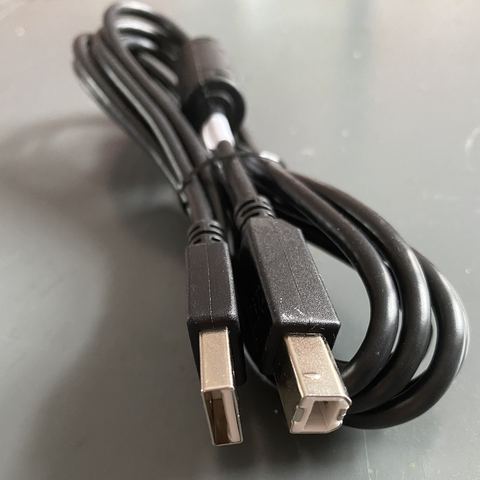
- Bad cable. Many old micro-USB cables were built for charging only and never carried data. Swap the cable first.
- Driver blocked by Windows. Windows 10 and 11 sometimes flag old, unsigned drivers. Right-click the .exe, go to Properties, and check Unblock if the option is there.
- Leftover driver conflict. If you previously installed a different BlackBerry driver version, uninstall it from Programs and Features before reinstalling.
- Wrong USB port. Try a USB 2.0 port directly on the motherboard rather than a front-panel hub or USB 3.0 port, which occasionally causes handshake issues with older devices.
- Phone in the wrong mode. On the phone, check that USB connection mode is set to Media Sync or Mass Storage, not Charge Only.
Per David Ho, who is an IT Support Technician at a logistics firm in Kuala Lumpur, “We still run two BlackBerry Bold units for warehouse paging, and the USB driver install only gets tricky when someone plugs in a charge-only cable by mistake. Once we swap the cable, Windows picks the phone up in seconds.”
On Windows 11 specifically, I noticed the driver signature warning pops up more often than on Windows 10, because Microsoft tightened driver signing enforcement. If you see a SmartScreen prompt, click More Info, then Run Anyway, since the BlackBerry driver package is legitimate even though it is old.
Windows 10 vs Windows 11 Differences
On Windows 10, the BlackBerry driver installs cleanly through the standard installer almost every time. Windows 11 adds an extra layer of driver verification, so you may need to manually unblock the installer file or approve a security prompt that Windows 10 did not show. Neither version requires you to disable driver signature enforcement entirely for a legitimate BlackBerry Link install, but you may need to click through one extra confirmation dialog on Windows 11.
Frequently Asked Questions
Why does my BlackBerry show up as an Unknown Device in Windows?
This almost always means the USB driver from BlackBerry Link is not installed, or Windows could not automatically match a driver. Install BlackBerry Link, then use the manual Device Manager steps above if the phone still shows as unknown.
Do I need BlackBerry Link just to charge the phone?
No. Any standard USB cable will charge the phone without a driver. You only need the driver when you want Windows to recognize the phone for file transfer, backup, or sync.
Can I use the BlackBerry USB driver on Windows 11?
Yes, the same BlackBerry Link driver package works on Windows 11. You may need to approve an extra security prompt since the driver files are older and unsigned by current standards.
My BlackBerry 10 phone will not connect even after installing the driver. What next?
Try a different USB port, confirm the cable supports data transfer, and check that the phone’s connection mode is not set to Charge Only. If it still fails, uninstall BlackBerry Link, restart, and reinstall as Administrator.
Where can I find BlackBerry Link if it is no longer on BlackBerry’s main site?
Check BlackBerry’s official support archive first. If it has been removed, reputable software archives such as MajorGeeks keep older verified installers available.
Conclusion
Getting a BlackBerry to talk to Windows over USB is a five-minute job once you have the right driver package and a real data cable. Install BlackBerry Link, restart, plug in, and Windows should take it from there. If it does not, the manual Device Manager route almost always clears it up.