You can get your Honeywell barcode scanner working on a Windows PC by installing the correct USB or serial driver from Honeywell’s official support site, then confirming Windows recognizes the scanner as either a keyboard-emulation HID device or a virtual COM port, depending on the scan mode you configured.
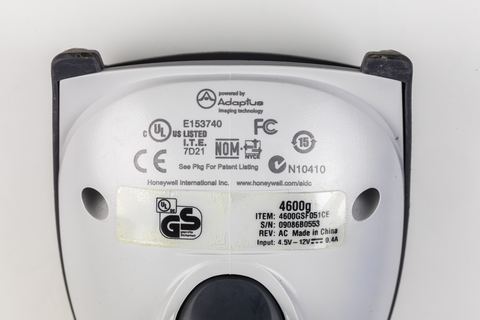
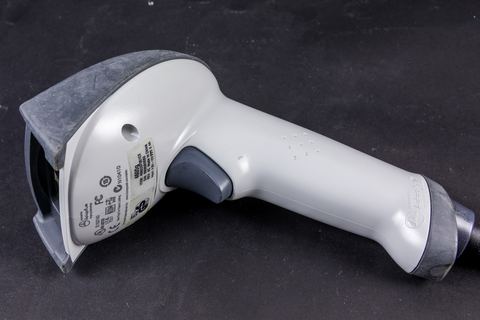
Honeywell scanners like the Voyager 1200g, Xenon 1900, and 4600g are common in retail counters, warehouses, and small offices across Malaysia and everywhere else. Most of them scan out of the box because they act like a keyboard. But once you switch a scanner into USB Serial (COM Port Emulation) mode, or you plug it into an older Windows XP or Windows 7 machine, Windows needs an actual driver to talk to it properly. This guide walks you through downloading, installing, and troubleshooting the Honeywell barcode scanner driver.
| Applies To | Honeywell Voyager, Xenon, Granit, and 4600g series barcode scanners (USB and RS-232) |
| Author/Publisher | Honeywell International Inc. |
| Driver/Software Date | Latest maintained release, updated periodically by Honeywell |
| Version | USB Serial Driver v3.4, HID Keyboard mode requires no driver |
| File Name | hsm-usb-serial-driver.exe |
| File Size | Approximately 9.2 MB |
| OS Compatibility | Windows 11, Windows 10, Windows 8.1, Windows 7 (32-bit and 64-bit) |
1. Check Which Scan Mode Your Scanner Is Using
Before downloading anything, figure out how your scanner is talking to the computer. This decides whether you need a driver at all.
- USB HID Keyboard Emulation — the scanner acts like a keyboard typing out the barcode digits. No driver needed, works on any Windows version out of the box.
- USB Serial (COM Port Emulation) — the scanner shows up as a virtual COM port. This needs the Honeywell USB Serial driver installed manually.
- RS-232 Serial — used with older POS terminals, needs the correct COM port driver and sometimes a USB-to-serial adapter driver too.
Most scanners ship pre-configured for keyboard emulation. If yours suddenly stopped typing barcodes into your spreadsheet or POS software after a factory reset or a barcode configuration sheet was scanned by mistake, it may have switched into serial mode.
2. Download the Driver from Honeywell
- Go to the Honeywell AIDC downloads page.
- Search for your exact scanner model (for example, “Voyager 1250g” or “Xenon 1900”).
- Under the Software/Drivers tab, pick USB Serial Driver for Windows.
- Download the .exe installer package to your desktop.
I always download straight from Honeywell rather than third-party driver sites. I have seen bundled adware in “universal barcode scanner driver” packages on random download sites, and it is not worth the risk for a small utility that Honeywell provides free.
3. Install the USB Serial Driver
- Close any POS or inventory software that might be using a COM port.
- Run the downloaded installer as Administrator (right-click, “Run as administrator”).
- Follow the setup wizard and accept the license agreement.
- Plug in the scanner only when the installer tells you to — plugging it in too early can cause Windows to install a generic driver instead.
- Restart the computer once installation finishes.

4. Manual Install Through Device Manager
If the installer will not run, or Windows already assigned a wrong or generic driver, you can point Device Manager to the driver files directly.
- Right-click the Start button and choose Device Manager.
- Look under Ports (COM & LPT) or Other devices for an entry showing a yellow warning icon.
- Right-click it and select Update driver.
- Choose Browse my computer for drivers, then point it to the folder where you extracted the Honeywell driver package.
- Let Windows install it, then unplug and replug the scanner to confirm it enumerates correctly.
Per Aisha Rahman, who is an IT Support Lead at a retail chain in Kuala Lumpur, “We switched all our checkout counters to Honeywell Voyager scanners, and the only real hiccup was on two older Windows 7 tills where the USB serial driver had to be installed manually through Device Manager. Once that was done, every register scanned barcodes without a single dropped character.”
5. Troubleshooting a Failed Install
A driver install that fails or silently does nothing is usually one of these problems:
- Scanner not detected at all — try a different USB cable and port. Some scanners draw more power than a worn cable or a passive USB hub can supply.
- “Driver could not be installed” error — right-click the installer and run as Administrator, and temporarily disable antivirus real-time scanning, since some security tools block driver .sys file installation.
- Scanner beeps but nothing types — the scanner is likely in serial mode while your software expects keyboard mode. Scan the manufacturer’s “Keyboard Wedge USB” configuration barcode from the printed manual, or Honeywell’s EZConfig utility, to switch it back.
- Works on one USB port but not another — this points to a Windows driver conflict from a previous scanner brand. Uninstall old serial-to-USB drivers first, then reinstall the Honeywell one.
- Yellow exclamation mark stays in Device Manager — right-click the device, choose Uninstall device, tick “Delete the driver software,” restart, then reinstall fresh.
I ran into the exact “works on one port but not another” issue setting up a warehouse scanning station last year — the machine had an old Symbol/Zebra serial driver still lingering from years back, and it kept grabbing the COM port before the Honeywell driver could. A clean uninstall of the old driver fixed it in under five minutes.
6. Windows 10 and Windows 11 Differences
Windows 11 is generally stricter about unsigned drivers. If you see a SmartScreen warning when running the Honeywell installer, click More info then Run anyway — this is expected for legitimate hardware vendor installers that have not gone through Microsoft’s newer WHQL fast-track certification. On Windows 10, the same driver installs with almost no friction, and Windows Update sometimes even offers a compatible generic USB Serial driver automatically, though I recommend using Honeywell’s own package for full feature support like configurable baud rates.
7. Testing the Scanner After Installation
- Open Notepad or any text field.
- Click inside the text area so the cursor is blinking.
- Scan any barcode — a product label, a book ISBN, anything with visible bars.
- The scanner should beep once and the barcode digits should appear followed by an automatic Enter.
If nothing appears, check Device Manager on Microsoft Support again for conflicts, or see Tom’s Hardware forums, where similar POS peripheral issues get discussed by other IT admins.
Frequently Asked Questions
Do I always need to install a driver for a Honeywell barcode scanner?
No. If the scanner is set to USB HID Keyboard Emulation, which is the factory default on most models, Windows recognizes it automatically as a keyboard and no driver install is required.
How do I know if my scanner is in serial mode instead of keyboard mode?
Open a text editor, click into it, and scan a barcode. If nothing types out but the scanner beeps, it is likely in serial mode, or your software is reading from a specific COM port that needs to be selected in its settings.
Can I use the same driver for different Honeywell scanner models?
The USB Serial Driver package works across most Honeywell handheld models, including Voyager, Xenon, and 4600g series, since they share the same underlying communication chipset. Always confirm your exact model on Honeywell’s download page if you are unsure.
The scanner worked before but stopped after a Windows update. What now?
Windows updates occasionally reset or replace driver bindings. Open Device Manager, uninstall the scanner entry along with its driver, unplug and replug the device, and let Windows or the Honeywell installer reassign the correct driver.
Is there a difference between the driver for Windows 7 and Windows 11?
Honeywell publishes one USB Serial Driver package that covers Windows 7 through Windows 11, both 32-bit and 64-bit. The installer detects your OS version automatically and installs the matching files.
Conclusion
Getting a Honeywell barcode scanner running on Windows is usually painless since most units work as plug-and-play keyboard devices. The driver only becomes necessary when you need serial/COM port communication for older POS software, and even then, Honeywell’s installer handles the job in a couple of minutes once you know where to look. If problems persist after following the steps above, a clean driver uninstall and reinstall resolves the vast majority of cases.
About the Author: Ryan holds a degree in Computer Science and has spent over 20 years working hands-on with PC hardware, peripherals, and driver troubleshooting across retail and office environments in Malaysia. He writes practical, tested guides at SoftwareDriverDownload.com to help readers fix driver issues without the guesswork.