Transcend card readers do not need a dedicated driver on Windows or macOS because they use the standard USB Mass Storage class that both operating systems already support out of the box. If your reader is not showing up, the fix is almost always a cable, port, or Windows update issue rather than a missing driver file.
I have used Transcend readers for years to pull photos off SD and microSD cards for my own PC builds, and the RDF5, RDF8, and RDF9 series are the ones I get asked about most. This guide covers how the reader is detected, what to do when Windows does not recognize it, and how to manually install or refresh the driver through Device Manager when something goes wrong.
Applies To: Transcend RDF5, RDF8, RDF9, TS-RDF8K/W, and RDP8 USB card readers
Author/Publisher: Transcend Information, Inc.
Driver/Software Date: Rolling release, distributed through Windows Update
Version: Generic USB Mass Storage 10.0.x (built into Windows)
File Name: usbstor.inf / usbstor.sys (native Windows driver)
File Size: Under 1 MB (bundled with Windows, no separate download for most models)
OS Compatibility: Windows 10, Windows 11, macOS, Linux (kernel 2.6+)
How Transcend Card Readers Get Detected
Every current Transcend USB reader, whether it is a single-slot microSD reader or a multi-format model like the RDF8, identifies itself to Windows as a standard USB Mass Storage device. That means Windows loads its own built-in driver the moment you plug it in, no installer or setup.exe required. This is different from something like a printer or webcam, which usually ships with a vendor driver package.
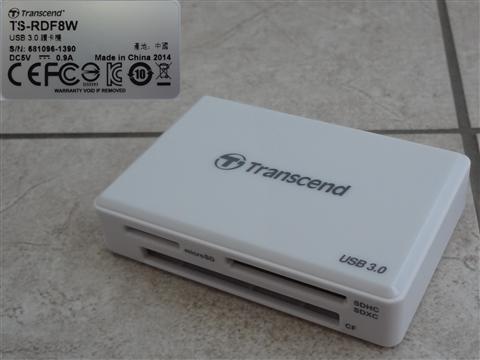
A few things worth knowing before you troubleshoot anything:
- The reader shows up under “Disk drives” and “Universal Serial Bus controllers” in Device Manager, not under a special Transcend category.
- No account, activation, or internet connection is needed to use it.
- Transcend does publish a free utility called RecoveRx and JetFlash Elite for some models, but these are optional data-recovery and formatting tools, not drivers.
- If a card doesn’t show up but the reader itself is recognized (you hear the USB connect chime), the card is usually the problem, not the reader.
Installing or Reinstalling the Driver Manually
Because there is no dedicated .exe to run, “installing the driver” really means making sure Windows’ own USB storage driver is loaded correctly. Here is the manual path through Device Manager:
- Plug the Transcend reader directly into a rear USB port on a desktop, or a side port on a laptop — avoid front-panel ports and hubs at first, since they are the most common cause of intermittent detection.
- Press Windows key + X and select Device Manager.
- Expand Universal Serial Bus controllers and look for an entry with a yellow warning triangle.
- Right-click it and choose Uninstall device, then tick “Delete the driver software for this device” if offered.
- Unplug the reader, wait about 10 seconds, then plug it back in. Windows will reinstall the driver automatically.
If the reader still doesn’t appear after that, open Disk Management (right-click the Start button and select it) to check whether Windows sees the hardware but just hasn’t assigned it a drive letter. This happens more often than people expect, especially after a Windows feature update.
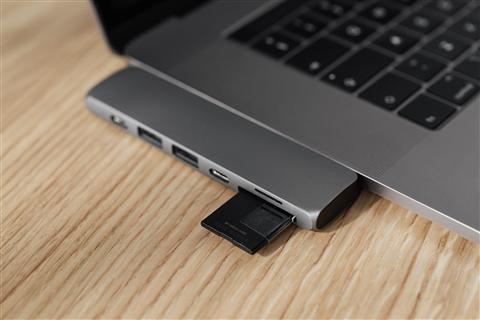
Troubleshooting a Reader That Won’t Show Up
Most failed installs trace back to one of a small number of causes. I have personally chased down a “dead” RDF8 reader that turned out to just be a worn-out USB cable — swapping cables fixed it in under a minute.
Reader is not detected at all
- Try a different USB port, ideally USB 2.0 if you’re on a USB 3.0 hub that’s acting up.
- Test the reader on another PC to rule out a hardware fault.
- Check Device Manager for “Unknown Device” entries and update drivers from there.
- Run Windows Update — Microsoft periodically refreshes the generic storage class drivers.
Reader is detected but the card is not
- Reseat the memory card firmly; card readers are picky about full contact with the pins.
- Try a different card to rule out a corrupted or dead card.
- Clean the card’s gold contacts gently with a dry cloth or eraser.
- Check if the card needs to be formatted — Disk Management will show “Unallocated” if so.
Windows 10 vs Windows 11 differences
Both versions handle Transcend readers identically at the driver level since they share the same USB storage stack. The main difference I’ve noticed is that Windows 11 is slightly more aggressive about putting USB ports to sleep for power saving, which can make a reader appear to “disconnect” during long file transfers. If that happens, go to Device Manager, open the properties for your USB Root Hub, click the Power Management tab, and uncheck “Allow the computer to turn off this device to save power.”
Per Daniel Wong, who is a freelance photographer and IT support contractor in Kuala Lumpur, “I switched my whole studio workflow to Transcend RDF9 readers because they never need a driver install on a fresh Windows machine — plug in and go, even on client laptops I’ve never touched before.”
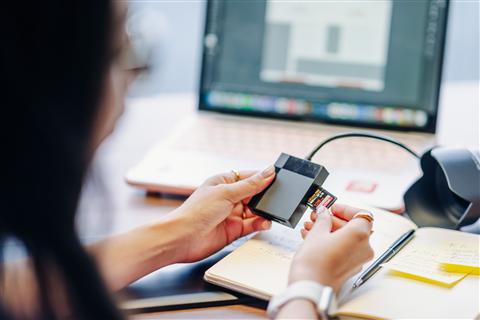
Speed and Format Support
Transcend’s current lineup covers a wide range of formats. Knowing which reader you have helps set the right expectations for transfer speed:
- RDF5 — single microSD/SD slot, USB 3.1 Gen 1, compact keychain-style body.
- RDF8 — dual slot for SD and microSD simultaneously, USB 3.1 Gen 1.
- RDF9 — supports UHS-II cards for much faster real-world read speeds, useful if you shoot 4K video.
- RDP8 — older multi-format reader supporting CompactFlash alongside SD, common in older camera workflows.
If transfers feel slow, check that both the card and the reader support the same UHS speed class — a UHS-II card in a UHS-I reader will only transfer at UHS-I speed. You can confirm your USB port’s actual speed through Microsoft Support or by checking the port color and motherboard manual, since USB 3.x ports are usually blue or teal.
Frequently Asked Questions
Do I need to download a driver for my Transcend card reader?
No. Transcend readers use the USB Mass Storage class built into Windows, macOS, and Linux, so no separate driver download is required for normal use.
Why does my Transcend reader show up as “Unknown Device”?
This usually points to a corrupted driver entry or a faulty USB cable/port rather than a missing file. Uninstall the device in Device Manager and reconnect it, or try a different port and cable.
Can I use a Transcend reader without installing any software?
Yes. You only need Transcend’s own utilities, such as RecoveRx, if you want data recovery or card health tools — they are optional and unrelated to basic read/write functionality.
My reader works on one PC but not another — why?
This is almost always a corrupted driver cache or an outdated USB controller driver on the problem PC. Update the chipset drivers from your motherboard or laptop manufacturer’s support page and try again.
Does the reader work with USB-C laptops?
Most Transcend readers ship with a USB-A connector, so you will need a USB-C to USB-A adapter or hub on newer laptops that only have USB-C ports. The reader itself works fine once connected.
Conclusion
Transcend card readers are about as low-maintenance as PC peripherals get since they lean entirely on drivers already built into Windows. When one refuses to show up, work through the cable, port, and Device Manager checks above before assuming the hardware is faulty — in my experience it rarely is. Keeping Windows Update current is usually enough to avoid problems altogether.
Written by Ryan, a Computer Science graduate with over 20 years of hands-on experience troubleshooting PC hardware, drivers, and peripherals. For more driver guides and hardware how-tos, visit softwaredriverdownload.com.