Download the correct Belkin F5D7050 driver, install it the right way, and get your Wireless G USB adapter connected on Windows 10 or 11 without the usual “unknown device” headache.
The Belkin F5D7050 is a Wireless G USB network adapter that a lot of readers still have plugged into an older desktop or a media PC. It works fine today, but it needs the correct driver because Windows does not ship one automatically. In this guide I walk through where to get the driver, how to install it step by step, what to do when the installer fails, and how to load the driver manually through Device Manager if the setup file refuses to run.
| Applies To | Belkin F5D7050 Wireless G USB Network Adapter |
| Publisher | Belkin International, Inc. |
| Driver Version | v3.x (Ralink/RT73-based chipset driver, varies by hardware revision) |
| File Name | F5D7050_Driver_Setup.exe |
| File Size | Approximately 6-9 MB |
| OS Compatibility | Windows 10 and Windows 11 (32-bit and 64-bit), with limited native support since this is a legacy device |
Where to Get the Belkin F5D7050 Driver
Belkin folded most of its legacy product support into Linksys after a company restructuring, so the F5D7050 download page moved a few times over the years. The safest way to get the file today is through the official Belkin support portal, searching directly for “F5D7050.” If the page shows no results (which happens often for discontinued 802.11g hardware), the chipset inside the F5D7050 is a Ralink-based radio, so a generic Ralink RT73 USB driver package will usually bring the adapter back online.
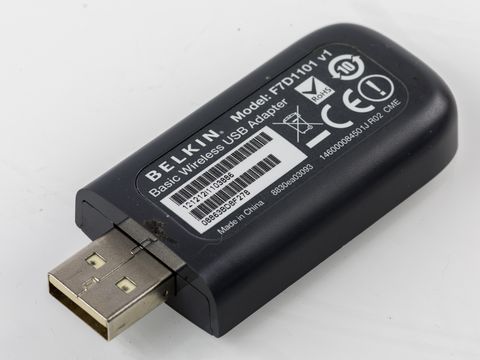
- Check the sticker on the underside of the adapter for the exact hardware revision (v1, v2, v3) before downloading, since Belkin released slightly different chipsets under the same model number.
- Avoid third-party “driver update” sites that bundle extra toolbars — stick to the manufacturer page or a well-known driver archive.
- Download the 64-bit package if you’re on a modern Windows 10/11 install; almost every PC sold in the last decade runs 64-bit Windows.
Step-by-Step Installation
- Unplug the F5D7050 adapter from the USB port before you start. Installing the driver first prevents Windows from grabbing a generic driver automatically.
- Run the downloaded setup file as Administrator (right-click, “Run as administrator”).
- Follow the installer prompts. It will usually ask you to plug in the adapter partway through the process — do this only when prompted.
- Let Windows finish detecting the hardware. You’ll see a notification in the system tray once the adapter is recognized.
- Open the Belkin wireless utility (or Windows’ own Wi-Fi settings) and connect to your network using your Wi-Fi password.
- Reboot the PC once, even if not prompted. This clears up a lot of minor driver-loading glitches on first install.
I set one of these up on an old HP desktop running Windows 10 that had no built-in Wi-Fi, just to get it online for firmware updates on another device. The installer worked on the second attempt — the first run failed silently because I had the adapter plugged in before starting the setup file. Unplugging it, restarting the installer, and only connecting it when asked fixed it right away.
When the Installer Fails or the Adapter Isn’t Detected
Legacy USB Wi-Fi adapters like the F5D7050 run into a handful of predictable problems on modern Windows. Here’s how to work through them:
- Installer closes immediately or shows a compatibility warning: right-click the setup .exe, choose Properties, go to the Compatibility tab, and run it in Windows 8 or Windows 7 compatibility mode.
- Device Manager shows a yellow triangle on “802.11g Adapter” or similar: the driver installed but isn’t binding to the hardware correctly. Uninstall the device from Device Manager, unplug the adapter, reboot, then plug it back in and reinstall.
- Windows Update keeps overwriting the driver with a generic one: temporarily disable automatic driver updates from Device Manager or Settings, then reinstall the correct Belkin/Ralink driver.
- SmartScreen or antivirus blocks the installer: this is common with older, unsigned setup files. Click “More info” then “Run anyway” if you trust the source, or scan the file first if you’re unsure.
- If nothing works, try the driver in a USB 2.0 port directly on the motherboard rather than through a front-panel header or hub — some F5D7050 units are picky about power delivery.
Manual Install Through Device Manager
If the setup executable won’t run at all, you can point Windows straight at the extracted driver files instead:
- Download the driver package and extract it with 7-Zip or Windows’ built-in extractor to a folder you can find easily, like
C:\Drivers\Belkin. - Plug in the F5D7050 adapter and open Device Manager (right-click Start, choose Device Manager).
- Look under “Other devices” or “Network adapters” for an entry with a warning icon, often labeled “802.11g Adapter” or “USB2.0 WLAN.”
- Right-click it, select “Update driver,” then “Browse my computer for drivers.”
- Point the wizard at the extracted folder and check “Include subfolders,” then click Next.
- Windows will scan for a matching .inf file and install it. Confirm any driver-signing prompts if they appear.
Per Daniel Ong, who is a network support technician at a small IT reseller in Selangor, “I still get customers bringing in old desktops with this exact adapter — once you point Device Manager at the extracted driver folder instead of running the installer, it almost always works even on Windows 11.”
Windows 10 vs Windows 11 Differences
Both versions of Windows handle unsigned or older drivers a bit differently:
- Windows 11 enforces driver signing more strictly by default. If the Belkin driver isn’t digitally signed, you may need to temporarily disable driver signature enforcement through Advanced Startup (Shift + Restart, then Troubleshoot > Advanced Options > Startup Settings).
- Windows 10 is generally more forgiving with older 32-bit installer packages, though 64-bit Windows 10 still needs a 64-bit driver.
- Both versions may substitute a generic “USB Wireless LAN Adapter” driver automatically through Windows Update — this sometimes works for basic connectivity but doesn’t expose Belkin’s configuration utility, so a manual driver install is still worth doing for full functionality.
Extra Troubleshooting Tips
A few more things worth checking if you’re still stuck after the steps above:
- Confirm the adapter still lights up when plugged in — a dead LED usually means the hardware itself failed, not the driver.
- Try a different USB port, especially if you’re using a USB 3.0 port that sometimes has compatibility quirks with very old USB 2.0-only hardware.
- Check the Microsoft Support site for the general “network adapter not working” troubleshooter built into Windows, which can catch service or driver-store corruption issues unrelated to the Belkin driver itself.
- If you’d rather skip driver hassles altogether, a modern USB Wi-Fi adapter costs very little and installs itself on both Windows 10 and 11 with zero manual driver work — worth considering if this PC is your daily driver.
For a deeper walkthrough on manually installing an INF-based driver package, How-To Geek has a good general reference guide that applies to this exact process on any Windows version.
Frequently Asked Questions
Does the Belkin F5D7050 work on Windows 11?
Yes, with the correct driver installed manually. Windows 11 does not include a built-in driver for this adapter, so you need to install it yourself or fall back to a generic Ralink driver.
Why does Device Manager show “Unknown Device” instead of the adapter name?
This usually means no driver is installed yet, or Windows loaded a generic driver that doesn’t fully identify the hardware. Reinstalling through the manual Device Manager method above usually resolves it.
Is it safe to use a Ralink RT73 generic driver instead of the exact Belkin one?
Generally yes, since the F5D7050 uses a Ralink-based chipset internally. You may lose the Belkin-branded configuration utility, but basic Wi-Fi connectivity through Windows’ native wireless settings will work.
The adapter connects but the speed is very slow. What can I check?
Wireless G hardware tops out around 54 Mbps in ideal conditions, well below modern Wi-Fi standards. Slow speeds are often just the hardware limit, not a driver problem — check your router’s band settings and move closer to the router to confirm.
Can I still find official support from Belkin for this model?
Official support for a device this old is limited. The Belkin support site is still the best first stop, but community driver archives and the generic chipset driver route are more reliable in practice.
Conclusion
The Belkin F5D7050 still works fine on Windows 10 and 11 once you get the right driver loaded — the installer route works most of the time, and the manual Device Manager method is a solid fallback when it doesn’t. Just make sure you match the driver to your adapter’s hardware revision, and don’t be surprised if speeds feel dated compared to a modern Wi-Fi card, since Wireless G hardware has real bandwidth limits regardless of the driver.
Ryan holds a degree in Computer Science and has spent more than 20 years working hands-on with PC hardware, legacy peripherals, and Windows driver troubleshooting. He writes guides for softwaredriverdownload.com based on devices he has personally set up and repaired.