When I typed “onikuma k10 software” into a search bar myself, I expected to land on a download page with an .exe file waiting for me. That is not what happened, and if you are reading this after the same search, I want to save you the trouble. The ONIKUMA K10 is not a keyboard or a mouse that ships with a control panel – it is a wired gaming headset, and the “software” question has a simpler answer than most people expect.
I picked up a K10 Pro a while back for a secondary PC I use for streaming test recordings, and the first ten minutes were spent exactly the way yours might be: plugging it in, opening Device Manager, and wondering where the setup wizard was. Below is everything I learned, laid out as a set of steps so you can get sound and mic working without guessing.
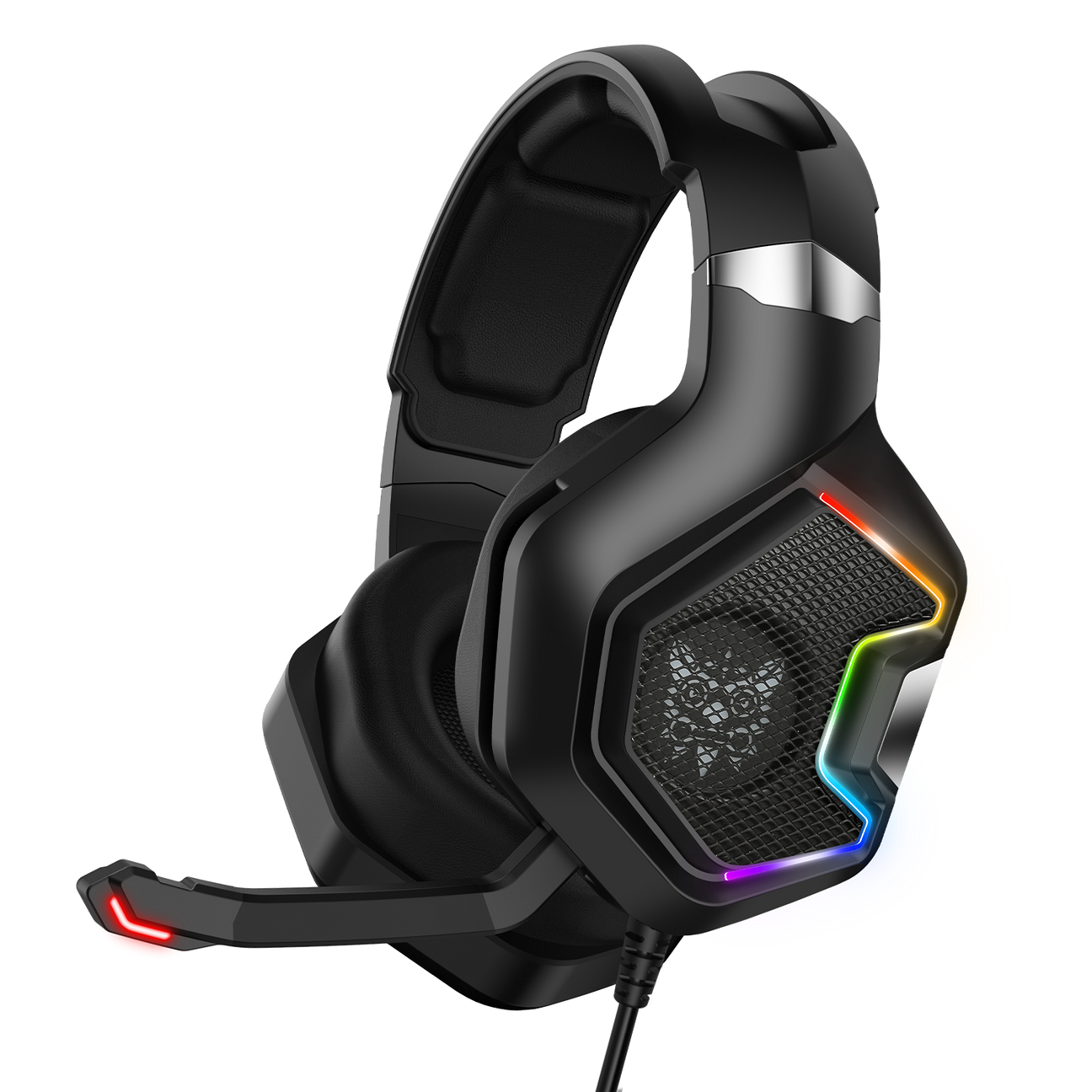
| Connection Type | 3.5mm jack (USB on some bundles) |
| Driver Requirement | None – uses standard USB audio class / analog audio |
| Companion App | Not available for this model |
| RGB Lighting | USB-powered, no software needed |
| Platform Compatibility | PC, Mac, PS4, PS5, Xbox (3.5mm controller jack) |
| Variants | K10, K10 Pro (wired), K10 2.4G (wireless dongle) |
Why There Is No K10 Driver Download
The official ONIKUMA downloads page lists driver packages for several mice and mechanical keyboards, but the K series headsets are not on that list, and the K10 is one of them. That is not an oversight. The K10 connects over a standard 3.5mm jack (or USB on some bundles) and behaves like any other USB audio class device: Windows, macOS, and even game consoles already contain the generic audio driver needed to output sound and read the microphone.
- No account creation, no companion app, and nothing to activate before the mic works.
- The RGB lighting on the ear cups is powered directly from the USB connector, so there is no lighting software to install either.
- Anything calling itself “Onikuma K10 driver setup.exe” on a random download site should be treated as suspicious – it is not something the manufacturer publishes.
Setting Up the K10 Step by Step
Common K10 Problems and What Actually Fixes Them
Most of the “software” complaints I see in forums are really driver-detection issues, not missing programs. A few of these came up while I was testing mine:
- No sound at all: almost always a default-device problem. Check Sound settings again after any Windows update, since updates occasionally reset the default playback device back to your monitor speakers.
- Mic not picked up in Discord or games: open the app’s own audio settings and manually select the K10 as the input, since some apps do not follow the Windows system default.
- Crackling or static: usually a loose 3.5mm connection or a worn front-panel jack on the case. Try a rear I/O port directly on the motherboard to rule out a bad extension cable.
- RGB lighting not turning on: confirm the headset is drawing power from a live USB port and not a USB hub that is asleep or unpowered.
- Windows shows a generic “USB Audio Device” label instead of ONIKUMA K10: this is completely normal. Class-compliant headsets often show a generic Windows name rather than the brand name, and it does not affect performance.
Updating the Generic USB Audio Driver
Even though there is no dedicated Onikuma package, keeping your system’s generic audio drivers current can resolve odd static or dropout issues:
- Open Device Manager and expand “Sound, video and game controllers.”
- Right-click the USB Audio Device entry (or your motherboard’s onboard audio chipset if you are using the 3.5mm jack) and choose “Update driver.”
- Select “Search automatically” and let Windows Update handle it.
- Restart the PC once the update finishes, even if Windows does not prompt you to.
If your motherboard uses a Realtek audio chipset, checking the board manufacturer’s support page for the latest Realtek package can also help, since that chipset is what actually decodes the K10’s analog signal when connected via 3.5mm.
K10 vs K10 Pro vs K10 2.4G: Know Which One You Have
Onikuma has released a few headsets sharing the K10 name, and the setup differs slightly:
- The standard wired K10 and K10 Pro use a 3.5mm connection and need zero software, matching everything above.
- The K10 2.4G is a wireless/wired dual-mode model that pairs with a small USB dongle. That dongle is still plug-and-play, but you do need to keep the dongle plugged into a USB-A port at all times for the wireless mode to function.
Checking the box or the print on the headband is the fastest way to confirm which variant you own before troubleshooting.
Frequently Asked Questions
Does the Onikuma K10 need a driver to work on Windows 11?
No. Windows 11 includes native USB audio class support, so the K10 works the moment it is plugged in with no separate driver install.
Is there an official Onikuma app for the K10?
Not for this model. Onikuma’s app and driver downloads are limited to select mice and mechanical keyboards, and the K series headsets, including the K10, do not have a companion app.
Why is my K10 microphone so quiet?
Raise the input level manually in Windows Sound settings or your game’s voice chat settings. The default gain on this microphone is set conservatively out of the box.
Can I use the K10 on PS4, PS5, or Xbox?
Yes, as long as your console controller has a 3.5mm headset jack, the K10 works without any extra setup, following the same plug-and-play behavior as on PC.
Final Thoughts
If you searched for K10 software hoping for a control panel, the honest answer is that you do not need one. The headset is designed to work the moment it is plugged in, and most reported problems trace back to Windows default device settings rather than anything missing on the hardware side. Keep your onboard or USB audio drivers current, double-check your default playback and recording devices after Windows updates, and the K10 should stay reliable for everyday gaming and voice chat.
Marcus Webb has spent the better part of two decades building and repairing gaming PCs, holds a computer science degree with a focus on systems administration, and currently writes hands-on hardware guides from his home office in Austin, Texas.