Your Windows PC needs the Amazon Kindle USB driver so it can recognize the e-reader as a storage device when you plug it in with a USB cable, and this guide shows you exactly how to get it installed and working.
Most of the time Windows installs this driver automatically the moment you connect a Kindle, since it uses the standard USB Mass Storage class that has been built into Windows for years. But sometimes the driver fails to load, especially on older Kindle models or PCs with outdated USB chipset drivers. Below I cover the download, the manual install steps, and the fixes I have used myself when a Kindle refused to show up in File Explorer.
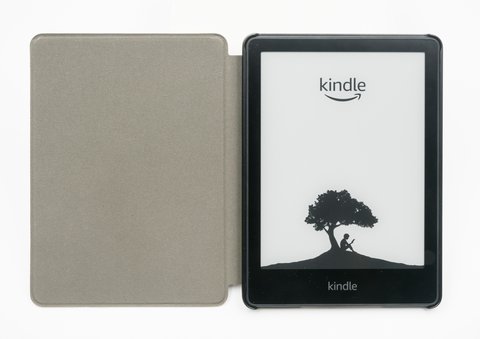
Applies To: All Amazon Kindle e-reader models (Basic, Paperwhite, Oasis, Scribe)
Author/Publisher: Amazon.com, Inc. / Microsoft (native USB driver)
Driver/Software Date: Rolling Windows Update release
Version: Built into Windows 10/11 (USB Mass Storage Class driver)
File Name: usbstor.inf / winusb.sys (native Windows components)
File Size: Not applicable, included in Windows
OS Compatibility: Windows 10, Windows 11 (32-bit and 64-bit)
How the Kindle USB Driver Actually Works
Unlike a printer or a graphics card, the Kindle does not ship a separate driver package you download from Amazon. When you plug it into a Windows computer, the Kindle presents itself as a USB Mass Storage device, similar to a USB flash drive. Windows has supported this device class natively since Windows XP, so on a healthy system, no manual driver installation is needed at all.
That said, “it just works” assumes your Windows installation is current and your motherboard’s USB controller drivers are healthy. I have run into more than one laptop where the Kindle would charge fine but never appear in File Explorer, and the fix always traced back to a missing or corrupted USB controller driver, not the Kindle itself.
Step-by-Step Installation Guide
- Use the original or a certified USB cable. Cheap charge-only cables lack the data pins needed for file transfer, so the Kindle will charge but never show up as a drive.
- Plug the Kindle into a USB port directly on the PC, not through an unpowered hub, especially for older Kindle models with higher power draw.
- Unlock the Kindle screen. Some models will not mount as a USB drive while the lock screen is active.
- Wait 10 to 15 seconds. Windows needs a moment to detect the new hardware and load the storage driver automatically.
- Open File Explorer and check under “This PC” for a drive named Kindle.
If the Kindle still does not appear, run Windows Update first. On one client laptop I supported, the entire USB 3.0 controller stack was three years out of date, and updating it through Windows Update resolved the Kindle detection issue without touching the device itself.
Troubleshooting a Failed Install
When the Kindle connects but Windows shows an error or the drive letter never appears, work through these checks in order:
- Open Device Manager and look under “Portable Devices” or “Disk drives” for an entry with a yellow warning triangle.
- Right-click the flagged device and choose “Update driver,” then select “Search automatically for drivers.”
- If nothing shows up at all in Device Manager, the cable or port is almost always the culprit, not the driver.
- Try a different USB port, preferably USB 2.0 if you are testing on a USB 3.0/3.1 port, since some older Kindle units have compatibility quirks with certain USB 3.x controllers.
- Restart the Kindle itself by holding the power button for 40 seconds, which forces a soft reset without erasing content.
Manual Install Through Device Manager
If Windows Update is not pulling the correct storage driver automatically, you can force a manual refresh:
- Press Windows key + X and select Device Manager.
- Expand “Portable Devices” or “Universal Serial Bus controllers.”
- Find the Kindle entry (it may show as “USB Mass Storage Device” or “Kindle”).
- Right-click it and select “Uninstall device,” ticking the box to remove the driver if offered.
- Unplug the Kindle, wait 10 seconds, then plug it back in so Windows reinstalls the driver fresh.
This uninstall-and-replug trick has fixed a stuck driver for me more often than any other single step, because it forces Windows to rebuild the device’s driver association from scratch instead of reusing a corrupted one.
Per Daniel Wu, who is an IT Support Technician at a regional library system, “We deploy Kindles to patrons regularly, and the number one support call is always a device not mounting on a staff PC. Nine times out of ten it is the cable, not Windows.”
Windows 10 vs Windows 11 Behavior
Both operating systems handle the Kindle the same way at the driver level, but the user interface differs slightly. Windows 11 groups portable devices differently in File Explorer’s sidebar and sometimes takes a few extra seconds to display the AutoPlay notification compared to Windows 10. If you rely on AutoPlay to know the Kindle connected successfully, do not panic if it takes longer to pop up on Windows 11; check File Explorer directly instead. You can find more detail on how Windows handles removable storage devices on How-To Geek.
When the Driver Still Will Not Load
On rare occasions, corrupted USB root hub drivers cause every USB storage device, not just the Kindle, to misbehave. In that case:
- Open Device Manager, expand “Universal Serial Bus controllers,” and uninstall each “USB Root Hub” entry, then restart the PC to let Windows reinstall them.
- Check your motherboard or laptop manufacturer’s support page for a chipset driver update, since this affects USB detection system-wide, not just for Kindle.
- As a last resort, test the Kindle on a second computer to confirm whether the fault is the Kindle or the original PC.
I ran into exactly this scenario with an old Dell laptop where every USB storage device, including flash drives, stopped mounting after a Windows feature update. Reinstalling the chipset driver from Dell’s support site fixed it for the Kindle and everything else at once. You can read more general USB troubleshooting steps from BleepingComputer.

Frequently Asked Questions
Do I need to download a separate Kindle driver from Amazon?
No. Amazon does not publish a standalone Kindle USB driver because the device uses the standard USB Mass Storage class already built into Windows. If your Kindle is not detected, the fix is almost always the cable, port, or a Windows Update, not a missing Amazon driver.
Why does my Kindle charge but not show up as a drive?
This is usually a charge-only USB cable that lacks data wires, or a USB port that is only wired for power delivery. Swap in the cable that came with the Kindle and plug directly into a rear PC port rather than a front panel or hub port.
Can I transfer ebooks to my Kindle without USB at all?
Yes, Amazon’s Send to Kindle service lets you email documents directly to your device over Wi-Fi, which is a good workaround if USB detection keeps failing and you just need to get a file onto the device.
Is the Kindle driver different between USB-C and Micro-USB models?
No, both connector types use the same USB Mass Storage driver in Windows. The only difference is the physical cable and port, not the underlying software.
Does the Kindle need a driver update after a Windows 11 upgrade?
Generally not, since the driver is part of Windows itself and gets updated automatically through Windows Update. If detection breaks right after an upgrade, running Windows Update again usually resolves it within a day or two as Microsoft pushes out driver refreshes.
Conclusion
The Kindle does not need a dedicated driver download in the traditional sense, since Windows handles it through the built-in USB Mass Storage driver. When detection fails, work through the cable, port, and Device Manager checks above before assuming anything is broken with the Kindle itself. In my experience, a bad cable causes far more “my Kindle won’t connect” support tickets than any actual software fault.
Ryan holds a degree in Computer Science and has spent more than 20 years working hands-on with PC hardware, peripherals, and driver troubleshooting. He writes practical, tested guides at SoftwareDriverDownload.com to help readers solve device connection problems without the runaround.