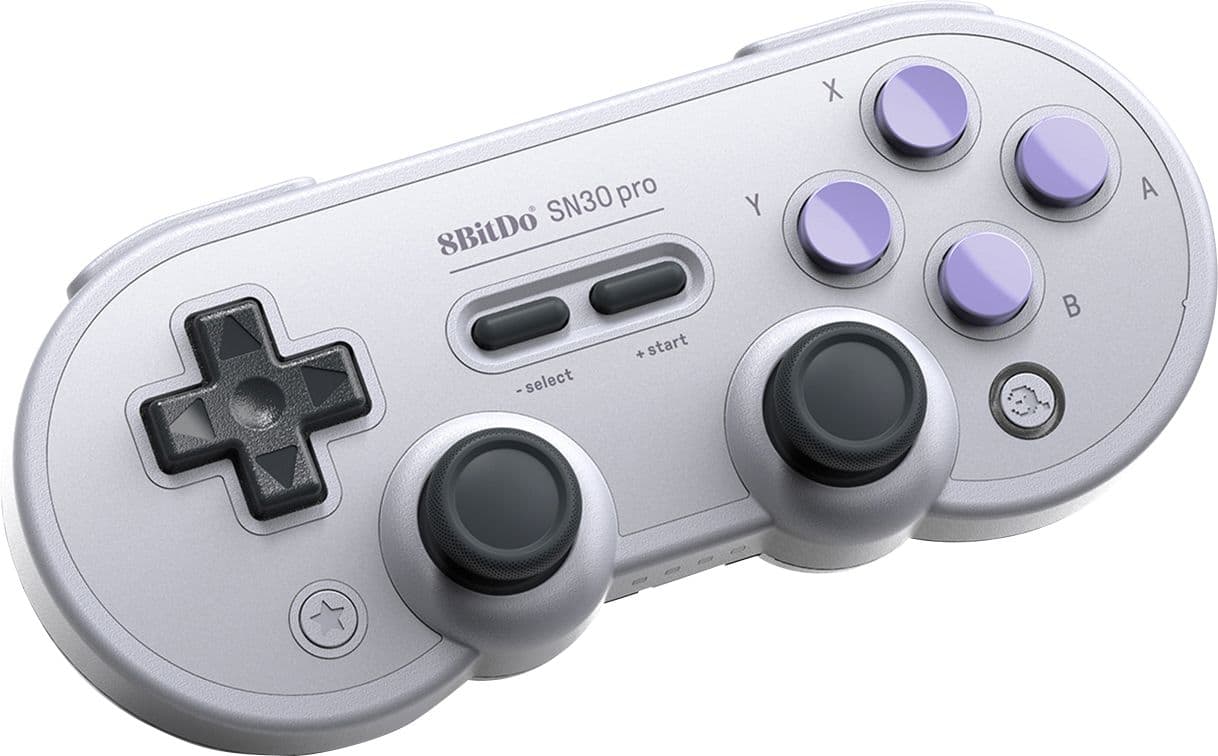
The 8BitDo SN30 Pro does not need a traditional Windows driver — it works out of the box in either XInput mode (reads as an Xbox 360 controller) or DirectInput mode, and the only software you might install is the free 8BitDo Firmware Updater for firmware upgrades and button remapping, not a driver.
| Field | Detail |
|---|---|
| Applies To | 8BitDo SN30 Pro (Bluetooth and USB-C wired modes) |
| Publisher | 8BitDo |
| Driver Type | Native Windows HID/XInput support — optional 8BitDo Firmware Updater for firmware and profiles |
| Connection | Bluetooth, 2.4G wireless (with adapter), or USB-C cable |
| Requirements | Windows 10 or Windows 11; Bluetooth 4.0+ for wireless pairing |
Pairing over Bluetooth on Windows
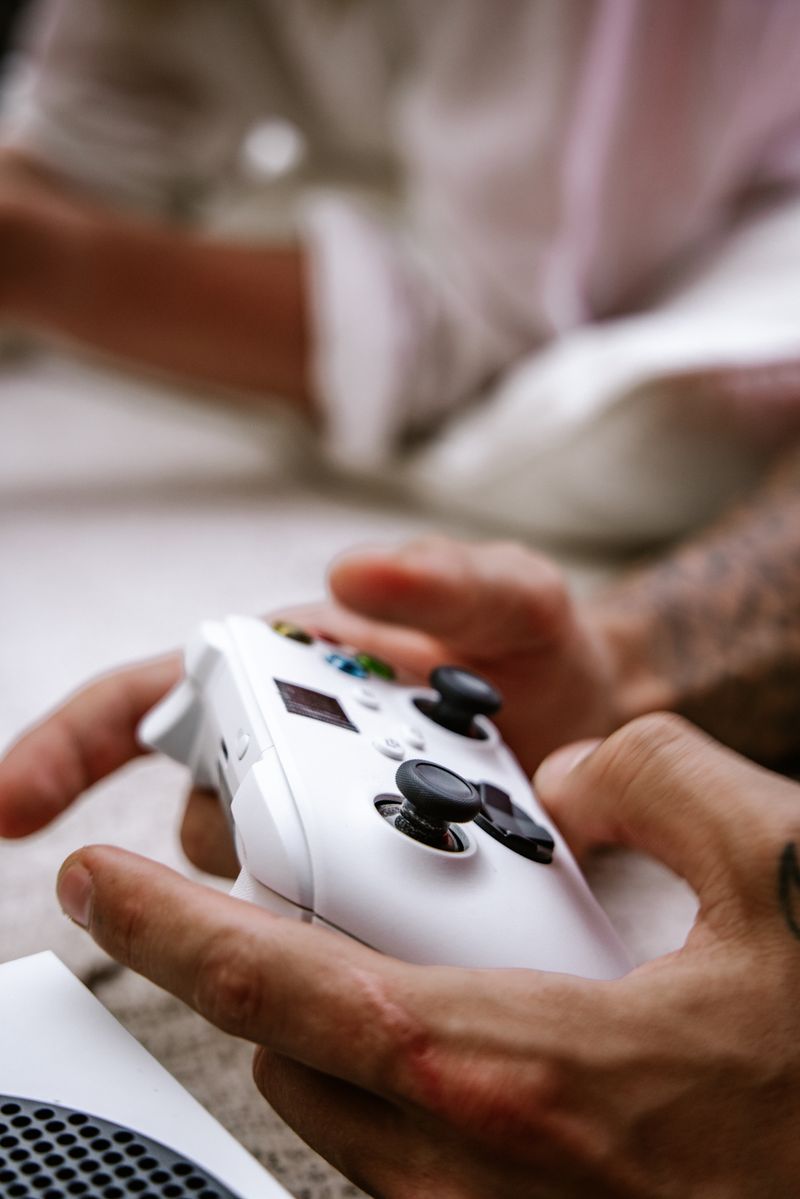
- Hold Start + B for about three seconds until the LED blinks rapidly — this puts the controller in Bluetooth pairing mode (X-input).
- Open Windows Settings > Bluetooth & devices > Add device, and select “8BitDo SN30 Pro” from the list.
- Wait for Windows to finish installing it as a generic Xbox-compatible controller; no extra driver download is triggered.
- Launch a game and check controller detection in Steam’s Big Picture controller settings, or Windows’ built-in “Set up USB game controllers” panel.
Switching between X, D, and S input modes
Hold Start plus one of the face buttons at power-on: Y for X-input (Xbox-style, best PC game compatibility), B for D-input (older DirectInput games and emulators), and A for Switch mode. If a game does not detect the controller at all, D-input is the most common culprit — switch to X-input first.
Fixing stick drift or unresponsive buttons
I had a first-generation SN30 Pro develop mild stick drift after about a year of daily use, and updating the firmware through 8BitDo’s updater tool combined with a stick recalibration in Windows’ controller panel resolved it without needing a replacement.
- Download the 8BitDo Firmware Updater from the official 8BitDo website and connect the controller with a USB-C cable during the update.
- Recalibrate analog sticks under Windows Settings > Bluetooth & devices > Devices > Game controllers > Properties.
- Clean around the stick base with a can of compressed air if drift persists after a firmware update and recalibration.

Per Jordan K., who is a Retro Gaming Reviewer at a gaming hardware blog, “the SN30 Pro is one of the few controllers that just works the second you pair it — no driver hunting required on PC.”
Frequently Asked Questions
Do I need to install a driver before Windows detects the SN30 Pro?
No, Windows 10 and 11 both include native support for its X-input and D-input modes.
Why does Steam show two controllers when only one is connected?
This happens when Steam Input and Windows’ native XInput layer both register the controller; disable Steam’s generic controller support for this device in Big Picture settings.
Can I use the SN30 Pro wired if Bluetooth keeps disconnecting?
Yes, a USB-C cable gives a fully stable wired connection and also charges the battery while you play.
Conclusion
The SN30 Pro’s biggest “driver” issue is really an input-mode mismatch, not a missing download. Pair it in X-input mode first, keep the firmware updater handy for stick calibration, and most PC compatibility complaints disappear.
Extra Pairing and Compatibility Notes
A few extra situations come up often enough that they deserve their own callout, especially for people running the controller through Steam or emulators rather than a native Windows game.
- Controller pairs but inputs are reversed or missing: confirm you paired in the intended mode (X, D, or S) — pairing in the wrong mode is the most common cause of missing or swapped button mapping.
- Bluetooth keeps dropping every few minutes: move any 2.4GHz wireless mouse or keyboard dongle further from the PC, since crowded 2.4GHz bands can interfere with the Bluetooth connection.
- Retro emulators do not recognize the controller: most emulators expect DirectInput (D-mode); switch modes and remap inside the emulator’s own controller settings menu.
- Rumble/vibration does not work in some games: rumble support depends on the specific input mode and the game’s own controller profile, not the controller’s firmware.
On Steam specifically, go to Steam > Settings > Controller > General Controller Settings and enable “Xbox Configuration Support” if the SN30 Pro is not being recognized as a standard controller inside a specific game’s native support list.
Does the SN30 Pro work with the Nintendo Switch too?
Yes, S-mode pairs it directly with the Switch console the same way as an official Joy-Con or Pro Controller.
How long does the battery last on a full charge?
Typically around 18-20 hours of continuous wireless play, depending on rumble usage and LED activity.
Using a Wireless Receiver Instead of Bluetooth
8BitDo also sells a small USB wireless receiver for some SN30 Pro variants, which pairs over a dedicated 2.4GHz radio instead of Bluetooth and tends to have lower input latency, useful for competitive games. Plug the receiver into a USB-A port, hold Start and B to sync, and Windows detects it the same way as the Bluetooth pairing without any extra driver.
What is the difference between the SN30 Pro and SN30 Pro+?
The Pro+ adds Hall effect analog triggers and a slightly larger grip; both use the same driver-free connection method on Windows described in this guide.
Why does the controller disconnect only during long gaming sessions?
This is usually a battery-saving Bluetooth setting on the PC itself. Open Device Manager, find the Bluetooth adapter (not the controller), open its Properties, go to the Power Management tab, and uncheck “Allow the computer to turn off this device to save power.”
Does charging the controller while playing wired cause any issues?
No, the SN30 Pro charges and functions as a wired USB-C controller simultaneously, and this actually gives the most stable connection for competitive play since it removes Bluetooth interference entirely.
I keep a spare SN30 Pro paired permanently in X-input mode on my main gaming PC and only switch modes when testing an emulator, which avoids re-pairing headaches between sessions and keeps input lag consistent across every game I launch.
Ryan
Computer Science grad · long-time hands-on troubleshooter