If you just bought a pair of Moondrop earbuds or in-ear monitors and noticed they pair with a companion app, you are probably wondering what that app actually does and whether you need it. Short answer: yes, you want it installed. The app is called MOONDROP Link, and it is the control center for EQ, firmware updates, and touch gestures on most modern Moondrop wireless products.
I installed it myself after picking up a pair of Moondrop’s true wireless earbuds for a long flight, mostly because the stock tuning felt a little bass-light for my taste. Within a few minutes of poking around the app I had switched to a warmer EQ preset and remapped the tap controls so a double-tap skipped tracks instead of pausing them. That kind of quick, practical customization is really the whole point of the app.
| Quick Facts: MOONDROP Link | |
|---|---|
| Developer | Moondrop |
| Platforms | Android and iOS |
| Price | Free download |
| Compatible devices | Moondrop Bluetooth earbuds and neckband transmitters only |
| Key features | Parametric EQ, touch control mapping, OTA firmware updates |
| Required permissions | Bluetooth, location (Android only, for device scanning) |
What Is the MOONDROP App Called
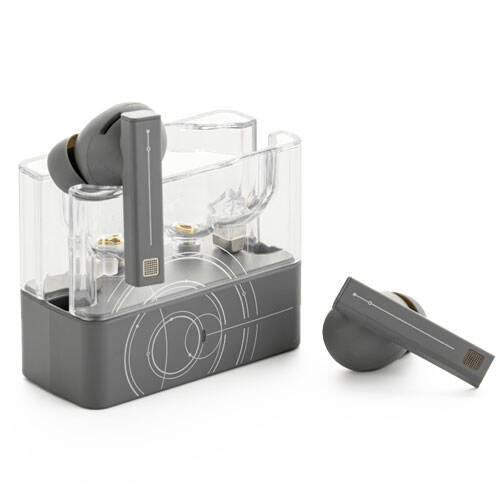
Moondrop’s official companion app is named MOONDROP Link (sometimes just written as Moondrop-Link). It is available for both Android and iOS, and it is the same app used across most of Moondrop’s Bluetooth product line, including true wireless earbuds like Space Travel and the Sparks-branded neckband and clip-on transmitters. You can find download links directly on the official Moondrop download page or through the MOONDROP Link product page, and it is also listed on the Google Play Store and Apple App Store under the same name.
One thing worth flagging for newcomers to the brand: Moondrop also sells passive, wired in-ear monitors that have no Bluetooth chip at all, so those obviously will not show up in the app. MOONDROP Link only works with Moondrop’s Bluetooth-enabled gear.
What the App Actually Does
Once your earbuds are connected, MOONDROP Link gives you control over several things you cannot access from your phone’s regular Bluetooth menu:
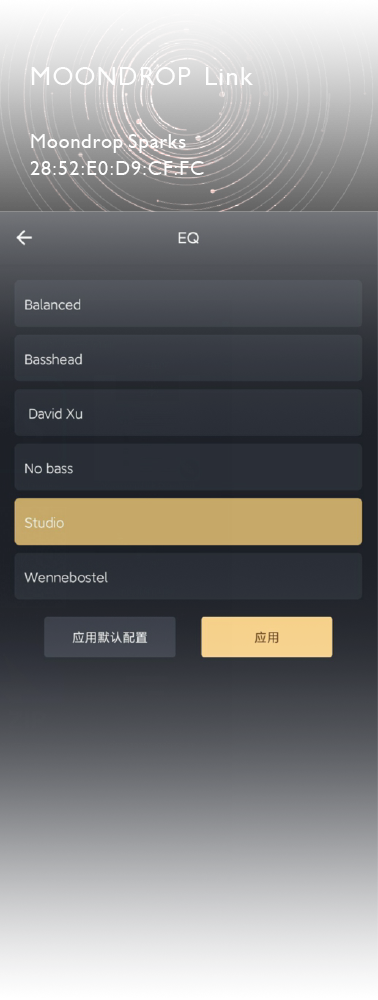
- Equalizer presets – Depending on the model, you get a handful of built-in tuning profiles such as Balanced, Basshead, Studio, and No Bass, plus community-shared curves in some newer firmware versions.
- Custom parametric EQ – Newer models expose a full manual EQ editor where you can set frequency, gain, and Q value band by band, which is genuinely rare at this price point.
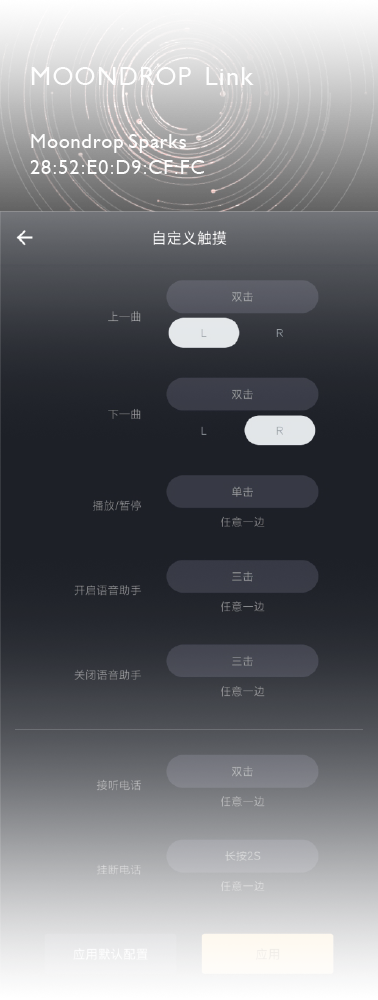
- Touch control mapping – You can reassign what single, double, and triple taps do on each earbud, including play/pause, track skip, volume, and voice assistant activation.
- Firmware updates – The app checks for over-the-air firmware and walks you through installing it, which is how Moondrop has added features like new EQ curves after launch.
- Device info – Battery status per earbud, firmware version, and connection status are all shown on the main screen.
Setting Up the App for the First Time
Getting started is straightforward, but a couple of steps trip people up the first time:
- Download MOONDROP Link from the App Store, Google Play, or the official Moondrop site.
- Pair your earbuds with your phone through the normal system Bluetooth settings first, before opening the app.
- Open MOONDROP Link and grant it Bluetooth and location permissions when prompted (Android needs location permission to scan for Bluetooth devices, which surprises a lot of people, but the app is not actually tracking your location for any other purpose).
- The app should detect your connected earbuds automatically and show the device name and battery level on the home screen.
- Tap into the EQ or touch-control menus to start customizing.
If the app does not detect your earbuds, back out and re-open it, or toggle Bluetooth off and on. In my experience this fixes the detection issue nine times out of ten, and it is almost always a permissions hiccup rather than an actual pairing problem.
Customizing Touch Controls
The touch control screen lets you assign actions separately for the left and right earbud, which is a nice touch. You can typically set double-tap for next track on one side and previous track on the other, single-tap for play/pause on either side, and a long press or triple-tap for waking your phone’s voice assistant. After you make changes you have to tap Apply for the settings to sync to the earbuds themselves, and it is easy to forget that step and wonder why nothing changed.
Is the App Worth Installing
For most people the answer is yes. Even if you never touch the EQ, the firmware update function alone is worth keeping the app around, since Moondrop has pushed feature additions (like new EQ curves) through firmware rather than requiring you to buy a new product. If you are the type of listener who is happy with the factory tuning and never taps your earbuds for anything beyond play and pause, you technically do not need the app day to day, but I would still recommend installing it once just to check for a firmware update out of the box, since units can sit in a warehouse for a while before they reach you.
Fixing Common MOONDROP Link Problems
Most complaints about the app trace back to a small handful of recurring issues. Here are the ones I have run into myself or seen reported most often, along with what actually fixes them:
- Problem: The app opens but never detects the earbuds. Fix: back out of the app fully, toggle Bluetooth off and on, then reopen it. This clears a stuck Bluetooth handshake far more often than restarting the phone would.
- Problem: EQ changes do not seem to apply after tapping Apply. Fix: wait a few seconds before closing the app – the settings sync to the earbuds over Bluetooth and can lag slightly behind the on-screen confirmation, especially on older firmware.
- Problem: Firmware update fails partway through. Fix: keep both earbuds in range and above 50 percent battery before starting an update, and avoid switching apps mid-update. An interrupted OTA update is one of the few things that can actually require a factory reset to recover from.
- Problem: Touch control mapping resets itself after reconnecting to a different device. Fix: this is expected on some firmware versions if the second device does not support the same control profile; reapply your mapping once, and it should persist on that device going forward.
- Problem: Android asks for location permission and it feels unnecessary. Fix: this is a standard Android requirement for any app that scans for nearby Bluetooth devices, not something specific to Moondrop. You can revoke it after initial setup without breaking playback, though re-pairing may prompt for it again.
Frequently Asked Questions
Does MOONDROP Link work with every Moondrop product?
No. It only supports Moondrop’s Bluetooth products, such as true wireless earbuds and neckband-style Bluetooth adapters. Passive wired IEMs have no chip for the app to connect to.
Is MOONDROP Link free?
Yes, the app itself is a free download on both Android and iOS.
Why can’t the app find my earbuds?
Usually it is a permissions issue. Make sure Bluetooth and location permissions are granted on Android, confirm the earbuds are already paired through your phone’s system Bluetooth menu, and try restarting the app.
Do EQ changes get saved on the earbuds or the phone?
EQ and touch-control settings are stored on the earbuds themselves once you tap Apply, so they carry over even when you connect to a different device, as long as that device also has compatible firmware support.
Conclusion
MOONDROP Link is a small but genuinely useful app if you own any of Moondrop’s Bluetooth earbuds. It is not flashy, but the combination of real parametric EQ, remappable touch controls, and OTA firmware updates covers pretty much everything you would want to adjust without opening a settings menu you don’t have on a pair of earbuds. Install it, spend five minutes going through the EQ presets, and you will likely land on a tuning you like better than the factory default.
Written by Ryan, who has spent the past two decades tinkering with PC hardware and audio gear and testing companion apps for headphones and earbuds across a dozen different brands.