If Windows 10 shows “USB Device Not Recognized” or the device simply does not show up at all, the fix is almost always one of a few things: a bad port, a driver that got corrupted, a power management setting that shut the port down, or a cable that is only good for charging. This guide walks through every fix in the order that solves the problem fastest, starting with the easy checks before moving into Device Manager and Windows Update.
I have run into this more times than I can count, usually with USB flash drives and older card readers. On my own Windows 10 desktop, a Kingston flash drive that had worked fine for a year suddenly triggered the “not recognized” popup after a routine Windows Update. Rolling back the USB driver in Device Manager fixed it in under two minutes, and that is usually the first thing I try now before touching anything else.
Common Causes
- Corrupted or outdated USB controller driver
- USB Selective Suspend or power management turning the port off
- Damaged, charge-only, or low-quality USB cable
- Faulty or worn-out USB port, especially on the front panel of a desktop
- Static buildup or a stuck driver stack that a restart clears
- A pending Windows Update that broke a chipset or USB driver
Start With the Basics
Before opening Device Manager, rule out the simple stuff. It sounds obvious, but these steps fix the problem more often than people expect.
Try a Different Port and Cable
- Plug the device into a rear USB port on a desktop instead of a front panel port, since front headers are wired through the motherboard and can come loose.
- Swap the cable if you can. Many cheap USB-C cables carry power only, with no data lines connected, which is a common reason phones or drives never show up.
- Test the device on another PC. If it is not recognized anywhere, the device itself may be the problem, not Windows.
Restart, Don’t Just Sleep
A full restart clears the USB driver stack in a way that sleep or hibernate does not. If you have not rebooted in a few days, do that before anything else.
Fix It Through Device Manager
This is where most USB recognition problems actually get solved. Windows keeps a separate driver for every USB controller and hub, and any one of them can get stuck.
Uninstall and Rescan the Controller
- Right-click the Start button and choose Device Manager.
- Expand “Universal Serial Bus controllers.”
- Right-click each entry named “USB Root Hub” or “Generic USB Hub” and select Uninstall device.
- Once all are removed, click the Action menu and choose “Scan for hardware changes.” Windows reinstalls the drivers automatically.
Roll Back a Recently Updated Driver
If the device worked before a Windows Update and stopped afterward, open Device Manager, find the USB controller under “Universal Serial Bus controllers,” right-click it, choose Properties, go to the Driver tab, and click “Roll Back Driver” if the button is available. This undoes just that one driver without touching the rest of your system.
Check for Yellow Warning Icons
A yellow triangle next to any entry under Universal Serial Bus controllers or “Other devices” means Windows could not load a proper driver. Right-click that entry and choose “Update driver,” then let Windows search automatically. Full setup details are in Microsoft’s official USB troubleshooting guide.
Turn Off USB Selective Suspend
Windows tries to save power by shutting down idle USB ports, and on some laptops this setting is too aggressive and never wakes the port back up properly.
- Open Control Panel and go to Power Options.
- Click “Change plan settings” next to your active plan, then “Change advanced power settings.”
- Expand “USB settings,” then “USB selective suspend setting.”
- Set both On battery and Plugged in to Disabled, then click Apply.
On desktops this rarely matters, but on laptops running on battery it is one of the most common causes of a USB mouse or drive dropping out randomly.
Reinstall the Chipset Driver
If none of the above works, the motherboard chipset driver itself may be missing or outdated, which affects every USB port at once. Go to your PC or motherboard manufacturer’s support page, search by exact model number, and download the current chipset driver package. For Intel-based systems, Intel’s chipset installation utility is worth checking directly. Uninstall the old chipset driver first through Programs and Features, restart, then install the new one.
Per Daniel Reyes, who is an IT Support Technician at a regional credit union, “Ninety percent of the ‘USB not recognized’ tickets I get are fixed by uninstalling the USB Root Hub entries in Device Manager and letting Windows rebuild them. The other ten percent are dead ports or bad cables that no software fix will ever solve.”
When the Port Itself Is Dead
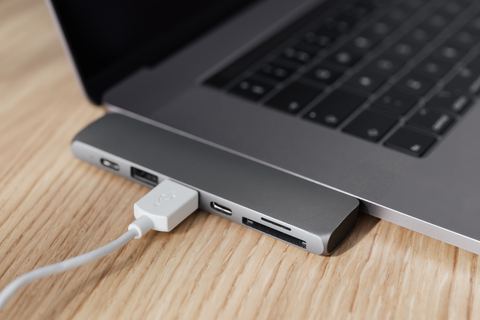
If a port never recognizes any device, even after every driver fix, the port hardware itself has likely failed. This is common on older desktops where a front panel header worked loose, or on laptops after a small liquid spill. A cheap USB hub plugged into a working port is often the fastest workaround while you plan a repair. How-To Geek and Tom’s Hardware both have deeper hardware diagnostic guides if you want to confirm a dead port with a multimeter or a known-good device.
- Test the suspect port with a device you know works on another machine.
- Look inside the port for bent or missing pins with a flashlight.
- On desktops, check that the front panel USB header is seated correctly on the motherboard.
Frequently Asked Questions
Why does my USB drive work on one port but not another?
Each port can be tied to a different internal hub or controller. If one hub’s driver is corrupted while another is fine, you will see exactly this pattern. Uninstalling all USB Root Hub entries in Device Manager and rescanning usually fixes it.
Does USB Device Not Recognized mean my drive is broken?
Not always. Test the drive on a second computer first. If it is not recognized anywhere and Disk Management does not show it either, the drive’s controller chip has likely failed and data recovery software is your only remaining option.
Will reinstalling Windows fix a USB recognition problem?
Rarely necessary. Almost every case is solved by a driver reinstall, a power setting change, or a hardware check. Save a full reinstall as a last resort.
Can a power surge cause this?
Yes. A brief overcurrent event can trip the port’s internal fuse or damage the controller, especially on desktops without a surge protector. If the problem appeared suddenly after a storm or power flicker, hardware damage is a real possibility.
Should I use USB 2.0 or USB 3.0 ports for troubleshooting?
Try both. USB 3.0 ports (usually blue inside) use a different driver stack than USB 2.0 ports, so if one type consistently fails and the other works, that narrows the problem down to that specific controller.
Conclusion
Most USB recognition problems in Windows 10 come down to a stuck driver or a power setting, both of which you can fix in Device Manager without installing anything extra. Work through the steps in order, starting with a different port and cable, and you will usually find the fix before you get anywhere near a full reinstall. If the device still will not show up after all of this, treat it as a hardware issue and test it on another machine to confirm.
Written by Ryan, a Computer Science graduate with over 20 years of hands-on experience troubleshooting PC hardware, drivers, and Windows configuration issues. Read more guides at SoftwareDriverDownload.com.