The TP-Link TL-WN821N driver is what lets Windows recognize this USB WiFi adapter and connect to a wireless network, and you can install it either from the disc that shipped with the adapter, from TP-Link’s website, or through Windows Update.
The TL-WN821N is a 300 Mbps wireless N USB adapter that TP-Link has sold for a long time, and plenty of them are still in service on older desktop towers that never had onboard WiFi. If Device Manager shows it as an unrecognized device, or your original installation CD is scratched or missing, this guide covers the download, install, and every troubleshooting step I’ve had to use myself over the years.
| Applies To | TP-Link TL-WN821N 300Mbps Wireless N USB Adapter |
| Author/Publisher | TP-Link Technologies Co., Ltd. |
| Driver/Software Date | Latest version listed on TP-Link’s support page for this model |
| Version | Driver REV5.0.1 series (varies slightly by hardware revision) |
| File Name | TL-WN821N_Driver_Utility.zip |
| File Size | Approximately 20-30 MB |
| OS Compatibility | Windows 11, Windows 10, Windows 8.1, Windows 7 |
Downloading the Driver
Before you go hunting for the CD that came in the box (which, let’s be honest, is probably long gone), check the label on the adapter itself for the exact hardware version, since TP-Link revises this model periodically and drivers are version-specific.
- Go to the official TP-Link support page for the TL-WN821N and select your hardware version from the dropdown.
- Download the driver package listed for your version of Windows.
- If your exact hardware version isn’t listed, try the closest available version first — TP-Link often reuses the same Realtek or Atheros chipset across revisions.
Installing Step by Step
TP-Link’s installer bundles the driver with a management utility that lets you view signal strength and saved networks. Here’s how the install typically goes:
- Extract the downloaded ZIP file to a folder first — don’t run the installer straight from inside the archive, since some setup files fail when run directly from a compressed folder.
- Run the setup .exe as administrator.
- Leave the adapter unplugged until the installer tells you to connect it — installing drivers before plugging in the hardware avoids Windows grabbing a generic driver first.
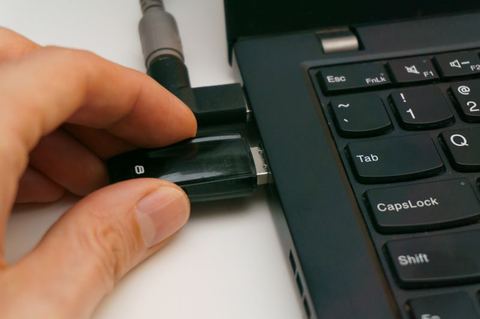
- Once installation finishes, plug in the TL-WN821N and wait a few seconds for Windows to finish recognizing it.
- Restart if prompted.
I set one of these up recently for a relative who still runs Windows 10 on a fairly old tower PC, and the TP-Link utility conflicted with the built-in Windows WiFi manager at first — both were trying to control the connection. Disabling the TP-Link utility’s auto-start and just using Windows’ own network panel solved it immediately.
Manual Installation via Device Manager
If you’d rather skip the bundled utility and just install the bare driver, or the installer itself won’t run, do it manually:
- Extract the driver ZIP to a known folder.
- Open Device Manager (right-click the Start button and select it from the menu).
- Find the TL-WN821N under “Network adapters” or, if unrecognized, under “Other devices” with a warning icon.
- Right-click it, choose Update driver, then Browse my computer for drivers.
- Point Windows to the extracted folder and check Include subfolders.
- Click Next and let Windows locate and install the matching .inf file.
This is also the method to use if you want just the driver without TP-Link’s utility running in the background, which some people prefer for a leaner system tray.
Troubleshooting Installation Failures
Adapter not detected at all
Try a different USB port. Some older TL-WN821N units are picky about USB 3.0 controllers and work more reliably on a USB 2.0 port if your motherboard has one. A USB hub can also cause detection issues — plug directly into the PC if possible.
“The drivers for this device are not installed” (Code 28)
This usually means Windows found the hardware but couldn’t match a driver. Use the manual Device Manager method above and make sure you selected the correct hardware version’s driver package.
Installer hangs or crashes partway through
Temporarily disable your antivirus’s real-time protection during installation, then re-enable it afterward. Some antivirus tools interfere with driver installers that modify low-level network settings.
WiFi connects but speeds are very slow
- Check you’re not accidentally connected to a 2.4GHz-only network if a 5GHz option exists — though note the TL-WN821N itself is 2.4GHz only, so this applies more to your router’s band settings.
- Update to the latest driver version rather than the one bundled with an old CD, since TP-Link has released stability fixes over time.
- Move closer to the router temporarily to rule out a distance/interference issue before assuming it’s a driver problem.
Per Melissa Tan, who is a freelance IT consultant serving small businesses, “I still recommend the WN821N to clients who just need a cheap, reliable adapter for an old office PC — the driver install is quick once you grab the right hardware version, and I’ve had very few callbacks on this one compared to some other budget adapters.”
Windows 10 vs Windows 11 Behavior
On Windows 10, the official TP-Link installer runs without issue in nearly all cases. On Windows 11, you may occasionally see a SmartScreen prompt since the installer is older and less commonly downloaded now — click “More info” then “Run anyway” if you trust the source. The core driver behaves identically once installed; the main difference is Windows 11’s Settings app layout for managing WiFi connections, found under Settings > Network & internet.

Confirming the Adapter Works
- Open Device Manager and confirm the TL-WN821N shows under Network adapters with no error icon.
- Click the WiFi icon in the taskbar and verify your network appears in the list.
- Connect and browse to a site to confirm you have internet access.
- Optionally run a speed test to check throughput is reasonable for a 300 Mbps rated adapter under real-world conditions.
For more general background on diagnosing wireless adapter issues on Windows, Microsoft’s own support documentation covers the built-in network troubleshooter, which is worth running if problems persist after a clean driver install.
Frequently Asked Questions
Which hardware version of the TL-WN821N do I have?
Check the sticker on the bottom of the adapter or the underside of the USB connector housing. It lists something like “Ver: 5.0” or similar, which you need to select the matching driver on TP-Link’s site.
Do I need the TP-Link utility, or can I just use Windows’ built-in WiFi manager?
Windows’ built-in manager works fine for most people once the driver is installed. The TP-Link utility adds extra signal diagnostics but isn’t required for basic connectivity.
Is the TL-WN821N compatible with 5GHz networks?
No, this model only supports 2.4GHz. If you need 5GHz support, you’d need a newer AC or AX-class adapter instead.
The driver installed but I still see “No internet, secured” — what’s wrong?
This is typically a network configuration issue rather than a driver issue. Try forgetting the network and reconnecting, or run Windows’ built-in network troubleshooter from Settings.
Can I use this adapter on Linux?
Many Linux distributions include open-source drivers for the chipsets used in this adapter, though results vary by distro and kernel version. Windows remains the more reliable option if you need guaranteed support.
Conclusion
Getting the TP-Link TL-WN821N driver installed is usually a five-minute job once you’ve identified your hardware version correctly. Most of the problems people run into come from using the wrong version’s driver or letting Windows install a generic one first. Follow the manual Device Manager path if the installer gives you trouble, and this adapter will keep working reliably for basic wireless needs.
Ryan has spent more than two decades troubleshooting PCs, laptops, and the driver issues that come with aging hardware, backed by a computer science degree. Find more driver guides at SoftwareDriverDownload.com.