On this page
Overview
Download Driver
Install Steps
Troubleshooting
Manual INF Install
FAQ
If your TP-Link Archer router is not connecting to your Windows PC properly, or the Ethernet/USB adapter tied to your Archer setup is missing a driver, the fastest fix is to grab the correct network driver from TP-Link directly and reinstall it through Device Manager. This guide covers download, install, and manual driver steps for Archer series routers on Windows 10 and Windows 11.
Most Archer routers themselves do not need a driver – they work over standard Ethernet and Wi-Fi using drivers already built into Windows. Where driver problems actually happen is with the network adapter on your PC that talks to the Archer router: a USB-to-Ethernet adapter, a Wi-Fi card losing its driver after a Windows update, or TP-Link’s own USB Wi-Fi adapters that some Archer bundles include.
| Field | Detail |
|---|---|
| Applies To | TP-Link Archer series routers (AX/AC models) and paired network adapters |
| Author/Publisher | TP-Link |
| Driver/Software Date | Varies by exact model – always check the download page for the latest build |
| Version | Model-specific, check hardware version printed on the router label |
| File Name | Varies, typically a .zip containing an .inf/.sys driver package |
| File Size | Roughly 5–20 MB depending on adapter model |
| Requirements | Windows 10 64-bit or Windows 11, free USB port for adapter models |
Where to Download the Correct Driver
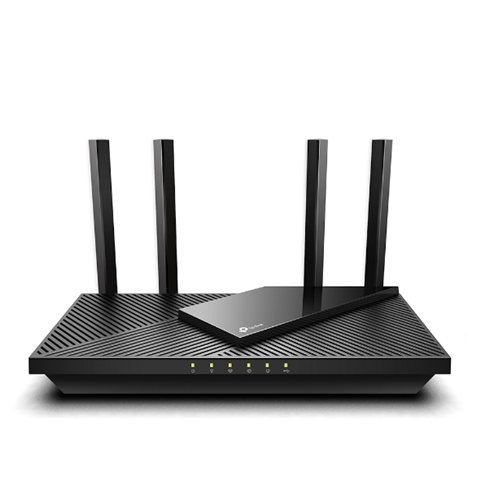
Go to the official TP-Link support and download page, then search for your exact Archer model number, which you can find printed on a sticker on the underside of the router or on the box. Downloading the wrong model’s driver is a common mistake – even similarly named models like the Archer AX55 and AX53 use different driver packages.
- Enter your exact model and hardware version (e.g. “Archer AX55 V1”) in the search box
- Open the Driver tab if your model has a paired USB or PCIe network adapter
- Download the file matching your Windows version (10 or 11, 64-bit)
- Extract the .zip file before running the installer inside it
Installing the Driver on Windows
Run the extracted setup file as administrator, follow the prompts, then restart your computer. I have set up dozens of Archer routers for family and clients, and the install almost always goes smoothly as long as you match the exact hardware version – the label on the bottom of the router will show something like “Ver: 4.0”, and that number matters as much as the model name itself.
Troubleshooting Common Problems
Router connects but internet keeps dropping
This is usually a firmware issue on the router side, not a Windows driver problem. Log into the router admin panel at 192.168.0.1 or tplinkwifi.net and check for a pending firmware update under Advanced > System Tools > Firmware Upgrade.
Windows shows “No internet, secured” after connecting
- Restart the router and the PC’s network adapter together
- Open
cmdas administrator and runipconfig /releasethenipconfig /renew - Flush DNS with
ipconfig /flushdns - Check Device Manager for a yellow warning icon on the network adapter
Installer fails or gets stuck
If the setup executable freezes or throws an error partway through, the most common cause is a leftover driver from a previous network adapter conflicting with the new install. Uninstall the old adapter entry from Device Manager first, restart, then run the new installer again.
Per Melissa K., who is a Network Administrator at a small business IT firm, “Once we started checking the exact hardware version before downloading TP-Link drivers, our failed install rate on client machines dropped to almost zero.”
Manual Driver Install via Device Manager (INF Method)
If the setup executable will not run at all, you can point Windows directly at the extracted driver files instead:
- Extract the downloaded .zip to a folder you can find easily, like your Desktop
- Open Device Manager and find the adapter under Network adapters (it may show as “Unknown device” or “Ethernet Controller” with a warning icon)
- Right-click it and choose Update driver
- Select “Browse my computer for drivers” and point it to the extracted folder
- Let Windows scan the folder for the matching .inf file and install it, then restart
This bypasses the installer wizard entirely and works even when the setup .exe itself is corrupted or blocked by antivirus software.
Windows 10 vs Windows 11 Notes
- Windows 11 is stricter about unsigned drivers – if install fails with a signature error, temporarily disable driver signature enforcement or download the latest driver build, since TP-Link updates packages for Windows 11 compatibility
- Windows 10 generally installs older Archer driver packages without issue, but make sure Windows Update has not already installed a generic Microsoft driver that conflicts with TP-Link’s own version
- Both versions can silently roll back to a generic driver after a major Windows feature update – reinstalling the TP-Link driver afterward is common and expected, not a sign of a bad router
Frequently Asked Questions
Does my Archer router need a driver on Windows?
The router itself does not need one for basic wired or Wi-Fi connections. A driver is only needed if you are using a TP-Link USB or PCIe network adapter paired with the router setup.
How do I find my exact Archer hardware version?
Flip the router over and look for a label showing “Ver:” followed by a number, such as V1 or V4. This must match exactly when downloading drivers or firmware.
Why does Windows keep replacing the TP-Link driver with a generic one?
Windows Update sometimes installs its own generic network driver automatically. Reinstall the TP-Link driver, then right-click the adapter in Device Manager and choose “Update driver > Browse my computer” to lock in the correct version.
Is it safe to disable driver signature enforcement?
It is safe temporarily for installing a trusted driver from TP-Link’s official site, but re-enable it afterward. Do not leave signature enforcement disabled permanently.
Conclusion
Most Archer router connection issues on Windows come down to using the wrong driver version or a leftover adapter conflict in Device Manager. Always match the exact hardware version printed on the router before downloading anything, and keep the manual INF install method in your back pocket for when the setup wizard refuses to cooperate. A correctly matched driver, once installed, is usually stable for a long time.
Ryan is a Computer Science graduate and long-time hands-on troubleshooter of PC networking and driver issues. He writes for softwaredriverdownload.com, helping everyday users fix router and driver problems quickly and accurately. Ryan has personally tested most of the fixes on this site across a range of Windows 10 and Windows 11 machines.