Tenvis · UCam · USB Webcam
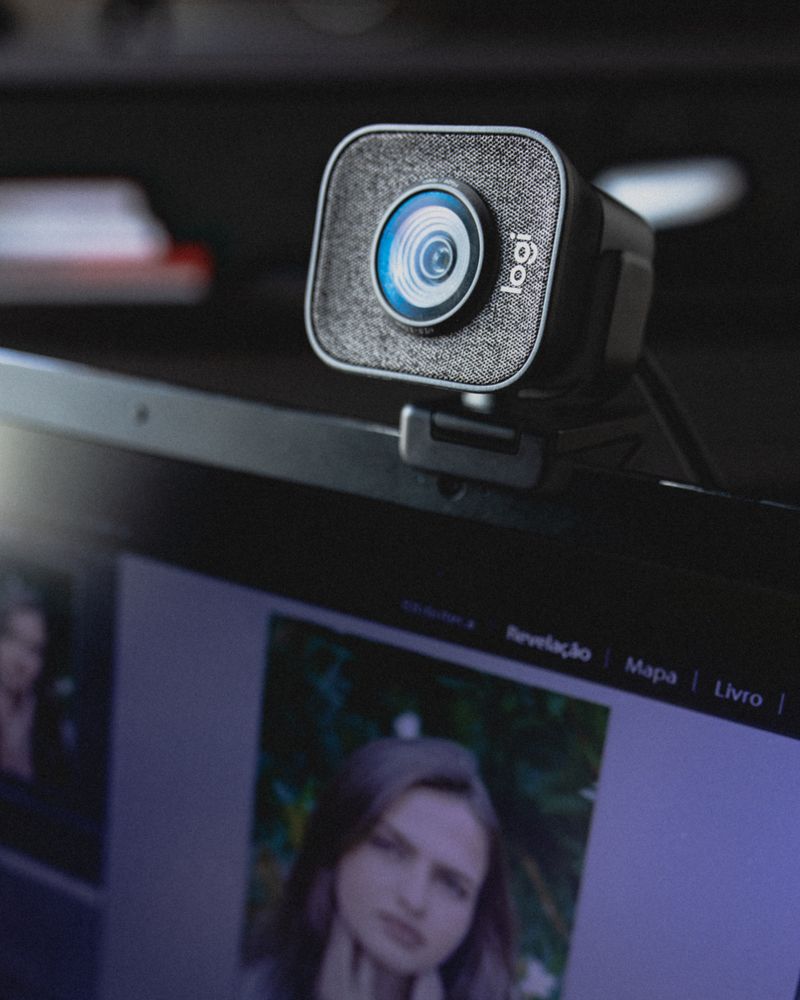
The Tenvis UCam is a plug-and-play USB webcam built for video calls, streaming, and everyday use. Since it follows the standard UVC (USB Video Class) protocol, Windows can usually detect and use it right away with no separate driver install, though a couple of small steps make sure it works smoothly across different apps. Below is the setup process along with fixes for the issues people run into most.
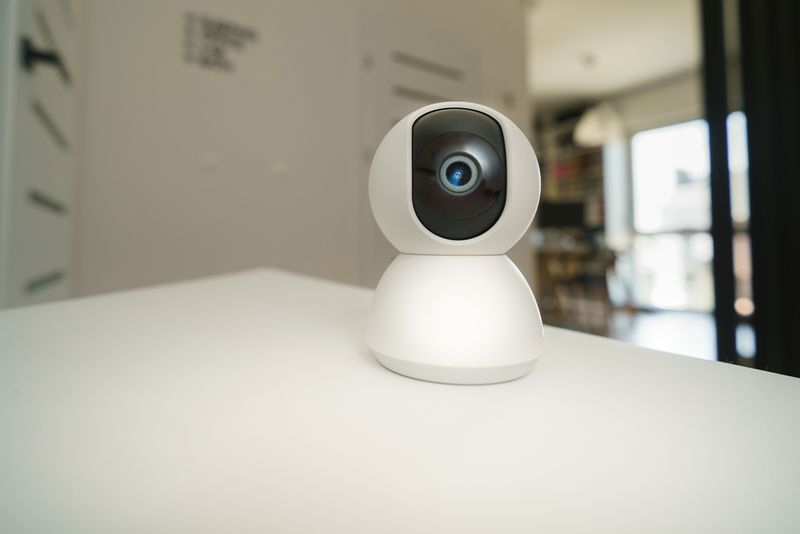
Connecting the Camera
- Plug the Tenvis UCam into a free USB port, preferably directly on the PC rather than through a hub.
- Wait for Windows to detect it — a notification will confirm it is ready to use.
- Open the Camera app or your video call software (Zoom, Teams, Google Meet) and select the UCam from the device list.
- Adjust the focus ring on the lens if the image looks soft, and check the microphone is also selected if the model includes one.
Common Problems and Fixes
- Camera not detected — try a different USB port, and check Device Manager for an “Unknown Device” entry under Cameras or Imaging Devices.
- Video call apps cannot find the camera — go to Settings > Privacy & security > Camera and enable both system-level and app-level camera access.
- Image is dark or washed out — check the exposure settings in your video app, or adjust room lighting, since the UCam relies on ambient light rather than advanced low-light processing.
- Windows uses a generic driver that limits resolution — check Microsoft’s Device Manager documentation for updating the driver, though in most cases the built-in UVC driver already supports the UCam’s full resolution.
Frequently Asked Questions
Does the Tenvis UCam need a driver on Windows 11?
No, it works as a plug-and-play UVC webcam with no separate driver needed for standard use.
Can I use it with Zoom or Teams?
Yes, once Windows detects it, the UCam appears as a selectable camera in any video call application.
Why is the video quality lower than expected?
Check the resolution setting inside your video call app, since some apps default to a lower resolution than the camera can actually deliver.
Conclusion
The Tenvis UCam is one of the simpler devices to set up since it works as a standard UVC webcam right out of the box. If detection or quality issues come up, the camera permission and resolution checks above solve nearly every case.
Ryan
CS degree · 15 years hardware troubleshooting