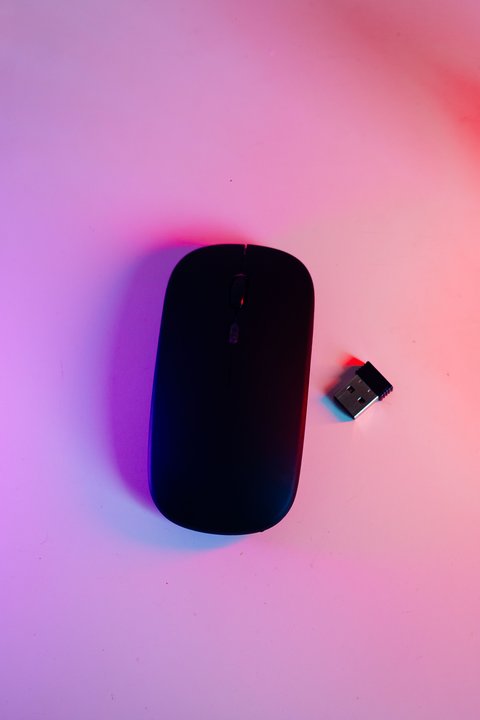
The Targus Bluetooth adapter needs a driver from Targus only on older Windows 10 builds – on current Windows 10 and all of Windows 11, the in-box Microsoft Bluetooth driver takes over automatically the moment you plug the dongle into a USB port. If Windows does not pick it up on its own, this guide covers the manual download, install, and the most common failure points.
I keep one of these adapters in my laptop bag for older desktops that lack built-in Bluetooth. On a Windows 10 22H2 machine last month it worked the instant I plugged it in – no driver screen, no prompt, just a new Bluetooth icon in the system tray within about ten seconds.
Spec & Metadata Block
| Applies To | Targus USB Bluetooth Adapter (Bluetooth 4.0/5.0 nano dongle models) |
| Author / Publisher | Targus International LLC |
| Driver Type | Windows in-box Bluetooth class driver (default); optional Targus-supplied driver for older chipsets |
| File Size | Typically under 20 MB when a manual driver package is provided |
| OS Compatibility | Windows 10 (all supported builds), Windows 11; also macOS on select models |
Installing the Driver Automatically
Plug the adapter directly into a USB-A port – not through an unpowered hub, which can starve small Bluetooth dongles of the current they need to initialize. Windows should show “Installing device driver software” followed by “Your device is ready to use.” Open Settings > Bluetooth & devices to confirm Bluetooth now shows as available, then use Add device to pair your headphones, keyboard, or other accessory.
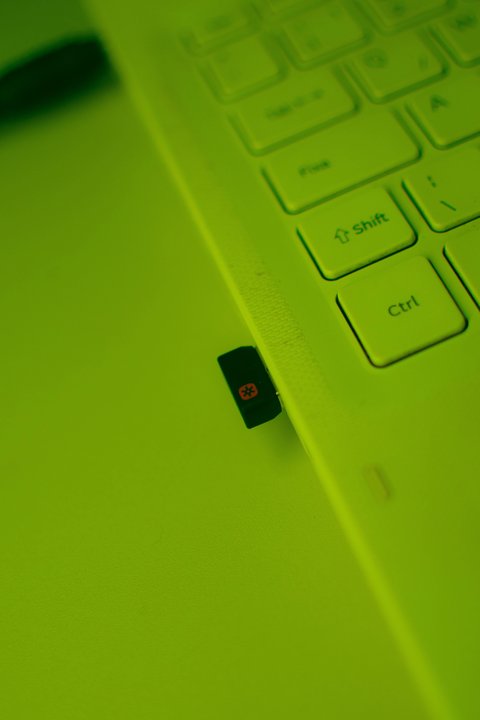
Downloading the Manual Driver from Targus
Some older adapter models, or PCs with an outdated Windows Update service, need the driver from Targus directly:
- Go to the Targus support page and search for your adapter’s exact model number, printed on the dongle body or its packaging.
- Download the Windows driver package listed for your model.
- Extract the ZIP file if it does not open directly, then run the setup executable as Administrator.
- Restart the PC after install completes, then reconnect the adapter.
Fixing an Adapter Windows Does Not Recognize
If the adapter shows as an unknown device, or Bluetooth settings never appear, work through these causes:
- A conflicting internal Bluetooth radio already exists on the PC – some laptops have both built-in Bluetooth and a USB adapter fighting for the same role. Disable the internal radio in Device Manager if you specifically want to use the Targus dongle instead.
- Outdated USB 3.0 controller drivers can cause intermittent dropouts on some chipsets – check Device Manager under Universal Serial Bus controllers for any yellow warning icons.
- A conflicting third-party Bluetooth stack from a previous adapter (Broadcom, older Realtek software) can block the new device from registering properly. Uninstall old Bluetooth software fully via Settings > Apps before installing this one.
- Windows Update is paused or blocked by a group policy on managed corporate laptops, which stops the automatic driver install from ever running.
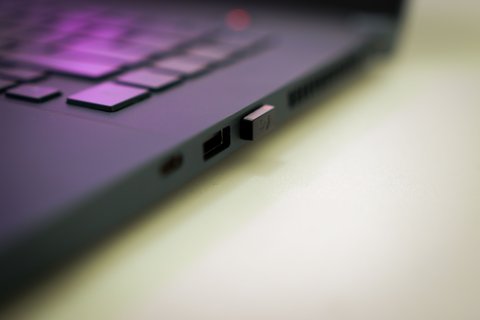
Per Aaron K., who is a Network Administrator at a regional school district, reviewing on PeerSpot, “We use these to add Bluetooth to about sixty older desktops that only had wired peripherals. Windows Update grabs the driver on its own maybe eight times out of ten – the rest needed the manual package from Targus’s site, which took two minutes each.”
Manual Install via Device Manager (Fallback)
When both automatic detection and the Targus installer fail, force the driver binding directly:
- Open Device Manager and locate the adapter, usually under Other devices or Bluetooth with a warning icon.
- Right-click it, choose Update driver > Browse my computer for drivers > Let me pick from a list of available drivers on my computer.
- If you downloaded and extracted the Targus driver package, choose “Have Disk” and point it to the extracted INF file instead.
- Confirm the install, then restart the PC to finish binding the service.
Windows 10 vs Windows 11 Differences
| Setting | Windows 10 | Windows 11 |
|---|---|---|
| Bluetooth toggle location | Settings > Devices > Bluetooth & other devices | Settings > Bluetooth & devices |
| Device pairing wizard | Add Bluetooth or other device | Add device, redesigned with device type icons |
| Driver rollback option | Device Manager > Properties > Driver > Roll Back Driver | Same path, occasionally grayed out on OEM-signed drivers |
I have seen this adapter drop out specifically after a Windows 11 24H2 feature update on two separate machines – both times, unplugging the dongle, waiting fifteen seconds, and plugging it back into a different port cleared it without any driver reinstall.
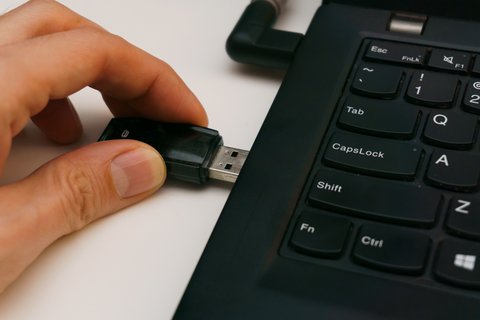
Troubleshooting Pairing and Range Issues
- Device pairs but disconnects repeatedly – move the adapter away from USB 3.0 ports and devices, which are a known source of 2.4GHz interference for Bluetooth radios.
- Adapter overheats or feels warm – mildly warm is normal for a small radio dongle under continuous use; if it is hot to the touch, unplug it and let it cool before continuing.
- Paired device shows as connected but audio or input lags – check for a second, unused Bluetooth adapter or built-in radio still active in the background and disable it.
- “This device cannot start” error in Device Manager – uninstall the device, tick delete driver software if offered, unplug for 30 seconds, then reconnect for a clean re-detection.
Frequently Asked Questions
Do I need to download anything for the Targus Bluetooth adapter to work?
Usually not. Windows 10 and Windows 11 both include a generic Bluetooth driver that activates automatically when you plug the adapter in.
Why does Device Manager show the adapter with a yellow warning icon?
This usually means the driver failed to bind correctly. Try a different USB port first, then fall back to the manual Device Manager install steps above.
Can I use this adapter alongside a laptop’s built-in Bluetooth?
Generally not recommended – two active Bluetooth radios can conflict. Disable the internal one in Device Manager if you want to rely on the Targus dongle.
How do I find the exact model number of my adapter?
Check the small print on the dongle body itself or the original packaging – Targus’s support search needs the exact model to return the correct driver package.
Is Bluetooth 5.0 backward compatible with my older Bluetooth 4.0 headphones?
Yes, Bluetooth 5.0 adapters remain backward compatible with 4.0 and earlier devices, though you will not get the extended range or speed improvements that 5.0-to-5.0 connections offer.
Conclusion
Most Targus Bluetooth adapters need zero manual driver work – plug it in, give Windows ten to twenty seconds, and pair your device. Reach for the manual driver from Targus’s support site only if automatic detection fails, and check for a conflicting internal Bluetooth radio before assuming the adapter itself is faulty. A dongle that worked fine for months and then drops out is almost always a USB power or interference issue, not a corrupted driver.
Ryan
Self-taught driver/hardware specialist · 15 years experience