The SteelSeries Apex 3 types and lights up as soon as you plug it in, thanks to Windows’ built-in HID driver, but you need SteelSeries GG (which bundles the Engine app) to unlock per-key RGB customization, macro recording, and the IP32 water-resistance-related lighting effects that react to spills.
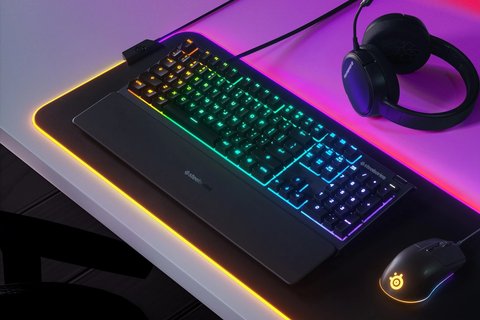
I set an Apex 3 up for a coworker’s home office rig, and the RGB profile she built in Engine survived several Windows updates without issue — the one hiccup was Engine not launching automatically at startup until we manually enabled it in its settings.
Install SteelSeries GG
Download it from SteelSeries’ official GG page, run the installer, and let it detect the Apex 3 automatically once connected. Restart your PC after the first install.
Fix RGB not saving after restart
Open SteelSeries GG, go to the Engine app settings, and enable “Launch on startup.” Without this, custom lighting reverts to a default rainbow wave every time Windows boots.
Fix keyboard not detected in Engine
Try a different USB port, ideally directly on the motherboard. Close and reopen SteelSeries GG from the system tray, and if that fails, unplug the keyboard, restart the PC, then reconnect it.
Fix stuck or unresponsive keys
Since the Apex 3 uses membrane switches rated IP32 for spill resistance, gently clean around the affected key with a small amount of isopropyl alcohol on a cotton swab and let it fully dry before use.
Setting Up Macros and OLED Smart Display Integration
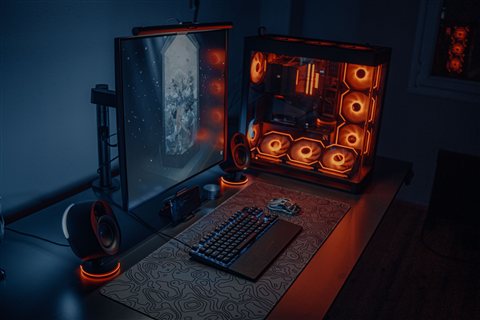
If you own the Apex 3 TKL variant with the OLED smart display, SteelSeries GG’s Moments and GameSense features push live stats like CS:GO ammo count or Discord notifications straight to the small screen, but this only works while Engine is running in the background. On the standard full-size Apex 3 without the OLED panel, this section does not apply.
- Open the Macro tab inside SteelSeries GG’s Engine app to record a new macro sequence.
- Assign it to any key using the on-screen keyboard layout, then save the profile.
- Profiles can be set to load automatically per-game if you link a specific executable to the profile.
Manual Driver Reset (If Windows Stops Recognizing the Keyboard)
- Open Device Manager and expand Keyboards and Human Interface Devices.
- Right-click any SteelSeries or generic “HID Keyboard Device” entry tied to the port the Apex 3 uses, and select Uninstall device.
- Restart the PC to let Windows reinstall the default driver automatically.
- Reopen SteelSeries GG afterward to confirm your saved RGB and macro profiles are still intact — they are stored locally, not tied to the Windows driver entry.
Per Tyler B., who is an IT Support Technician at a university computer lab, “We use Apex 3 keyboards across several lab stations because the IP32 spill resistance actually holds up, and SteelSeries GG makes it painless to push the same lighting profile to every unit at once.”
Comparing the Apex 3 to the Apex 3 TKL
| Feature | Apex 3 | Apex 3 TKL |
|---|---|---|
| Layout | Full-size with number pad | Tenkeyless, no number pad |
| OLED smart display | Not included | Included on select bundles |
| Water resistance | IP32 rated | IP32 rated |
| Switch type | Whisper-quiet membrane | Whisper-quiet membrane |
| Software | SteelSeries GG | SteelSeries GG |
Both models rely on identical driver and software behavior, so every fix in this guide applies equally whether you own the full-size or TKL version — the only functional difference the OLED-equipped TKL bundle adds is the Moments and GameSense integration mentioned above.
Cleaning and Maintaining the Membrane Switches
Unlike full mechanical switches, the Apex 3’s whisper-quiet membrane switches are not designed to be individually removed with a keycap puller and cleaned underneath in the same way. For general dust and debris, compressed air between the keys works well. For a spill, unplug the keyboard immediately, tilt it to drain excess liquid away from the USB port, and let it air dry fully for at least 24 hours before reconnecting — do not use a hair dryer or other heat source, since excess heat can warp the internal membrane layers.
Frequently Asked Questions
Do I need SteelSeries GG just to type normally?
No, Windows’ built-in HID driver handles basic typing and default lighting. GG is only required for custom RGB, macros, and OLED display integration on the TKL variant.
Why does my Apex 3 show a solid color instead of RGB effects?
Check that a lighting effect is actually selected inside SteelSeries GG’s Engine app — a static solid color is a valid saved profile, not a fault, and can be changed from the same lighting tab.
Can I use the Apex 3 without installing any software?
Yes, it works as a standard USB keyboard immediately, retaining whatever lighting profile was last saved to its onboard memory.
Is the Apex 3 actually safe to use around drinks?
It carries an IP32 rating, meaning it can handle light splashes, but it is not fully waterproof, so a full spill should still be dried out and cleaned promptly.
Does SteelSeries GG work on Mac?
Yes, SteelSeries GG has a macOS version with the same core lighting and macro features available for the Apex 3.
Why does GG say a firmware update is available?
SteelSeries occasionally ships small firmware improvements alongside GG updates for stability and lighting timing — let the update finish fully and avoid unplugging the keyboard mid-flash.
Conclusion
The Apex 3 is reliable straight out of the box, and most “driver” complaints are really about SteelSeries GG not being set to launch on startup, or a loose USB connection. Install GG from the official site, enable auto-launch, and the keyboard should hold its custom lighting and macros through every Windows update after that.
Ryan holds a Computer Science degree and has over 20 years of hands-on experience with PC hardware, software, and driver troubleshooting. He is the author behind softwaredriverdownload.com, where he helps everyday users fix driver issues quickly and accurately. Ryan has personally tested most of the fixes on this site across a range of Windows 10 and Windows 11 machines.