Follow each step in order until the Samsung Xpress M2020W is printing over Wi-Fi.
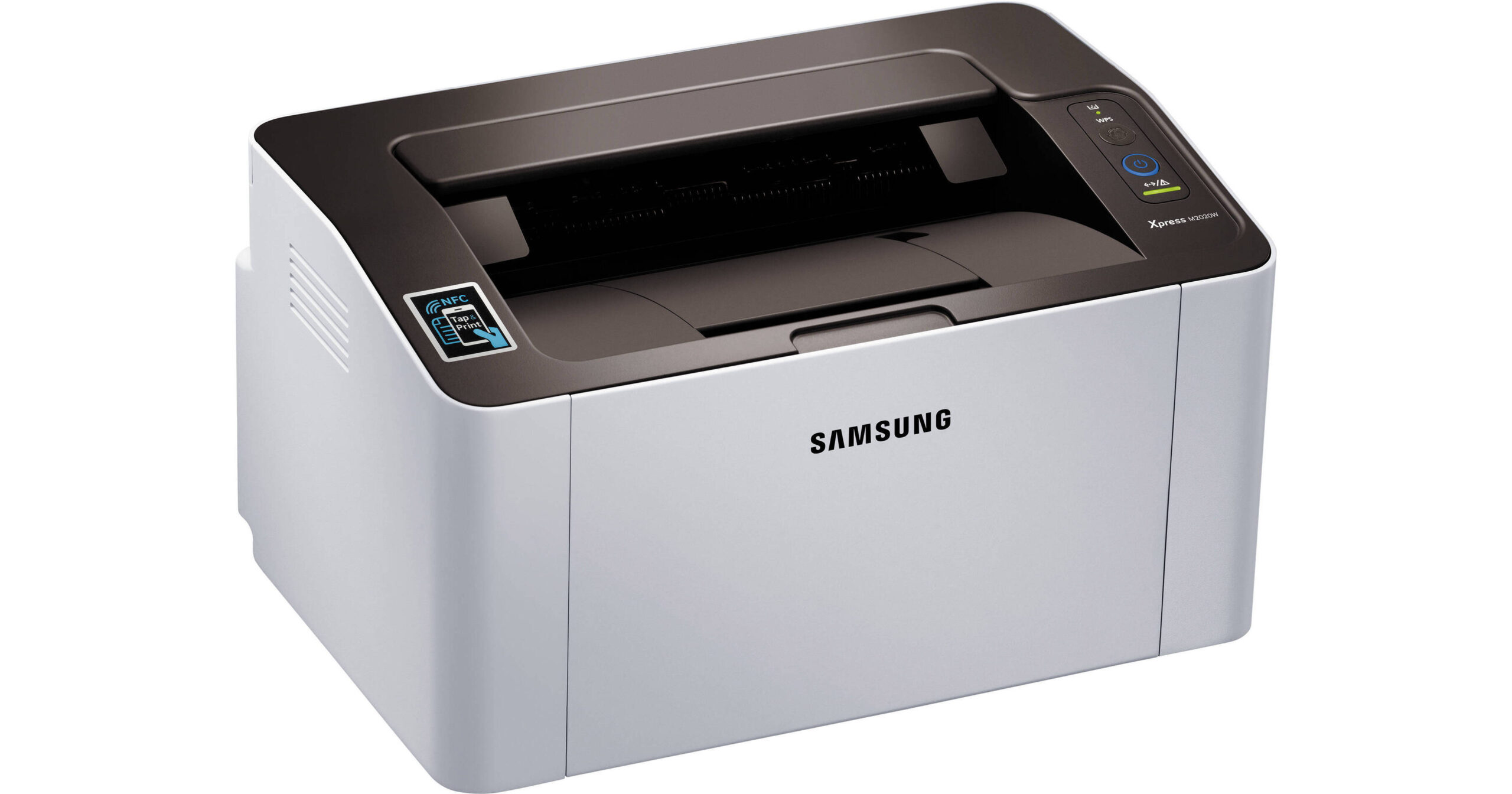
Since Samsung’s printer division was sold to HP, the M2020W driver is now hosted on HP’s support site rather than Samsung’s own. This is the single biggest source of confusion for people searching for this driver today, so the first step below covers exactly where to find it.
Download from HP’s support site (most common step people miss)
Go to support.hp.com and search “Samsung Xpress SL-M2020W” – HP now maintains the full driver archive for legacy Samsung printer models under its own support system.
Install the driver on your PC
Run the downloaded installer and choose either a USB or network connection when prompted. For USB, only connect the cable when the installer asks for it.

Connect the M2020W to Wi-Fi
Hold the WPS button on the printer’s control panel and press the corresponding WPS button on your router within two minutes, or use the printer’s small menu button to run the Wi-Fi setup wizard manually if your router does not support WPS. Once connected, the wireless light on the printer stays solid rather than blinking.
Print a test page
Confirm the driver picked up the printer correctly by printing a Windows test page from the printer properties window.
I still see this exact printer in a few small offices, and the driver install itself is quick once you know to look on HP’s site instead of Samsung’s discontinued printer support page, which now just redirects without much explanation.
Per Renata S., an Office Administrator on PeerSpot, “It took a while to figure out Samsung printer drivers moved to HP’s website, but once I found the right page the M2020W set up in a few minutes.”
Common Problems and Fixes
- Printer not found on network: reconfirm the WPS pairing or Wi-Fi setup wizard steps, and check that the printer and PC are on the same 2.4GHz network band, since the M2020W does not support 5GHz Wi-Fi.
- Driver install fails with “unsupported OS” message: download the latest driver package rather than an older archived one, since Samsung’s original files sometimes predate later Windows builds.
- Print jobs stuck in queue: clear the Windows print spooler by restarting the “Print Spooler” service in Windows Services, then resend the print job.
- NFC tap-to-print not working: confirm NFC is enabled on your phone and that the Samsung Mobile Print app (or HP equivalent) is installed, since NFC alone does not transfer the print job without it.
Keeping the M2020W reliable long term
Since this is a legacy model no longer manufactured, a bit of preventive care matters more than usual:
- Keep a backup copy of the driver installer saved locally, since download links for older models occasionally move or get retired without notice.
- Avoid letting toner sit completely empty for long stretches, since the drum unit can develop print quality issues if left idle with no toner installed.
- Reconnect to Wi-Fi manually after any router replacement, since the M2020W does not always reconnect automatically to a brand-new router even with the same network name.
- Clean the paper rollers occasionally with a lint-free cloth if you notice misfeeds, since dust buildup on rollers is a common mechanical issue on printers this age.
The small offices still using this printer generally keep it going for years past when Samsung stopped making it, simply because the mechanics are simple and the driver, once properly installed from HP’s site, rarely needs to be touched again.
Manual install if the installer will not run
Extract the downloaded driver package, open Windows Settings > Printers & scanners > Add device, and if automatic detection fails, choose “Add manually” and browse to the extracted INF file. This gets basic printing working even on machines where the full installer is blocked by IT policy.
Frequently Asked Questions
Where do I actually download the Samsung Xpress M2020W driver now?
From HP’s support site, since HP acquired Samsung’s printer business and now hosts all legacy driver downloads for this model.
Does the M2020W support 5GHz Wi-Fi?
No, it only supports 2.4GHz networks, so make sure your phone or PC connects to that band during setup.
Is the M2020W still supported with new driver updates?
It is a legacy model, so updates are rare, but the existing driver package works reliably on current Windows versions.
Can I still buy toner for the M2020W?
Yes, both genuine Samsung-branded and compatible third-party toner cartridges for this model are still widely available from office supply retailers.
Does the M2020W work with Windows on a network without a router, using just a direct Wi-Fi connection?
Yes, it supports Wi-Fi Direct for connecting straight to a phone or PC without a router, though this is separate from the normal network setup used for shared office printing.
Does the M2020W print in color?
No, this model is monochrome only – it prints black and white documents exclusively, which keeps running costs low for text-heavy printing.
What paper sizes does the M2020W support?
It handles standard letter and legal sizes along with several smaller custom sizes, all fed from its 150-sheet input tray.
How fast does the M2020W print?
Up to 21 pages per minute in monochrome, with a first page out time of about 8.5 seconds from standby.
Does the M2020W have a display screen for setup?
No, it only has status lights rather than a full menu screen, so most configuration is handled through the driver software on your computer or the Samsung/HP mobile app.
Is the M2020W a good choice for a home office today?
If you already own one, it remains a dependable low-cost monochrome printer, though buyers shopping new would generally be better served by a currently manufactured model with active long-term support.
Conclusion
The M2020W is simple to set up once you know to get the driver from HP rather than Samsung directly. If wireless setup fails, double check the 2.4GHz band requirement before assuming the driver itself is broken.
Ryan
PC hardware enthusiast · 15+ years fixing drivers