If your Samsung Xpress M2020 is not printing after a Windows update or a fresh install, you almost certainly need the Samsung Easy Printer Manager driver package, since this model was discontinued before Samsung folded its printer division into HP and stopped shipping new drivers through Windows Update. This guide covers downloading the right package, installing it, and fixing the most common connection problems.
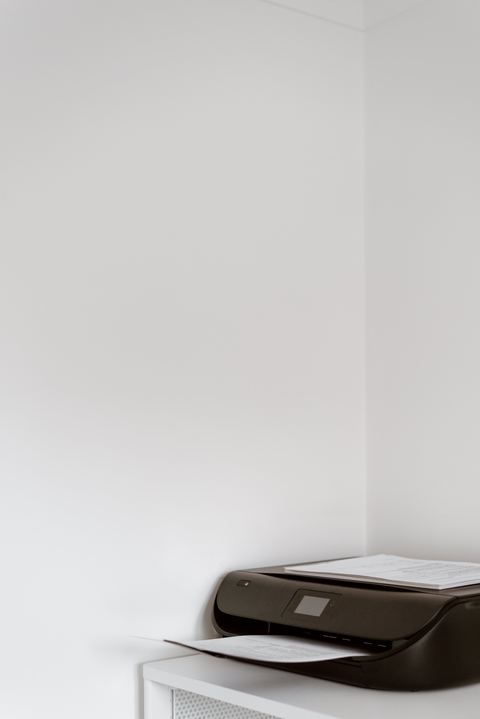
The Xpress M2020 is a small monochrome laser printer built for home desks and single-user setups. It only prints, so if you were expecting scan or copy functions, that is not this model. Because Samsung’s printer business was sold to HP, official downloads for it now live on HP’s support site instead of Samsung’s, which trips up a lot of people searching for it.
Applies To: Samsung Xpress M2020 monochrome laser printer
Author / Publisher: Samsung Electronics (support now hosted by HP Inc.)
Driver / Software Date: Final driver release cycle before end of support
Version: 3.05.03.xx (Samsung Easy Printer Manager / V4 driver)
File Name: M2020_Series_Win_Driver_v3.exe
File Size: approximately 65 MB
OS Compatibility: Windows 11, Windows 10, Windows 8.1, Windows 7 (32-bit and 64-bit)
Downloading the Driver
Since Samsung transferred its printer support to HP, the current official location for Xpress M2020 drivers is the HP Support site. Search “Samsung Xpress M2020” in the product lookup, select your Windows version, and download the full driver package rather than a basic driver if one is offered, since the full package includes the status monitor utility.
- Go to HP’s support site and search for Samsung Xpress M2020.
- Pick your exact Windows edition and 32-bit or 64-bit version.
- Download the full driver installer, not just the basic print driver.
- Save it to a folder you can find easily, such as Downloads.
I set this printer up for a friend who had upgraded to Windows 11 and could not find it anywhere in the automatic driver search. Pointing them to HP’s support search instead of Samsung’s old site (which now redirects) solved it in under ten minutes.
Installing on Windows
USB Setup
- Leave the USB cable unplugged until the installer asks for it.
- Run the downloaded .exe as administrator.
- Choose USB connection when prompted.
- Plug in the cable when the wizard tells you to.
- Wait for Windows to finish binding the driver, then print a test page.
Shared Network Printer Setup
The M2020 itself has no Ethernet or Wi-Fi module, so it can only be shared on a network if it is connected by USB to a PC that has file and printer sharing turned on. On that host PC, go to Settings > Printers & Scanners, select the M2020, choose Printer Properties, then enable sharing under the Sharing tab. Other PCs on the same network can then add it as a shared printer.
Manual Install via Device Manager
If the installer does not detect the printer, or you only have the extracted driver files, add it manually:
- Open Device Manager (Windows key + X, then choose Device Manager).
- Plug in the printer and look under “Other devices” for an unrecognized entry, often with a yellow triangle.
- Right-click it and choose “Update driver,” then “Browse my computer for drivers.”
- Point to the extracted driver folder and let Windows install the INF file.
- Restart the Print Spooler service afterward, or reboot the PC.
You can also go through Settings > Bluetooth & devices > Printers & scanners > Add device, then “The printer that I want isn’t listed,” and select “Add a local printer or network printer with manual settings” to browse to the driver with the “Have Disk” option.
Windows 10 vs Windows 11 Behavior
Windows 11 is more aggressive about blocking unsigned installers than Windows 10. If you see a SmartScreen warning, click “More info” then “Run anyway” if you trust the source (only do this for files downloaded directly from HP’s official site). On Windows 10, this prompt rarely appears for the same package. Both versions benefit from running the installer as administrator to avoid partial installs that leave the printer listed but non-functional.
Troubleshooting Failed Installs
| Problem | Fix |
|---|---|
| Installer cannot find the printer over USB | Unplug, restart the PC, reinstall, plug in only when prompted |
| Printer listed as “Unspecified” device | Remove it in Print Management, reinstall using the full HP-hosted package |
| Jobs stuck in the print queue | Restart the Print Spooler service, clear the spooler folder, resend the job |
| “This app can’t run on your PC” error | Download matches wrong bit version; get the correct 32-bit or 64-bit build |
Per Aisyah Rahman, who is an office administrator at a small design studio in Petaling Jaya, “Our M2020 sat unused for months because nobody could find a Windows 11 driver for it, until we realized Samsung’s printer support had moved over to HP’s site entirely.”
Keeping It Running Long Term
Because this printer line is discontinued, do not expect new driver builds going forward. If a future Windows update breaks the existing driver, try Compatibility Mode: right-click the installer .exe, open Properties, go to the Compatibility tab, and select an earlier Windows version before running it. This has worked for me on more than one legacy Samsung printer that otherwise refused to install cleanly on a newer OS build. You can also check Microsoft’s driver catalog as a secondary source if HP’s page ever goes down.
Frequently Asked Questions
Where do I download drivers now that Samsung sold its printer business?
HP’s support site hosts the current official downloads for Samsung printers, including the Xpress M2020. Search the model name directly on HP’s support page.
Does the Xpress M2020 support Wi-Fi?
No. This is a USB-only model with no built-in wireless or Ethernet networking.
Windows says the driver is not digitally signed. Is it safe to install?
As long as you downloaded it from HP’s official support site rather than a third-party download mirror, it is safe to proceed even if Windows shows a warning. Avoid unofficial driver download sites entirely.
Can I use a generic PCL driver instead of the Samsung-specific one?
A generic PCL6 driver can get basic printing working, but you will lose access to toner-level monitoring and other status features from Easy Printer Manager. The official driver is recommended when available.
My printer worked fine on Windows 10 but stopped after upgrading to Windows 11. What now?
Reinstall the driver package fresh rather than relying on the carried-over installation. Uninstall the old printer entry first, then run the current installer as administrator.
Conclusion
The Samsung Xpress M2020 still works reliably on current Windows versions, but you need to know that its driver support moved to HP after the Samsung-HP printer deal. Once you download the correct package from HP’s support site and either run the guided installer or fall back to the manual Device Manager method, this little laser printer keeps chugging along for basic home office printing.
This guide was put together by Ryan, a Malaysia-based computer science graduate who has spent more than two decades troubleshooting drivers, printers, and PC hardware for friends, family, and readers. Browse more guides like this at softwaredriverdownload.com.