The Reolink app is fully supported on Android, and installing it is a normal Google Play download rather than anything requiring sideloading or workarounds. This covers getting it installed, what to expect during setup, and the Android-specific settings worth knowing about.
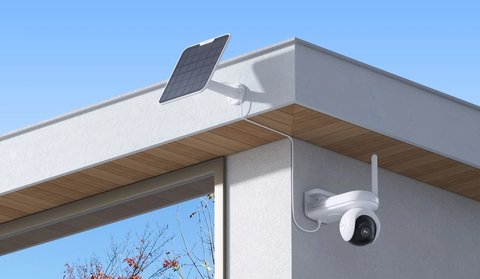
Installing the App on Android
- Open the Google Play Store and search for “Reolink”
- Confirm the listing matches the official Reolink developer before installing
- Install the app; no purchase or account is needed just to install it
- Grant camera, storage, and notification permissions when prompted so live view and alerts work correctly
Android-Specific Settings Worth Checking
- Disable battery optimization for the Reolink app so Android doesn’t kill background notifications to save power
- Enable auto-start permission if your Android skin (like MIUI or One UI) restricts background apps by default
- Check notification channel settings if some alert types aren’t coming through, since Android lets you mute specific notification categories per app
Missed notifications on Android are almost always a battery optimization issue rather than a Reolink app bug — some Android skins are aggressive about killing background apps, and the Reolink app needs to stay active to receive push alerts reliably.
Minimum Requirements
- Android 8.0 or higher
- A stable Wi-Fi connection for initial camera pairing
- Enough free storage for temporary video buffering during live view and playback
Get the app from the Reolink listing on Google Play. Reolink’s About Reolink App support article covers version history and troubleshooting by device.
Frequently Asked Questions
Does the Android app have fewer features than iOS?
No, both platforms receive feature updates around the same time; occasional minor timing differences in rollout are possible but not a consistent gap.
Why do notifications stop after a while on Android?
This is almost always battery optimization killing the background app; disable it specifically for Reolink in your phone’s battery settings.
Can I use the app on an Android tablet?
Yes, it installs and runs the same way on Android tablets meeting the minimum OS version.
Is a Google account required to install it?
A Google Play account is needed to download from the store, but that’s separate from the free Reolink account used inside the app itself.
Conclusion
Installing the Reolink app on Android is straightforward through Google Play; the main thing worth doing afterward is disabling battery optimization so notifications keep arriving reliably. Everything else works the same as it does on any other supported platform.
Ryan
Self-taught driver/hardware specialist · 15 years experience