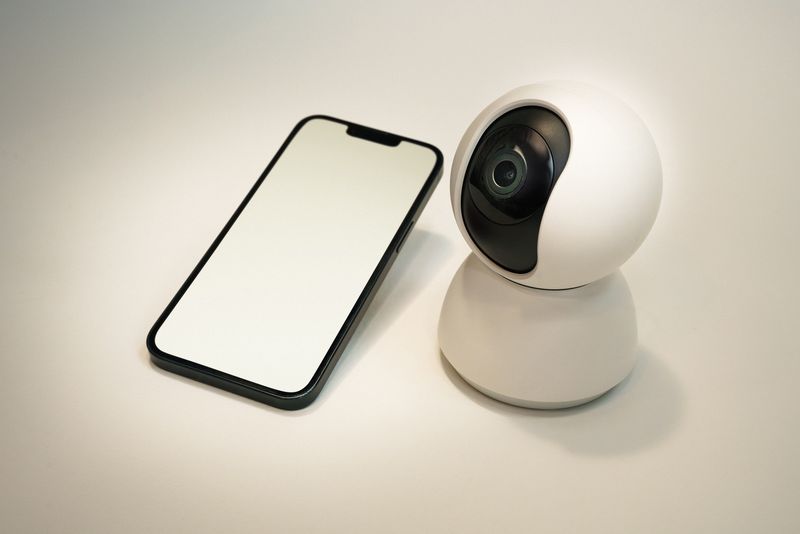
The EZVIZ CS-TY1 is an indoor pan-tilt Wi-Fi camera with 360° coverage and automatic motion tracking, aimed at keeping an eye on a room without missing activity outside a fixed frame. Like other EZVIZ models, it skips a Windows driver entirely and is set up and controlled through the EZVIZ mobile app. Here is the setup process along with fixes for the most common issues.
Install the EZVIZ app
Download the EZVIZ app from the official EZVIZ Download page or your phone’s app store, then create or sign in to your account.
Power on the camera
Plug the TY1 into a power outlet using the included micro-USB cable and wait for the status light to start blinking, signaling pairing mode.
Pair with the app
In the app, tap “Add Device,” scan the QR code on the camera or its box, and follow the prompts to connect it to your 2.4GHz Wi-Fi network.
Enable motion tracking
Turn on smart motion tracking in the camera’s app settings so the TY1 automatically follows movement around the room instead of staying fixed.
Common Problems and Fixes
- Camera will not pair — make sure the status light is actively blinking and hold your phone about 20cm from the QR code in good lighting.
- Cannot connect to Wi-Fi — the TY1 only supports 2.4GHz networks, so connect to that band specifically if your router broadcasts a combined SSID.
- Motion tracking not working — confirm tracking is enabled in the camera’s settings inside the app, and that the lens shutter (if the model has one) is open.
- No push notifications for motion — check that notifications are allowed for the EZVIZ app in your phone’s system settings, and alerts are enabled for the camera in the app.
Frequently Asked Questions
Does the EZVIZ CS-TY1 need a Windows driver?
No, it is set up and managed entirely through the EZVIZ mobile app or web client.
Does the TY1 have a physical privacy shutter?
Many TY1 variants include a smart lens shutter that closes automatically when not in use; check your specific model’s listing to confirm.
Is a subscription required to use the TY1?
No, live viewing and basic motion alerts work without a paid plan; CloudPlay is only needed for extended cloud video storage.
Conclusion
Setting up the EZVIZ CS-TY1 comes down to installing the EZVIZ app, powering on the camera, and pairing it over 2.4GHz Wi-Fi via QR code. Wi-Fi band mismatches and disabled tracking settings account for most issues afterward, both covered above.
Ryan T.
PC hardware enthusiast · 15+ years fixing drivers