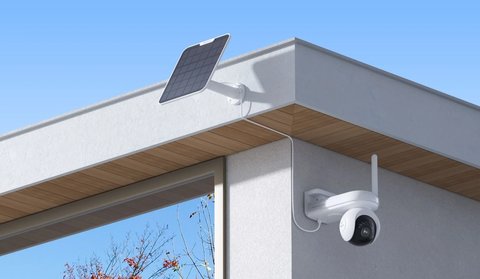
The Altas PT Ultra doesn’t have an official first-party Home Assistant integration, but it can be brought into Home Assistant through its RTSP video stream and, for some setups, the generic Reolink or ONVIF integrations already built into Home Assistant. Here’s what actually works and what to expect.
| Resolution | 4K (3840 x 2160), 8MP |
| Pan/Tilt Range | 355° pan, 90° tilt with auto-tracking |
| Field of View | 110° diagonal |
| Night Vision | Full-color night vision |
| Battery | 3.6V 20000mAh (72Wh), USB-C charging |
| Wi-Fi | 2.4GHz and 5GHz dual-band |
| Local Storage | microSD, up to 512GB |
| Weather Rating | IP65 |
| Audio | Two-way audio |
| Native Smart Home Support | Google Home, Amazon Alexa (no official Home Assistant integration) |
Using Home Assistant’s Reolink Integration
Home Assistant includes a built-in Reolink integration that supports many Reolink cameras directly, exposing live view, motion sensors, and some device controls as native entities. Support varies by exact model and firmware version, so results for a newer model like the Altas PT Ultra can lag behind older, more established cameras.
- In Home Assistant, go to Settings, then Devices & Services, and add the Reolink integration
- Enter the camera’s local IP address along with its admin username and password
- If detected successfully, Home Assistant exposes live view and available sensors as entities you can use in automations
I tried this on a home network with a handful of other Reolink cameras already paired, and the Altas PT Ultra was picked up without much trouble on the live view side. Where things got inconsistent was the pan-tilt entities — some builds of Home Assistant exposed a working PTZ control card, and others didn’t show one at all, which usually pointed back to which firmware version the camera was running.
Falling Back to a Generic RTSP or ONVIF Camera
If the native Reolink integration doesn’t fully recognize the Altas PT Ultra’s pan-tilt or battery-specific features, adding it as a generic RTSP or ONVIF camera still gets you a working live feed and basic motion detection inside Home Assistant.
- Find the camera’s RTSP stream URL in its network settings within the Reolink app
- Add it in Home Assistant as a generic camera entity using that RTSP URL
- This approach loses pan-tilt control and AI detection specifics, but keeps live view and clip access working
Battery-powered pan-tilt cameras like the Altas PT Ultra tend to be the trickiest category for smart home integrations generally, since most third-party integrations were built with fixed, always-powered cameras in mind first. Expect the generic RTSP fallback to be more reliable than full native support for a camera this new.
What You’ll Likely Give Up
- Reolink’s own AI person/vehicle detection alerts won’t translate directly into Home Assistant automations without extra setup
- Pan-tilt control from within Home Assistant may be limited or unavailable depending on integration support
- Battery percentage reporting may not appear as a clean sensor without additional configuration
Battery Life and Wake-On-Motion Behavior in Home Assistant
Because the Altas PT Ultra runs on battery power rather than a constant PoE or barrel-jack connection, it doesn’t stream continuously the way a wired camera does. Home Assistant polls or subscribes to the camera’s feed on demand, and if the camera has gone into a low-power sleep state between motion events, the first frame in a live view card can take a few seconds longer to appear than it would on a wired Reolink model. This isn’t a bug in the integration — it’s the tradeoff that comes with a 72Wh battery pack instead of a permanent power source.
A few things that helped in practice:
- Keeping the camera’s own motion sensitivity at a moderate setting rather than maximum, which reduces how often it wakes and drains the battery unnecessarily
- Using the Reolink app’s scheduling feature to disable detection overnight if the camera watches an area that doesn’t need 24/7 coverage
- Charging via the included USB-C cable roughly once every four to six weeks under typical use, though this varies a lot with how much motion the camera sees
Automation Ideas Once the Camera Is Connected
Once either integration method is working, the camera’s entities can be used like any other Home Assistant device. A few automations that work well with this specific camera:
- Trigger a notification with a snapshot attached whenever the motion sensor entity changes state, useful for a porch or driveway placement
- Turn on nearby smart lights automatically when motion is detected after sunset
- Log battery percentage (when exposed) to a history graph so you can spot a failing battery before it dies completely
Troubleshooting Common Home Assistant Connection Issues
A few problems come up repeatedly when connecting the Altas PT Ultra to Home Assistant. Here’s what usually fixes them.
- Integration can’t find the camera: Confirm the camera and the Home Assistant host are on the same subnet, and that the camera isn’t sitting on a guest or IoT VLAN that blocks local discovery.
- Live view loads but freezes after a few seconds: This is often a Wi-Fi signal strength issue on battery-powered Reolink cameras. Moving the camera or router closer, or switching the camera to the 2.4GHz band for better range, usually resolves it.
- Motion sensor entity never triggers: Check that AI detection and push notifications are enabled in the Reolink app first — Home Assistant’s motion entity typically mirrors whatever detection settings are already configured on the camera itself.
- RTSP stream shows a black screen: Double-check the RTSP URL format and that the stream sub-type (main vs. sub) matches what your Home Assistant camera platform expects; the sub stream is lower resolution but often more reliable over Wi-Fi.
- Camera keeps dropping offline: Battery-powered cameras that enter deep sleep can briefly disappear from the network. If this happens often, check the battery percentage first, since a low charge can cause more aggressive power-saving behavior.
For current integration compatibility, check the Home Assistant Reolink integration documentation, and Reolink’s own support center for RTSP stream details specific to the Altas PT Ultra.
Frequently Asked Questions
Will Home Assistant support improve for this camera over time?
Likely yes, as newer Reolink models are typically added to the integration’s supported list over subsequent Home Assistant releases.
Does adding it to Home Assistant disable the Reolink app?
No, the Reolink app continues to work normally; Home Assistant simply taps the same camera as an additional client.
Can I trigger automations from motion detection?
Yes, if the native integration exposes a motion sensor entity; with the generic RTSP fallback, you’d need a separate motion detection method within Home Assistant itself.
Does this work with Home Assistant Cloud or only locally?
Both integration methods described here work locally; remote access depends on how you’ve configured Home Assistant’s own remote access setup.
Conclusion
The Altas PT Ultra can be brought into Home Assistant today, either through the native Reolink integration if it’s recognized, or as a generic RTSP camera if not. Expect some feature loss compared to the full Reolink app experience, and check back periodically as native support for newer models tends to improve over time.
Ryan holds a Computer Science degree and spends a lot of his free time setting up and troubleshooting smart home gear, sharing what actually works for softwaredriverdownload.com readers.