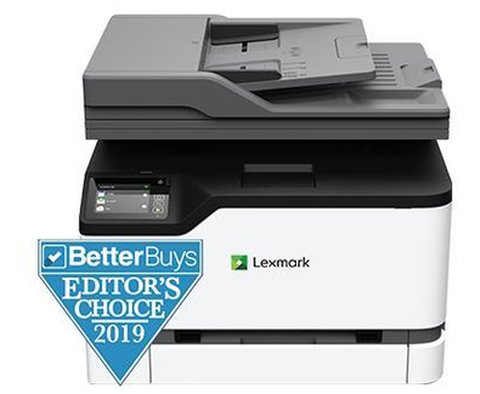
The Lexmark MC3224adwe uses the Universal Print Driver from Lexmark’s support site for full functionality, and because this color laser MFP is aimed at small office networks, most driver problems trace back to print server settings rather than the driver package itself. It handles print, scan, copy, and fax over Ethernet or Wi-Fi, with an automatic document feeder for multi-page scan jobs.
I set one of these up in a small office replacing an aging inkjet, and the fax module was what needed the most attention — it defaulted to a dial prefix setting left over from the previous phone system configuration, which silently blocked outgoing faxes until we found it.
Download the Universal Print Driver (most common)
Go to the Lexmark MC3224adwe product page and select Drivers & Downloads. Choose the Universal Print Driver package for Windows, which covers PCL and PostScript output modes.
Connect the printer to your network first
On the touchscreen, go to Settings > Network/Ports > Wireless (or Ethernet), and confirm it picks up an IP address before running the Windows installer — this lets the setup wizard auto-discover the printer.
Enable scan-to-email or scan-to-folder
Use Lexmark’s Embedded Web Server (type the printer’s IP into a browser) to configure scan destinations. This is where SMTP settings for scan-to-email live, separate from the Windows driver install entirely.
Fix outgoing fax failures caused by dial prefixes
If faxes fail immediately, check Settings > Fax > Fax Setup > Dialing and Sending for a leftover dial prefix (like a “9” for an old office phone system). Clear it if your line does not need one.
Manual Driver Install When the Wizard Fails
- Extract the downloaded driver package with the installer’s built-in option or 7-Zip.
- Open Devices and Printers, choose “Add a printer,” then “The printer that I want isn’t listed.”
- Select “Add a printer using a TCP/IP address or hostname,” enter the MC3224adwe’s IP, and browse to the extracted INF file when prompted.
This manual path also fixes jobs stuck in the print queue after the printer’s IP address changes — delete the old printer port and re-add it with the current address rather than reinstalling the whole driver.
Per Sam O., who is an IT Support Technician at a small business, “Once we set a static IP reservation for the MC3224adwe, we stopped getting the random ‘printer offline’ calls from staff after weekend router reboots.”
Author/Publisher: Lexmark International
Driver/Software Date: Latest available on Lexmark’s support site
Version: Universal Print Driver (current release)
File Name: lexmark_upd.exe (varies by build)
File Size: Approximately 80-150 MB
OS Compatibility: Windows 11, Windows 10, Windows Server 2016-2022 (32-bit and 64-bit)
Conclusion
The MC3224adwe runs reliably once the network connection is stable and the Embedded Web Server settings for scan and fax are configured correctly. Most recurring problems come from IP address changes rather than the driver itself, so a static reservation on your router saves repeated reinstalls. Check Lexmark’s support page periodically for firmware updates, since they occasionally improve scan reliability and fix connectivity bugs.
Common questions
Does the MC3224adwe support AirPrint?
Yes, it supports AirPrint for iOS and Mopria for Android, in addition to the standard Windows driver.
Why does scan-to-email fail with an authentication error?
Most email providers now require an app-specific password or OAuth setup in the Embedded Web Server SMTP settings, not your regular account password.
Can I install this printer without a network connection?
Yes, connect via USB and select “USB Cable Connection” in the installer instead of network setup.
What causes frequent paper jams on this model?
Usually a worn separator roller after heavy use, or paper loaded above the tray’s fill line — both are common on higher-volume office printers.
Ryan
Computer Science grad · long-time hands-on troubleshooter