If your Plantronics headset is not showing up as an audio device, has no microphone input, or has lost Bluetooth pairing, installing Plantronics Hub (their driver and management software) usually solves it faster than digging through Windows sound settings. This guide covers USB, Bluetooth, and 3.5mm Plantronics headsets and walks through setup, troubleshooting, and manual driver installation.
Plantronics, now part of Poly/HP, makes headsets ranging from simple wired call-center models to Bluetooth office headsets with active noise cancellation. Most modern USB and Bluetooth models work as plug-and-play audio devices under Windows without a dedicated driver, but Plantronics Hub adds proper mic level control, firmware updates, and call integration with software like Teams or Zoom that generic Windows audio does not provide.
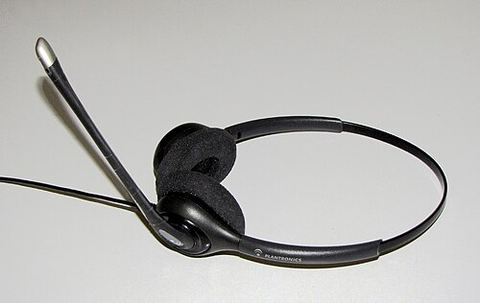
Do You Actually Need a Driver?
Before downloading anything, plug the headset in (or pair it over Bluetooth) and check Windows Sound settings. Most Plantronics USB and Bluetooth headsets are detected automatically using standard USB Audio Class drivers built into Windows, meaning basic playback and microphone function work with zero extra software.
- If sound and mic already work fine, you only need Plantronics Hub for extra features: mic mute alerts, firmware updates, and busylight/presence integration.
- If the headset is not detected at all, or the microphone does not register in any app, a driver or Hub install is likely necessary.
- Older wired analog headsets with a USB adapter dongle sometimes need a specific driver for the dongle itself, separate from the headset.
Installing Plantronics Hub
- Go to the official Poly support page for Plantronics Hub and download the Windows installer.
- Close any conferencing apps (Teams, Zoom, Skype) before installing, since Hub needs to register audio device hooks that active calls can lock.
- Run the installer as administrator and accept the prompts.
- Connect your headset (plug in USB or pair Bluetooth) during or right after installation so Hub can detect it.
- Restart your computer once setup finishes.
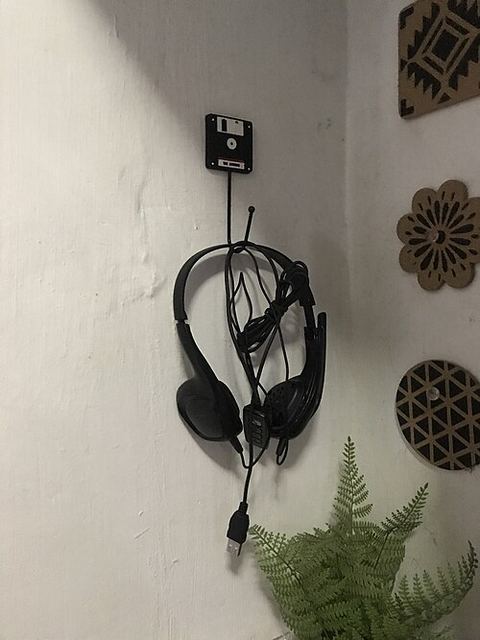
I set up a Blackwire wired headset for a relative working from home, and the detail people miss most often is that Hub needs the headset physically connected during the install to fully register the device profile. If you install Hub first and plug the headset in afterward, it usually still works, but running Hub’s device detection scan manually afterward saves a step.
Setting the Headset as Default Audio Device
Even with the correct driver installed, Windows will not automatically switch to the headset for calls unless you set it as default:
- Right-click the speaker icon in the system tray and choose “Sound settings.”
- Under Output, select your Plantronics headset from the dropdown.
- Scroll down to Input and select the Plantronics microphone as well; output and input do not always default to the same device.
- Open your conferencing app’s own audio settings (Teams, Zoom, Discord) and confirm it is also pointed to the Plantronics device, since some apps keep separate audio preferences from Windows.
Per Melissa Tan, who is an office IT administrator at a logistics company in Penang, “The number one support ticket we get for headsets is people hearing themselves in Teams but no sound reaching the other person, and it is almost always the input device set to the laptop’s built-in mic instead of the headset.”
Troubleshooting Common Issues
Headset not detected by Windows or Plantronics Hub
Try a different USB port, and for Bluetooth models, remove the device from Windows Bluetooth settings entirely and re-pair from scratch rather than just reconnecting. A stale Bluetooth pairing profile is one of the more common causes of intermittent detection.
Microphone works in Hub’s test but not in other apps
Check Windows privacy settings under Settings, Privacy & Security, Microphone, and confirm both “Microphone access” and per-app microphone permissions are turned on. Windows 11 is stricter about this than Windows 10 and blocks mic access app-by-app by default in some configurations.
Audio is choppy or cuts out over Bluetooth
This is usually interference from other 2.4GHz devices (WiFi routers, other Bluetooth accessories) rather than a driver problem. Moving the USB Bluetooth dongle (if using one) to a front-facing port or USB extension cable away from the motherboard often helps.
Firmware update fails partway through Hub
Do not disconnect the headset during a firmware update. If it fails, keep the headset connected, restart Hub, and try the update again; interrupted firmware updates can occasionally require a factory reset from Plantronics support to recover.
Manual Driver Install Through Device Manager
For the rare case where Windows shows the headset with a driver error icon, you can install manually:
- Open Device Manager and expand “Sound, video and game controllers” or “Bluetooth.”
- Right-click the Plantronics entry showing an error and select “Update driver.”
- Choose “Search automatically” first; if that fails, select “Browse my computer for drivers” and point to the extracted Plantronics Hub installation folder.
- Restart after the driver installs.
Windows 10 vs Windows 11 Behavior
Windows 11 changed the Sound settings layout significantly compared to Windows 10, moving device selection into a cleaner card-based interface under Settings, System, Sound. Functionally the underlying audio driver behavior is the same, but Windows 11’s stricter microphone privacy controls trip up more users, since a headset can appear correctly in Sound settings yet still be silently blocked at the app level. If your Plantronics mic tests fine in Windows’ own sound recorder but not inside a specific app, check that app’s individual permission toggle rather than assuming the driver is at fault. For more detail on managing input devices, see Microsoft’s official Windows sound troubleshooting guide.
Frequently Asked Questions
Do all Plantronics headsets require Plantronics Hub to work?
No. Most USB and Bluetooth models work with basic playback and recording using Windows’ built-in USB Audio Class driver. Hub adds extra features like firmware updates, mute alerts, and busylight integration but is not strictly required for basic use.
Why does my Plantronics headset keep disconnecting from Bluetooth?
This is usually a pairing or interference issue rather than a driver fault. Remove and re-pair the device, keep it within a reasonable range of the Bluetooth adapter, and check for other 2.4GHz devices causing interference nearby.
How do I update my Plantronics headset firmware?
Install Plantronics Hub, connect the headset, and open the Updates section within the app. Hub will detect available firmware for your specific model and walk you through the update, which typically takes a few minutes.
My headset works for music but not for calls. What is wrong?
This almost always points to the microphone input not being selected correctly in your calling app, even if Windows shows the correct default input device. Check the audio settings inside the specific app you are using, since many apps override the system default.
Can I use a Plantronics headset on Windows 11 without any driver install at all?
Yes for most USB and Bluetooth models, since Windows 11 includes generic audio class drivers that handle basic input and output. You would only be missing Hub’s extra management features, not core audio functionality.
Conclusion
Most Plantronics headset problems on Windows come down to either a missing Plantronics Hub install for advanced features, or the wrong input/output device selected somewhere in Windows or the calling app itself. Work through device selection first before assuming a driver reinstall is needed, since that alone resolves the majority of “no sound” and “no mic” complaints.
Ryan is a Computer Science graduate who has spent 20-plus years troubleshooting PC hardware, drivers, and peripherals professionally and as a hobby. He writes practical driver and setup guides at softwaredriverdownload.com based on real hands-on testing.