When people search for “Onikuma GT808 software,” they are usually expecting a driver install like you’d get with a higher-end headset brand. After spending time with the GT808, I can tell you the reality is simpler than that, and honestly better for anyone who just wants their headset to work without babysitting a background app. Here’s exactly what software situation you’re dealing with, plus the setup steps I used to get mine running across three different devices.
Does the GT808 Need Software to Work?
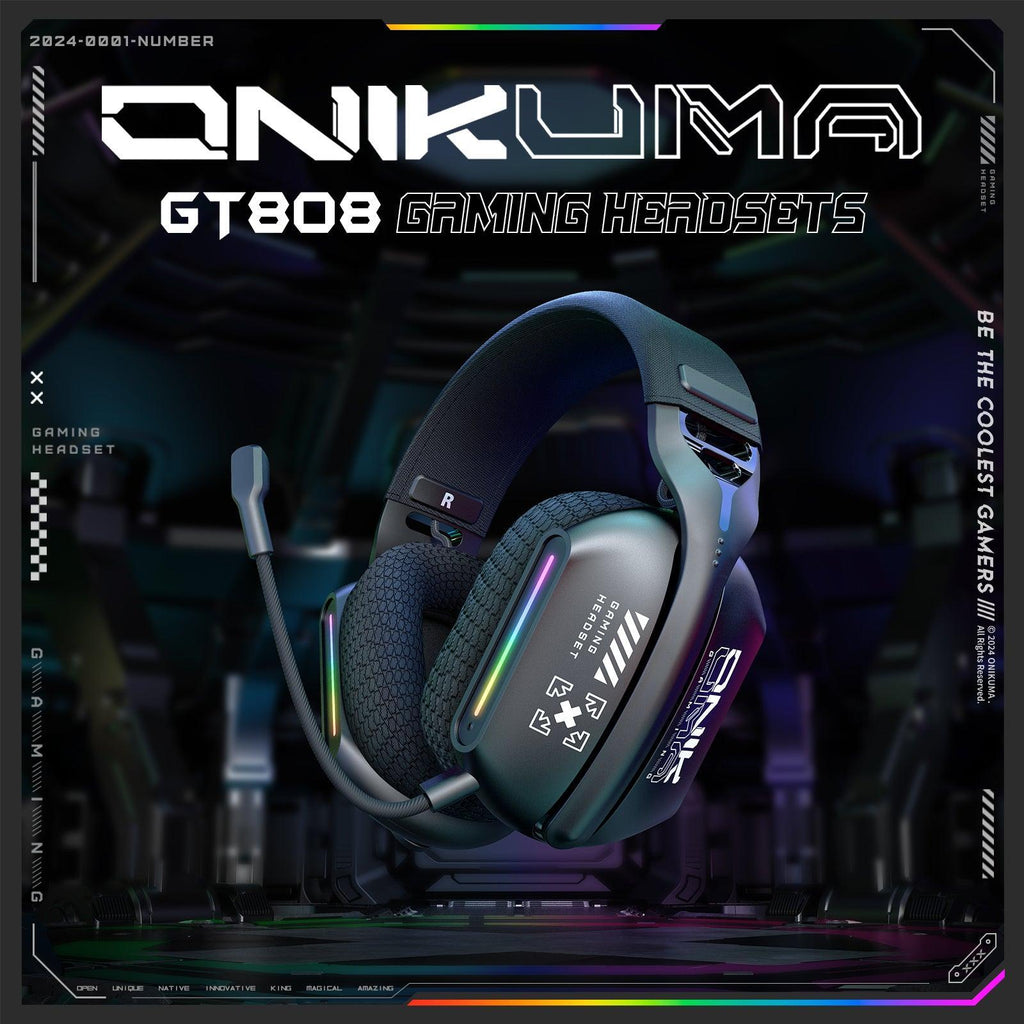
No, and that trips a lot of people up. The GT808 is a wireless gaming headset built around a 40mm driver and the JL7018 audio chipset, with Bluetooth 5.3 as one of its three connection modes alongside 2.4GHz wireless and a wired option. For basic listening and microphone use, it is entirely plug-and-play on Windows, macOS, and even Linux.
Quick answer: There is no mandatory driver for the GT808. The only optional software is for customizing the RGB lighting, and even that is not required for audio or mic functionality.
What the Onikuma Software Actually Does
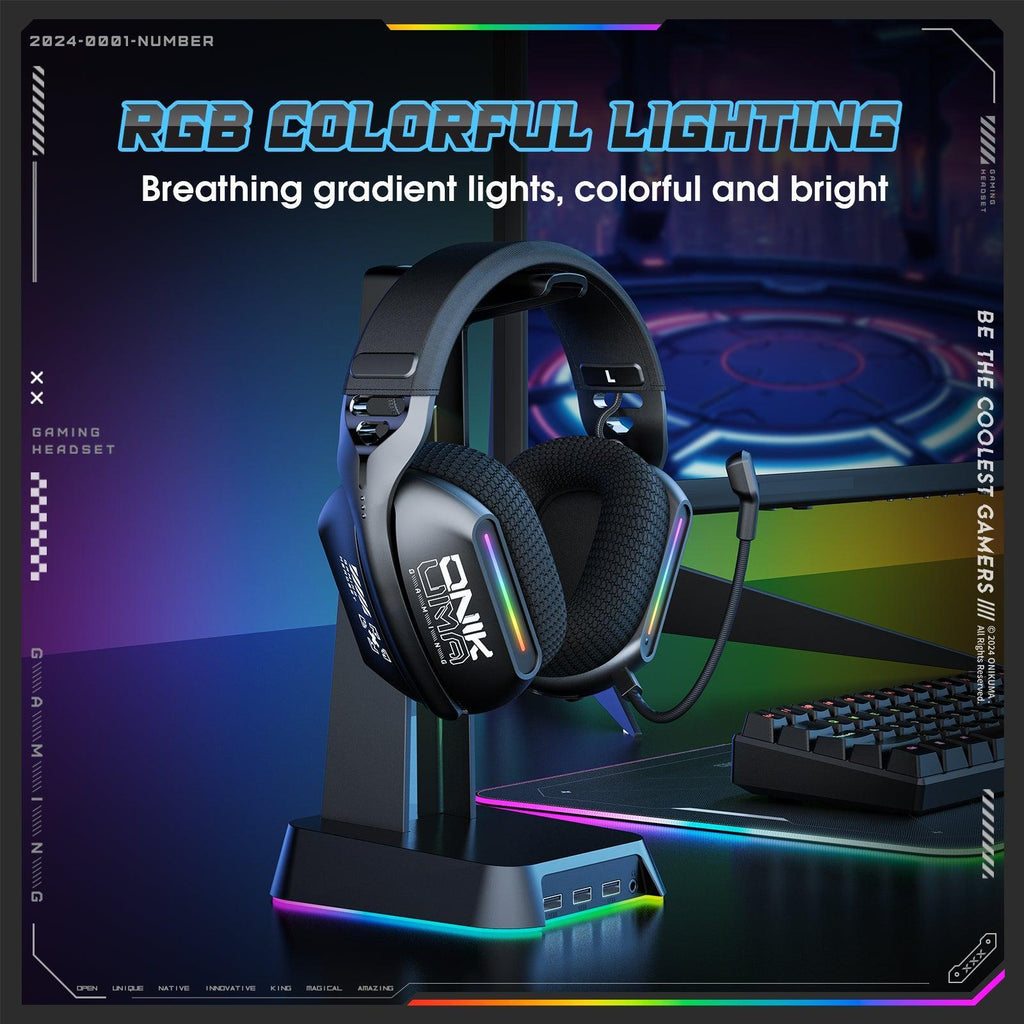
- Switches between RGB lighting modes like static, breathing, and rainbow cycling
- Lets you pick specific colors or gradient combinations
- Does not control EQ, surround sound, or microphone gain on this particular model
If a third-party site offers you a standalone “GT808 driver” download outside of onikuma.com, be cautious. Since the headset does not need a driver to function, there is little legitimate reason for such a file to exist, and it carries real malware risk.
Setting Up the GT808 on Windows
- Charge the headset fully before first use, using the included USB-C cable.
- For 2.4GHz wireless, plug in the small USB dongle, then power on the headset. It connects automatically within a few seconds.
- For Bluetooth 5.3, hold the power button until the LED flashes quickly, then pair it from your PC’s Bluetooth settings just like any other Bluetooth accessory.
- Open Settings > Sound and confirm the GT808 is selected as both the output and input device.
- Test the microphone using the Windows Sound settings input test bar before jumping into a game or call.
Setting Up the GT808 on Mac and Mobile
On macOS, Bluetooth pairing works the same way as any standard Bluetooth headset, through System Settings > Bluetooth. On mobile devices, the GT808 pairs the same way over Bluetooth 5.3, and since there is no companion app requirement, it works identically whether you’re on Android or iOS.
Chipset and Connectivity Breakdown
| Driver size | 40mm dynamic driver |
| Chipset | JL7018 |
| Bluetooth version | Bluetooth 5.3 |
| Other modes | 2.4GHz USB dongle, wired 3.5mm/USB-C |
| Software requirement | Optional, RGB customization only |
Fixing Common Software-Related Issues
Headset shows as connected but no audio plays
Right-click the speaker icon in your taskbar, open Sound settings, and manually select the GT808 as the default output device. Bluetooth headsets sometimes connect for calls but stay on the wrong audio profile for media playback until you set it manually.
Microphone sounds muffled or quiet in Bluetooth mode
This is a known limitation of Bluetooth’s lower-bandwidth call profile, not a software bug. Switching to the 2.4GHz dongle or a wired connection gives noticeably clearer microphone quality since it does not have to compress both audio directions over the same limited Bluetooth channel.
RGB lighting won’t change color
Confirm you’re using the official RGB tool from onikuma.com rather than a third-party download, and make sure the headset is connected via USB rather than purely over Bluetooth, since lighting controls on many Onikuma models require a physical USB link to function.
Headset not appearing in Bluetooth device list
Hold the power button for the full pairing duration, usually around 5 seconds, until you see the LED flash rapidly rather than pulse slowly. A short press only powers the unit on without entering pairing mode.
Frequently Asked Questions
Is there an official Onikuma GT808 driver download?
No standard driver is required. The only official downloadable extra is the RGB lighting utility, available through Onikuma’s own site rather than third-party download portals.
What chipset does the GT808 use?
The JL7018 chipset handles the wireless audio processing across its Bluetooth and 2.4GHz modes.
Can I use the GT808 wired if the battery dies?
Yes, the wired 3.5mm/USB-C connection works even with a fully depleted battery, so you are never stuck without audio during a low-battery moment.
Does Bluetooth 5.3 make a noticeable difference over older Bluetooth versions?
Mainly in connection stability and lower latency compared to Bluetooth 4.x headsets. You likely won’t hear a dramatic audio quality jump, but dropped connections should be less frequent.
Switching Between Devices Without Losing Your Mind
One thing I did not expect going in was how painless it is to bounce the GT808 between a desktop and a phone during the same session. Since Bluetooth pairing and the 2.4GHz dongle are independent connections, you can leave the dongle plugged into your PC and still pair the headset to your phone over Bluetooth at the same time. The headset does not truly do simultaneous dual audio, but switching which source is active only takes a few seconds through the power button sequence rather than digging through a menu.
- Keep the 2.4GHz dongle in your PC full time for the lowest latency during gaming sessions
- Use Bluetooth when you want to walk away from your desk but still take a call or listen to something on your phone
- Fall back to the wired cable for zero-latency scenarios, like recording audio where any wireless delay would be noticeable
This flexibility is really the main selling point once you get past the initial “do I need software” question. Most people who search for GT808 software are really just trying to confirm they have not missed an installation step, and the honest answer is that Onikuma designed this one to work without babysitting.
Final Thoughts
If you came here worried you were missing a required install, you can relax. The GT808’s software situation is about as low-friction as gaming headsets get, and the tri-mode connectivity makes it flexible enough to bounce between a gaming PC, a laptop, and a phone without much fuss. For most buyers, the RGB utility is the only thing worth downloading, and even that is entirely optional.
Written by Alyssa Chen, a computer science graduate and audio gear reviewer based in San Diego who has covered wireless gaming headsets and their driver ecosystems for several years.