If you searched for the ONIKUMA M930 expecting a gaming mouse, I want to clear something up right away: the M930 is not a mouse. Onikuma’s mouse lineup uses CW and DM model numbers – things like the CW930, CW925, or DM07 – and there is no M930 mouse anywhere in that catalog. The M930 is actually a USB studio microphone, built for streaming, gaming voice chat, and vocal recording. I dug into this because the model number genuinely looks like it belongs with the mice, so the confusion is understandable. Here is what the M930 really is and how to get the most out of it.
| Brand | Onikuma |
| Model | M930 |
| Product Type | USB studio RGB microphone (not a mouse) |
| Pickup Pattern | Cardioid |
| Sample Rate | 48kHz capture with built-in HIFI sound card |
| Monitoring | 3.5mm zero-latency headphone jack on the mic |
| Connection | USB plug-and-play, no drivers required |
What People Expect
- A gaming mouse, based on the M-prefix and the model number pattern
- Possible DPI, polling rate, or grip-style specs
- Mouse driver software for macro or button programming
What the M930 Actually Is
- A USB condenser-style RGB microphone for streaming and recording
- 48kHz audio capture with a built-in HIFI sound card
- Plug-and-play, no drivers or account required
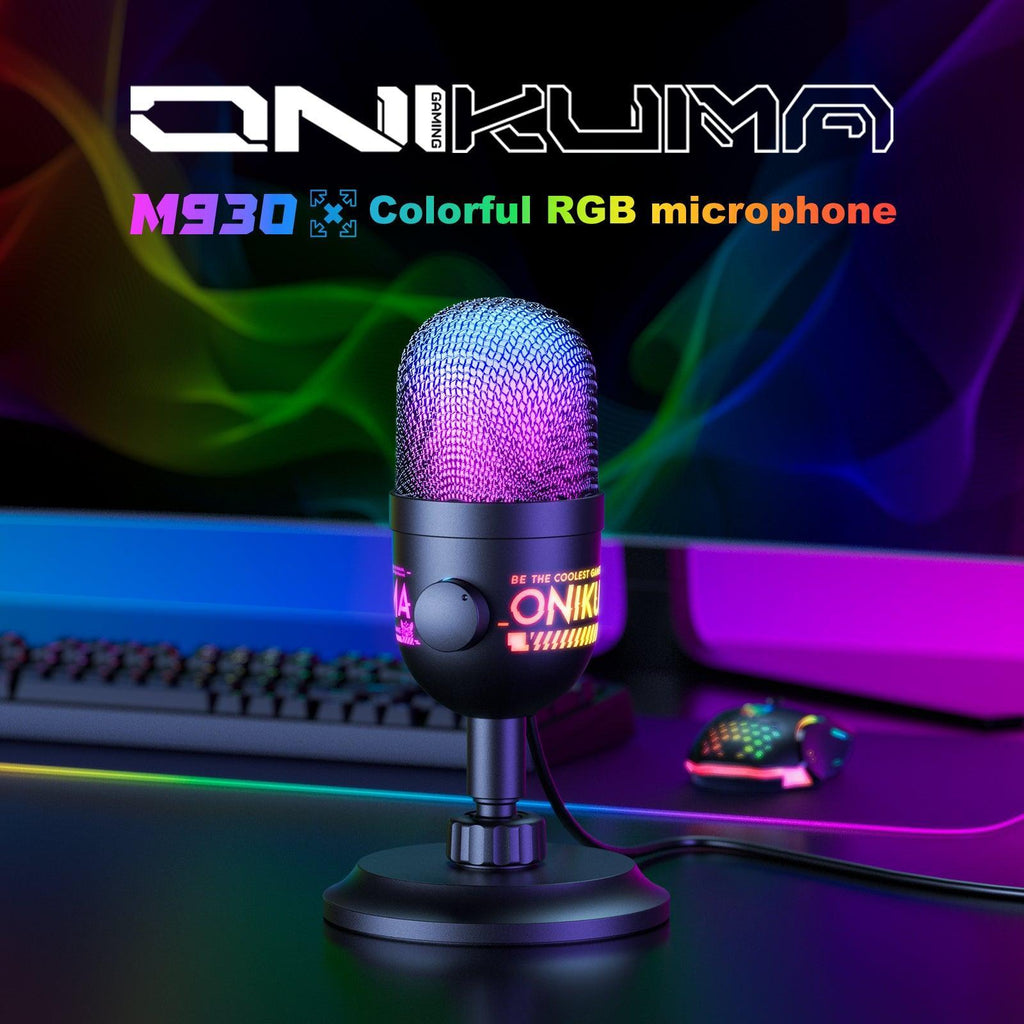
M930 Specifications
According to Onikuma’s official product listing, the M930 is positioned as an entry-level studio microphone rather than a basic headset mic, and the spec sheet backs that up:
- Cardioid pickup pattern with a built-in HIFI sound card, so it does not rely on your motherboard’s onboard audio
- 48kHz sampling rate for capture
- Intelligent background noise reduction
- 3.5mm headphone jack on the microphone itself for real-time zero-latency monitoring
- Knob-type gain adjustment built into the base
- Customizable RGB lighting with multiple modes, including an off setting
- USB plug-and-play connection, no external driver needed
Setting Up the M930
- Plug the M930 into a free USB-A port on your PC or laptop.
- Windows and macOS will both detect it automatically as a new audio input device, typically within a few seconds.
- Open Sound settings and set the M930 as your default recording device.
- Use the gain knob on the base to set your input level, aiming for a peak that stays out of the red zone in your recording or streaming software’s meter.
- Plug headphones into the microphone’s own 3.5mm jack if you want to monitor your voice in real time without the delay you get from monitoring through most software.
Getting Better Audio Out of It
- Distance matters: sit roughly six to eight inches from the microphone. Too close and cardioid mics like this one exaggerate bass and breathing sounds; too far and background noise creeps in.
- Use a pop filter or foam windscreen if you notice popping on words with hard “P” and “B” sounds, since the M930 does not ship with one in most bundles.
- Turn off the RGB lighting during actual recording sessions if you are picking up your webcam in frame and do not want the glow reflected on your face or glasses.
- Check your recording app’s input selection separately from Windows, since apps like OBS, Discord, and Audacity each have their own device dropdown that does not always follow the system default.
Common M930 Problems
- No sound picked up at all: confirm the M930 is selected as the input device inside the specific app you are using, not just in Windows Sound settings.
- Audio sounds distorted or clipped: lower the gain knob on the base. It is easy to overdrive the built-in sound card if the knob is turned up too far.
- Delay when monitoring through headphones plugged into your PC: plug your headphones directly into the microphone’s own 3.5mm jack instead, which gives you zero-latency monitoring rather than routing audio back through your computer.
- RGB lights stuck on one color or not responding: unplug and reconnect the USB cable, and try a different USB port if the issue persists, since the lighting controller shares the same USB connection as the audio.
Who the M930 Actually Makes Sense For
I would not recommend the M930 to someone chasing broadcast-quality voiceover work; dedicated XLR microphones with a proper audio interface still win there by a wide margin. Where the M930 earns its keep is the gap between a built-in laptop mic or basic headset mic and a full studio setup. Casual streamers, Discord regulars who are tired of sounding tinny, and anyone recording short-form gaming clips or voice lines for a small project will notice a real improvement without needing to learn audio interface routing or buy separate preamp gear.
- Good fit: Discord voice chat, game streaming on a budget, casual YouTube commentary, voice memos
- Not ideal for: professional podcast production, music vocal tracking, or any use case demanding studio-grade XLR flexibility
If You Actually Want an Onikuma Gaming Mouse
For anyone who landed here specifically hunting for a mouse, Onikuma’s gaming mouse lineup includes wired and wireless options across the CW and DM series, with sensors ranging up to 12,800 DPI depending on the model. None of them use the M930 designation, so if a listing shows “Onikuma M930 mouse” anywhere, double-check the seller before buying, since it is likely a mislabeled listing for either the actual microphone or an unrelated product entirely.
Frequently Asked Questions
Is the Onikuma M930 a mouse or a microphone?
It is a USB studio microphone. There is no gaming mouse in Onikuma’s lineup that uses the M930 model number.
Does the M930 need drivers installed?
No. It is a USB plug-and-play device recognized automatically by Windows and macOS without any additional software.
Can I use the M930 for game streaming and Discord at the same time?
Yes, select it as your input device in each application separately, since Discord, OBS, and other apps each manage their own audio device selection independently of the Windows system default.
Does the M930 come with a stand or arm?
It ships with a basic desktop stand in most bundles. A boom arm is not included but is compatible if you prefer to mount it that way.
Final Thoughts
The naming mix-up is genuinely easy to make, but once you know the M930 is a microphone rather than a mouse, setup is refreshingly simple: plug it in, pick it as your input device, and adjust the gain knob until your levels look right. For anyone building a budget streaming setup or just wanting clearer voice chat than a headset mic provides, it is a reasonable step up without adding software or driver headaches to your workflow.
Sam Whitfield is a Denver-based audio and PC hardware enthusiast with a computer science background who has spent the last several years testing budget streaming gear to see which entry-level products are actually worth recommending.