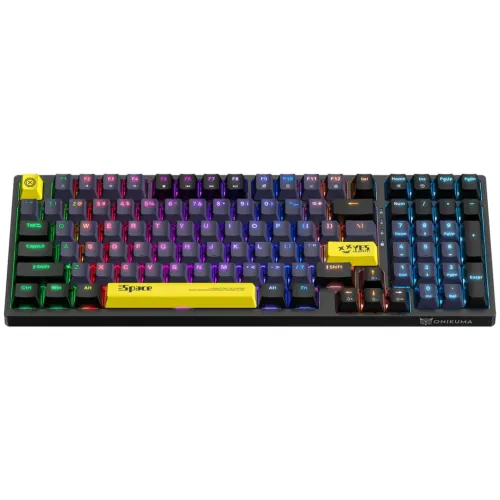
The ONIKUMA G38 is a 98-key wired mechanical keyboard, and after spending a couple of weeks typing and gaming on one, I can say it is one of the more surprising budget mechanical boards I have tested – not because it does anything groundbreaking, but because it gets the basics right at a price where corners usually get cut.
| Layout | 98-key (number pad retained) |
| Switch Type | Mechanical blue or brown |
| Switch Rating | ~50 million keystrokes |
| Connection | USB wired, 1.8m braided cable |
| Lighting | 20 RGB effects, FN shortcut control |
| Keycaps | ABS matte, three-shot on some batches |
| Software Required | None (plug-and-play) |
What Is in the Box
The G38 ships as a tenkeyless-adjacent 98-key layout, meaning it keeps the number pad but tightens up the spacing between clusters compared to a full-size board. It is available with blue or brown mechanical switches, both rated for around 50 million keystrokes, and it connects over USB-A with a detachable braided cable that also fits USB-C on newer revisions.
- 98-key compact layout with number pad retained
- Hot-swappable-style mechanical blue or brown switches, depending on the version purchased
- 20 built-in RGB lighting effects, cycled with the FN+End shortcut
- 5 dedicated game-mode lighting presets
- ABS matte keycaps with a three-color, three-shot design on some batches
- 1.8 meter braided PVC cable
Do You Need to Install Software for the G38
No, and this is where the G38 differs from higher-end mechanical keyboards. It is explicitly plug-and-play: connect it over USB, and Windows or macOS assigns the standard HID keyboard driver automatically. There is no companion RGB software, no macro editor app, and nothing on the official Onikuma downloads page specific to the G38’s lighting engine, because all of the lighting effects and the handful of onboard functions are controlled directly through keyboard shortcuts rather than a desktop app.
Keyboard Shortcuts Worth Memorizing
- FN + End cycles through the 20 RGB lighting modes.
- FN + Up/Down arrows adjusts brightness in most firmware revisions.
- FN + Left/Right arrows changes lighting speed on animated effects.
- FN + number keys 1 through 5 switches between the built-in game-mode presets, which typically disable the Windows key to prevent accidental exits mid-match.
Typing and Gaming Feel
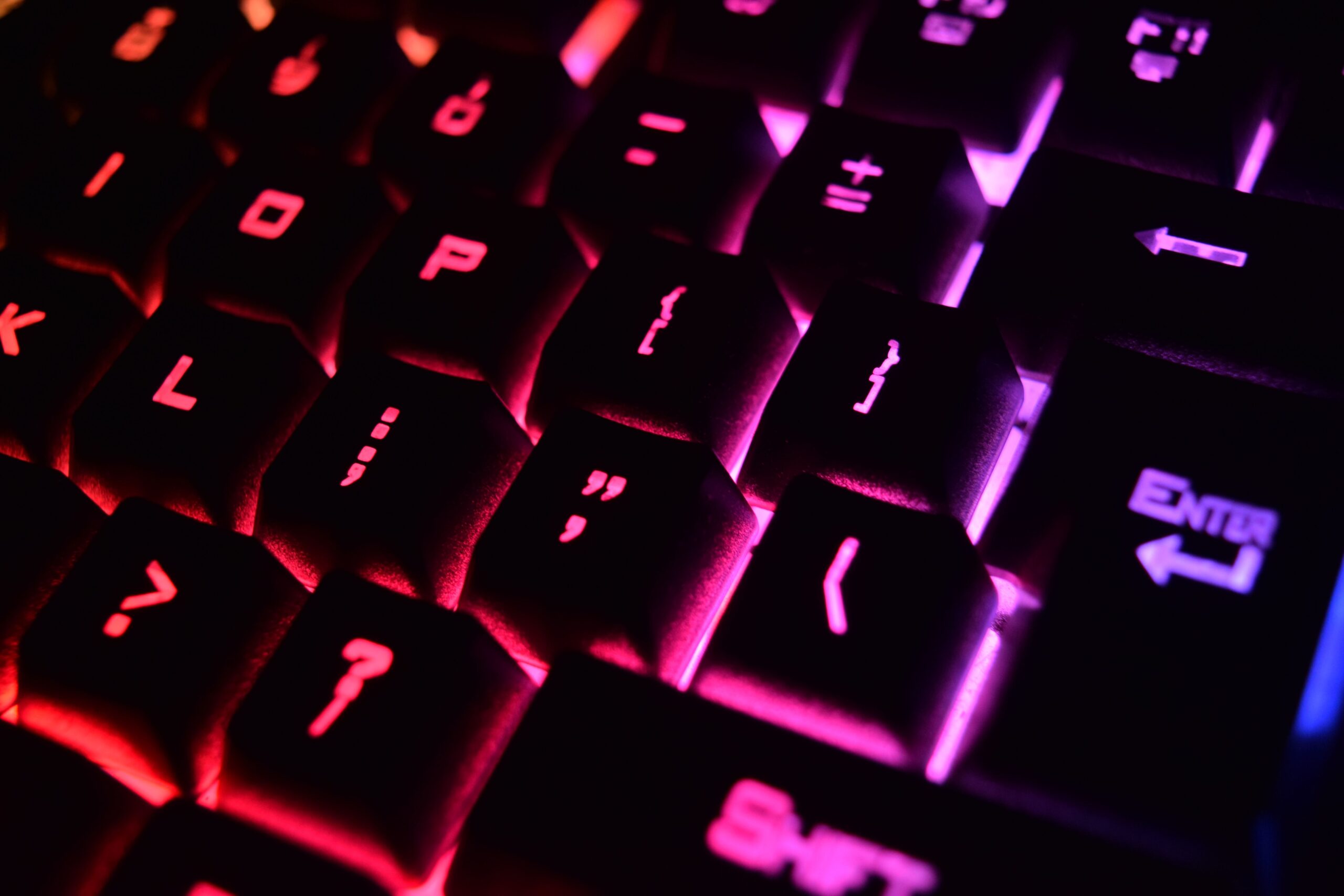
The blue switch version I tested has a noticeably clicky, tactile bump, which is satisfying for typing but on the loud side for shared spaces or late-night sessions where you do not want to wake anyone up. If that is a concern, the brown switch version trades the audible click for a quieter tactile bump without losing much responsiveness. Key travel felt consistent across the board with no obvious wobble on the larger keys like Enter, Shift, or Spacebar, which is a common failure point on cheaper keyboards in this price range.
Fixing Common G38 Problems
- Keyboard not detected at all: try a different USB port, preferably one on the motherboard’s rear I/O rather than a front-panel header, since some front headers do not supply consistent power for the LED backlighting.
- Stuck or double-registering keys: mechanical switches can trap dust under the keycap. Pop the affected keycap off with a keycap puller and clean around the stem with a can of compressed air.
- RGB effects not cycling with FN+End: confirm the FN key indicator light (if present) is active, and check that no other software, like a separate mouse utility, is intercepting the FN key combination.
- Game mode disabling keys you still need: press the same FN + number shortcut again to toggle game mode off, since it is a simple on/off state rather than a permanent setting.
- Keyboard works but backlighting stays off: check the USB cable itself. On boards like the G38, a cable rated for data-only (common with some phone chargers repurposed as keyboard cables) will not carry enough current for the LEDs even though typing still works.
How It Compares to Other Onikuma Keyboards
Onikuma’s current keyboard lineup spans a wide range, from the compact 60 percent G67 Hall-effect board down through full-size wired models like the G38. If you want the smallest possible footprint for a competitive setup, the G38’s 98-key layout is not the pick. If you actually use the number pad for spreadsheets, chat macros, or just prefer having it there, the G38 hits a comfortable middle ground between size and function that the ultra-compact boards give up entirely.
Build Quality and Value
The case on the G38 is a mix of plastic and a stiffened internal plate, which keeps flex to a minimum when you press hard on keys during intense moments. It is not aluminum-framed like some premium boards, but for the price bracket it competes in, that is a reasonable tradeoff. The keycaps use a matte, slightly textured finish that resists fingerprint smudging better than glossy ABS caps found on some competing budget keyboards, though the legends can wear down faster than dye-sublimated or double-shot caps over a year or two of heavy daily use.
Where the G38 earns its price is consistency. Every key on the board I tested actuated cleanly with no dead spots, no double registers, and no noticeably scratchy switches out of the box, which is not something I take for granted after testing several similarly priced boards that had at least one problem key right from the start.
Maintenance Tips
- Unplug the keyboard before cleaning and use compressed air rather than liquid cleaners near the switches.
- Wipe the keycaps weekly with a slightly damp microfiber cloth to prevent the matte coating from picking up finger oils, which is a common complaint on ABS keycaps over time.
- If a switch starts feeling scratchy, a small drop of switch-specific lubricant applied carefully can extend its life, though this does void any warranty coverage.
Quick Reference
- Layout: 98 keys
- Switches: Mechanical blue or brown
- Connection: USB wired
- Software required: None
- Lighting control: FN shortcuts only
- Cable: 1.8m braided
Frequently Asked Questions
Is the G38 hot-swappable?
Most retail units use soldered switches rather than true hot-swap sockets, so check your specific listing before planning a switch upgrade.
Does the G38 work on a Mac?
Yes, basic typing functions work immediately since it uses standard USB HID input, though a few media keys may map differently than on Windows.
Can I use the G38 without RGB lighting?
Yes, cycle through the lighting modes with FN+End until you reach the lights-off setting, which does not affect typing performance.
Why is there no software download for the G38?
Onikuma built the G38 as a fully plug-and-play keyboard, so all lighting and mode controls are handled through onboard shortcuts instead of a desktop app.
Derek Alonso is a Chicago-based systems administrator and lifelong PC gamer who has spent the past several years reviewing budget mechanical keyboards for how they hold up to daily typing, not just a first impression out of the box.