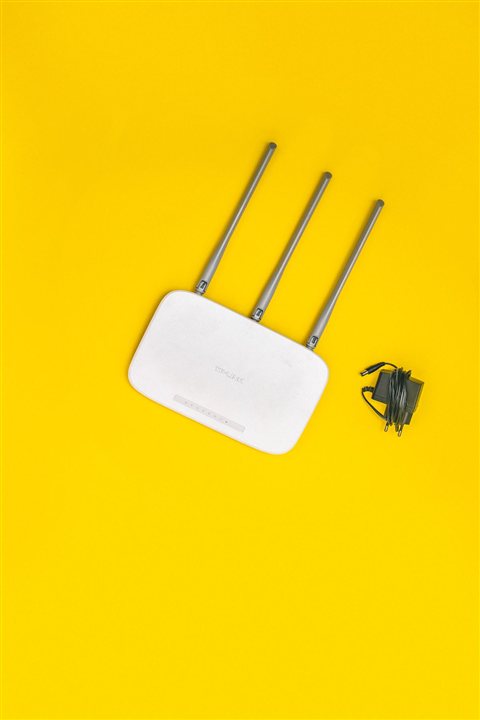
If your Netgear Nighthawk router will not connect to your Windows PC, or the network adapter tied to it keeps dropping, reinstalling the correct network driver through Device Manager fixes it in most cases. This guide covers download, install, troubleshooting, and a manual driver method for Nighthawk routers on Windows 10 and Windows 11.
Nighthawk routers connect over standard Ethernet and Wi-Fi, which Windows already supports natively. Driver problems usually show up on the PC side – a Wi-Fi adapter that lost its driver after an update, or a Nighthawk USB Wi-Fi adapter (sold separately for older desktops) that needs Netgear’s own driver package.
| Field | Detail |
|---|---|
| Applies To | Netgear Nighthawk series routers and paired USB/PCIe Wi-Fi adapters |
| Author/Publisher | Netgear |
| Driver/Software Date | Varies by model – check the Netgear support page for the latest build for your model |
| Version | Model-specific, verify against the model/version sticker on your router |
| File Name | Typically a .zip archive containing .inf/.sys driver files |
| File Size | Roughly 5–25 MB depending on adapter model |
| Requirements | Windows 10 64-bit or Windows 11 |
Downloading the Correct Nighthawk Driver
Go to Netgear’s official support page and search by your exact model number, printed on the bottom of the router. Nighthawk covers a huge range of models (RAX, R7000, R6700, and many more), and each has its own separate driver and firmware package – do not assume a similar model number uses the same file.
- Enter the exact model number from the router’s underside label
- Open the Downloads tab and pick the driver section (not firmware, which is different and updates the router itself)
- Choose the file matching your Windows version
- Extract the .zip before running anything inside it
Installing on Windows 10 and Windows 11
Run the extracted installer as administrator and restart afterward. I ran into a frustrating case on my own home network where a Nighthawk USB adapter kept reverting to a generic Microsoft driver after every Windows 11 update – reinstalling Netgear’s own driver and then locking Windows Update from replacing drivers automatically (Settings > Windows Update > Advanced options) finally stopped it from happening again.
Common Problems and Fixes
- Router visible but no internet – restart both the router and modem, in that order, waiting 30 seconds between each
- Frequent Wi-Fi disconnects – open Device Manager, find the wireless adapter, go to Power Management tab, and uncheck “Allow the computer to turn off this device to save power”
- Slow speeds after driver install – log into the router admin panel and check that the router firmware itself is also up to date, since an outdated firmware can bottleneck even a correctly installed PC driver
- Adapter missing entirely from Device Manager – try a different USB port, preferably USB 2.0 for older Nighthawk USB adapters, since some do not negotiate reliably on USB 3.0 headers
Per Aaron P., who is a Home Network Consultant at a residential IT services company, “Reinstalling the Netgear adapter driver and disabling USB selective suspend fixed random disconnects that had been happening for months on a client’s Nighthawk setup.”
Manual Driver Install (When the Installer Fails)
If the setup executable will not launch or gets blocked by security software, install the driver manually through Device Manager instead:
- Extract the downloaded driver .zip to an easy-to-find folder
- Open Device Manager and locate the adapter, often listed as “Unknown device” or “Ethernet Controller” with a yellow warning icon
- Right-click and select Update driver
- Choose “Browse my computer for drivers” and select the extracted folder
- Allow Windows to install the matching .inf driver, then restart the computer
Verifying the Fix Worked
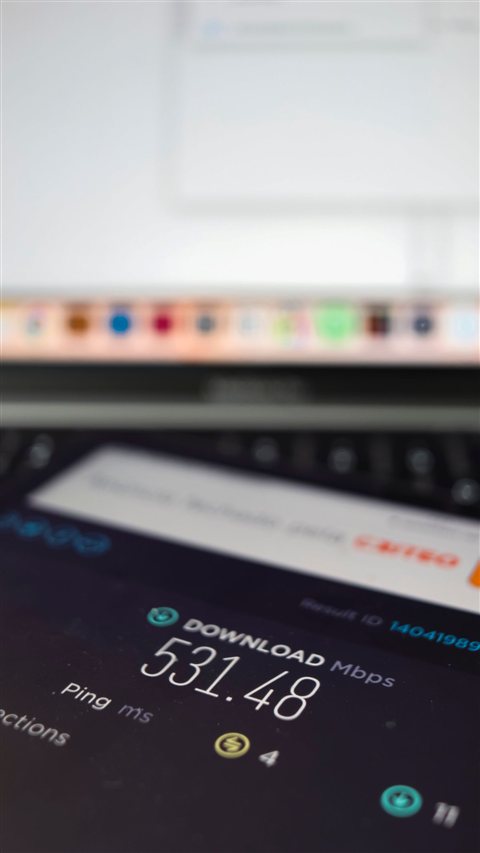
After reinstalling the driver and restarting, run a quick speed test to confirm stable throughput, and check Device Manager one more time to make sure no warning icons remain on the network adapter. If speeds still look wrong, compare them against your plan’s advertised speed from your internet provider before assuming the driver is at fault.
Windows 10 vs Windows 11 Behavior
Windows 11 enforces stricter driver signing, so an older unsigned Nighthawk adapter driver may fail to install until you grab the latest build from Netgear’s site. Windows 10 is more forgiving with older packages but can still silently swap in a generic Microsoft driver after a major update, which is why re-checking Device Manager after any Windows update is a good habit either way.
Frequently Asked Questions
Does the Nighthawk router itself need a Windows driver?
No, the router connects over standard Ethernet and Wi-Fi that Windows already supports. A driver is only needed for a separate Netgear USB or PCIe Wi-Fi adapter.
Where do I find my exact Nighthawk model number?
Check the label on the bottom of the router. It lists the exact model (such as RAX40 or R7000) needed to download the matching driver or firmware.
Why does my adapter keep reverting to a generic Windows driver?
Windows Update sometimes installs its own generic driver automatically. Reinstall the Netgear driver, then set Windows Update to not automatically replace drivers under Advanced options.
Is firmware the same thing as a driver?
No. Firmware runs on the router itself and is updated through the router’s admin panel. A driver runs on your PC and lets Windows talk to a network adapter. Both should be kept up to date, but they are separate updates.
Should I use the 2.4GHz or 5GHz band after reinstalling the driver?
Use 5GHz when you are close to the router and need top speed, and 2.4GHz when you need better range through walls. A freshly reinstalled Nighthawk driver supports both bands equally, so the choice comes down to distance and interference, not driver capability.
Conclusion
Most Nighthawk connectivity headaches on Windows trace back to an outdated or generic driver on the PC side, not a fault with the router itself. Reinstall the correct driver for your exact model, keep both the driver and router firmware current, and use the manual Device Manager method whenever the installer refuses to run. Once set up correctly, a Nighthawk connection is typically very stable.
Ryan
Self-taught driver/hardware specialist · 15 years experience